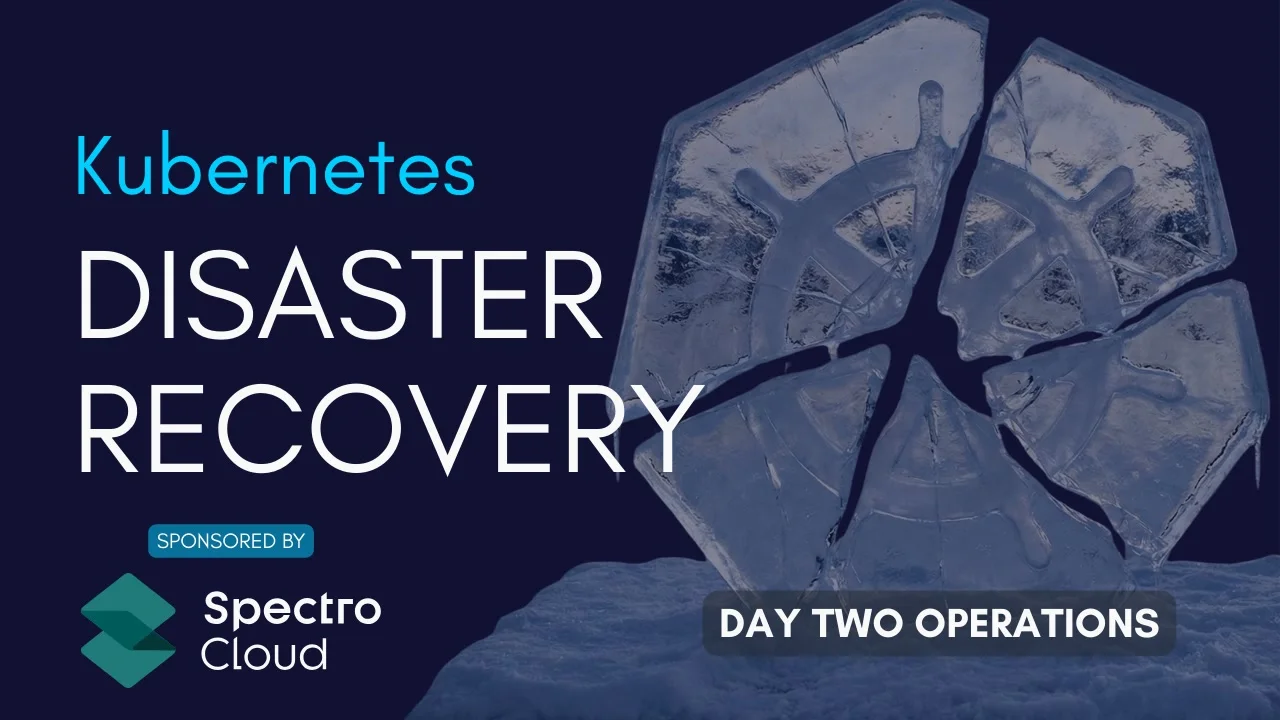
Kubernetes Disaster Recovery
- Date
- Runtime
- 19:17
- Share
About this video
What You'll Learn
- Back up a single namespace with Velero while preserving Postgres and PVC data.
- Restore a deleted namespace from backup and recover pods, stateful sets, and volumes.
- Centralize scheduled RBAC controlled backups in Palette across clusters with shared storage policies.
Back up a stateful Postgres workload with Velero, simulate a namespace disaster, and restore from S3 (SeaweedFS). Then scale the same pattern across a fleet with scheduled, RBAC-controlled backups in Spectro Cloud Palette.
Jump to a chapter
View 6 chapters
Transcript
Generated from English captions. Select a timestamp to jump to that moment.
Read and search the transcript
0:00 Intro
0:01 \ David Flanagan: Welcome back to the Rawkode Academy. Today we're diving in to the Day Two Operations series with our partners Spectro Cloud. Kubernetes backups aren't that hard, at least conceptually. They're etcd state plus persistent volumes backed up atomically. What's hard is doing this across 50 clusters without inconsistent Velero configs, scattered backup locations, and no visibility into what's actually protected. Today, I will show you the Velero Fundamentals, hands on how it backs up both layers, what happens during a restore for when your cluster breaks. Then we'll use Spectro Cloud's Palette to solve the problem. Centralized backup locations, standardized policies via cluster profiles and
0:54 workspace level backups that protect multiple clusters together by the end backup that works for one cluster and scales to your entire fleet without multiplying operational overhead. Let's have some fun. Let's understand our setup. First, we'll use kubectl demo to run get pods, and we'll see that we have one stateful workload, which is Postgres. We know this is stateful on twofolds. One is the A database, it's Postgres, but two, the name is -0, meaning it's very likely we have a stateful set. Likely with a stateful set is we have a persistent volume with a claim as we do here.
1:08 Setup
1:46 Inside our demo setup, we have a script called check-data, which checks our cluster to ensure the persistence, the Postgres, and everything is configured correctly with our sample data. We have our Postgres, our PVC, our PV. The database connects successfully. And if we query the database itself, we have five users, five posts, and six comments. We're also just confirming that we have three config maps, some sort of secret, and our service is okay, and then we can see similar output to everything that I just ran as well. So what we have is a production, Kubernetes Postgres and deployment
2:25 being used with real data. What if the worst should happen? What if this cluster should disappear? How can we prepare and handle disaster recovery? Restoring from a backup when times require? That's what I want to show you today. Okay, so for anyone who's not familiar with what's involved in the backup of Kubernetes, let's take a look at this little diagram as thrown together. We have the black box of Kubernetes. I know currently right now is not a black box. There we go. We call it the black box of Kubernetes. Now, when you dive into the black box and you try to understand what's
3:11 going on, you'll know that we have something called a control plane. The control plane is the API Server, the Scheduler, the Controller Manager, and so forth. The most important one is the API server because all writes, to the system, go through the API Server. The API Server is responsible for creating workloads. Anything that is a workload is stored in etcd, meaning when we back up Kubernetes, what we typically mean is we're backing up the etcd store, right? You can restore a Kubernetes cluster from an etcd backup and all of your pods and stateful sets, config map secrets, et cetera.
3:48 We'll be restored, and if you're lucky enough to have a Kubernetes cluster that is stateless, that means your applications don't have any state. Your job is done. However, if you have a stateful workload, like a database or any sort of caching or any file system access whatsoever, then you'd be familiar with stateful sets, persistent volumes, and PVCs the claims of the persistent volumes. So if we have a workload that is Postgres, that uses a PV to store all of its state, this needs backed up separately. Now you may be thinking you could use an operator that handles this for you.
4:28 It backs it up. Understanding the Postgres protocol, or using PG dump and putting it off site and doing all that wonderful good stuff. But Postgres is just one type of database. And what if you've got Redis and Postgres ,MariaDB? RabbitMQ, Red Panda, Kafka, et cetera, et cetera, et cetera. You're gonna be looping in a lot of operators that have slightly different backup semantics. My recommendation is typically to go with PV based backups because they're ubiquitous and they work on anything at the block and byte level. So we want to focus on this today using Velero.
5:05 Let's head back to our terminal and look at how we can deploy Velero to our cluster. Okay, so the first thing we need to do is get Velero installed to our cluster. Here I have a very simple script that uses the Velero CLI that was just installed via Brew to provision the Velero operator inside of our cluster. Now, there's a few things we need to go over. Firstly, we're using the AWS provider, even though this is a local Kubernetes Cluster on Docker desktop. Why? Because S3 compatibility is a thing and AWS provider is the best way to go.
5:10 Velero
5:43 So if we're using S3 for backups, we need to have some sort of S3 implementation, locally. I'm using my preferred choice, which is SeaweedFS. It is a single go binary, very easy to operate, download, and run. It comes with a nice web ui. Like so. So here we have on port 9333 some stats about our cluster. And if we pop over here to port 8888, we actually get a way to click through our bucket which at the moment, our empty. So we have seaweed running with a bucket called Velero. And that is all. So back down here you can see we do set the bucket to Velero and
6:26 we set the secret file to .aws just to show you this. Seaweed doesn't care what your key and access key are. You just have to provide something and it will work. Next we have the uploader type of Kopia. This is now the default for Velero. You should not be using Restic anymore. It had corruption issues. Kopia is the way forward. It works better with large files, although it does come at a slight cost of higher memory usage. Next, we just set the backup location, which is to use our S3 path. I'm just using the Docker internal to jump back to the host on that 8333
7:04 port, which is our S3 compatibility API. Now, because this is a local cluster, we cannot use CSI volume snapshots. However, if your CSI plugin does support that, feel free to use that too. With that, we can then run the Velero script to install Velero to our cluster. Like, so. If we use kubectl, we can run get pods and in less than six seconds, we already have our Velero install up and running. Perfect. We can use the Velero CLI, like we did to install Velero to create our first backup. We can run Velero help, and you'll see that we have access to a backup
7:39 Backup
7:49 command or to create commands dependent on your reference. Ieg, doing backup, create. We run dash help. Everything that we need to create a backup is right here. Now, it's not terribly complicated. You give it a name. I will call this demo because we're going to back up our demo application, or at least our demo namespace, where our demo app, where our Postgres is running and to do this, by default is going to; in fact, let's show you. If we do the velero backup create demo, it will create a Kubernetes resource based on the backup CRD.
8:30 But if we add -oyaml, we can actually see what that resource looks like. So here we have backup, and by default you get all namespace. So if we say include namespace and just say demo, we can see now we're just gonna back up the demo namespace, which is what we are looking to do. We can actually just write this to backup.yaml and as you'll see it's the exact same. We can either apply it or we can copy the command and remove the -oyaml. Either way, pick the one that works for you and then we have a backup.
9:12 As Velero CLI is telling us we can run velero backup describe demo and we get all of this information. Now, don't worry about these errors here. This is just because we're using, the in-cluster DNS name to reach back out to the host for the S3 implementation. But we can see that our backup actually completed in less than a second, which is expected. There's very little data in our Postgres database. If we head over here, you can now see we have a demo backup with all of our files, which in total looks like it's less than six kilobytes.
9:50 So what if the unthinkable should happen? So let's run kubectl delete namespace demo --wait. the disasters happened. There's no going back. There's only forwards. That is disaster recovery. Using what we've just learned from backing up with Velero. So much like we did with the backup. We can use the Velero CLI to say restore create, and we give it a name of demo. We need to tell it which backup to use, which in our case we called it demo. And we can do -oyaml to see that this is just a Kubernetes resource, much like backups where too.
10:21 Restore
10:44 We can store this for backup.yaml, just like we did. I wish I had a backup for the backup.yaml. We could call this restore.yaml and we'll worry about backup.yaml later should we need it. But of course we probably won't because we can just do restore demo from backup demo like so like the CLI tells us, we can describe and I'm sure like the backup it's gonna have completed before we even finish the command. These errors are just the same as the backup and that we can't speak to the seaweed locally using that host name, but we should be able to
11:25 run kubectl get ns and 26 seconds ago a new demo namespace was created. So what if we run get pv,pvc,pods and statefulsets. Here we can see that we have a persistent volume that is now bound to our Postgres. We have our claim, we have our Postgres, and we have our stateful set, meaning if we run our check data script, which will not deploy anything to the cluster, it will only check for the pod. Check for the PVC. Check for the posts and the comments and give us the green tick that our demo environment has been successfully restored.
12:12 So Velero works great for disaster recovery on our single cluster, but disaster recovery is just one piece of day two operations. Let's not forget that we need to patch the operating system and apply security updates. We need to monitor our cluster health and add alerting. We need to keep track of cost across all of our clusters environments. Not to mention compliance scanning, certificate management, role-based access control and governance policies. Each of these requires another tool, another config, and another thing to deploy and maintain. This is where most teams hit a wall, not because the individual tools are
12:57 bad, but because managing 15 different concerns across as many clusters becomes the job, it becomes a platform. Spectro Cloud's Palette. Can provide that platform without the burden. Let's take a look. So I've removed Valero from this cluster, but we still have our demo namespace with our workload with its data. What we're gonna do now is pop open the Palette web interface. If we click on clusters, you'll see that I don't have a cluster available at the moment, so we're gonna import a cluster. I am just gonna call this demo as that's the name we've been using all day, and I'm
13:39 gonna go to the bottom and say generic. However, let's slow down and take a look that Amazon, EKS Anywhere, Azure, Google Cloud, vSphere, OpenShift. Doesn't matter where your Kubernetes cluster runs, the chances are you can integrate it with Spectro Clouds Palette. I am gonna turn on full permission modes, which just means it's gonna give it root access to my cluster, allowing us to unlock day two operations. When we click create, it gives us a kubectl manifest that we can apply to our cluster. Simple. If we pop back and close this down, you'll see that it's
14:19 already importing our cluster. Now this will take just a few minutes, so let's come back with some movie magic. All right. Here we go, up and running and healthy. If we got the workloads, we can pop around. Take a look at our cluster. We can see our Postgres running in the demo namespace. Obviously this is a rather contrived cluster. We're not really going to get a lot of good information, but we can see that this is the local cluster that I have been working with. So let's click on backups. From here, we can click create a new backup,
15:01 and we see we have no backup location. Let's fix that first. To do that, we click on tenant settings, backup locations, and add new one. From here we can add AWS, MinIO, Google Cloud, or Azure. I will spare you the boarding bits of revealing my secrets, and I'll be back in one more second. All right, so I've dropped in my json key and we now have a backup location. It's this kubernetes-demo storage bucket on GCP in the Rawkode Academy Production Project, no less. So we're gonna come back to our cluster. Click on backups, we'll select our location.
15:44 And again, we're gonna keep using demo. You can set an expiry, you can tell it what you want to back up. You can back up the whole cluster or we can just back up a single namespace. So I'm going to turn off everything just like we did earlier, so it's only the demo namespace and click. As we can see here, this backup has been initiated, but it may take a few seconds before we see the results. We can now see our backup is in progress and completed. If we head over to GCP and we hit refresh,
16:27 we now have a directory with a backup and demo. Perfect. So the last thing I'll show you is if we go to settings on this cluster, we can actually schedule our backups automatically. We can call this the daily backup, going to the demo location to run every Sunday at midnight with the exact same options that we use for a manual backup. However, of course, we could choose to do every single namespace in the cluster. We click save, and now we have scheduled our backup. And our first daily is now kicked off. It really is just that simple.
17:09 Earlier we talked about how day two operations get painful at scale, and what I've shown here is that one cluster and one namespace, just to keep that demo readable, approachable. In Palette, the same backup policy can run at a workspace scope, so that one configuration. It can protect many clusters at once. You can also restore into a different cluster, so the same mechanism becomes a migration tool when you move workloads between environments or clouds, et cetera. Backups are also a data exfiltration risk. Palette reuses the same fine-grained RBAC you use everywhere else for backup operations.
17:51 You might let a developer experiment on a cluster but they cannot change the backup schedule or turn it off unless they have explicit permissions to do so. Every backup and restore is captured in the audit log. So if somebody does the wrong thing during a late night incident, you know who did what, and when. In this demo, I use Valero integration that comes out of the box. But if your organization has standardized on something else such as Veeam or CloudCasa, you can add that agent to the cluster profile and roll it out across your fleet.
18:27 Palette isn't that opinionated about which backup engine you use; it just helps you use the one that you want to use consistently and safely. To see those fleet enterprise controls in more detail. Head to docs.spectrocloud.com for examples of workspace backups, profile based policies, and real world scenarios. So there we have it. How to prepare yourself for the worst with backup and disaster recovery using Velero, or simplified with Palette from Spectro Cloud. This is at the first of many videos as we explore more day two operations, showing how to do it manually or simplifying your life with a little bit more Palette.
19:14 Until next time, have a great day.
Technologies featured


Comments and resources
Comments
More about Kubernetes
Hands-on Introduction to Kueue

Hands-on Introduction to Yoke
Navigating Kairos: Immutable Operating Systems with a Cloud Native Twist
Kubernetes Security Scanning: The 4 Tools You Actually Need
Flatcar Linux: A Modern OS for the Always-On Infrastructure
Platform Engineering: Asking "Why"? with Evelyn Osman
Academy publications by email
Get an email when Rawkode Academy publishes new tutorials, articles, and videos.
Loading email signup. If it does not load, manage email preferences in account settings.