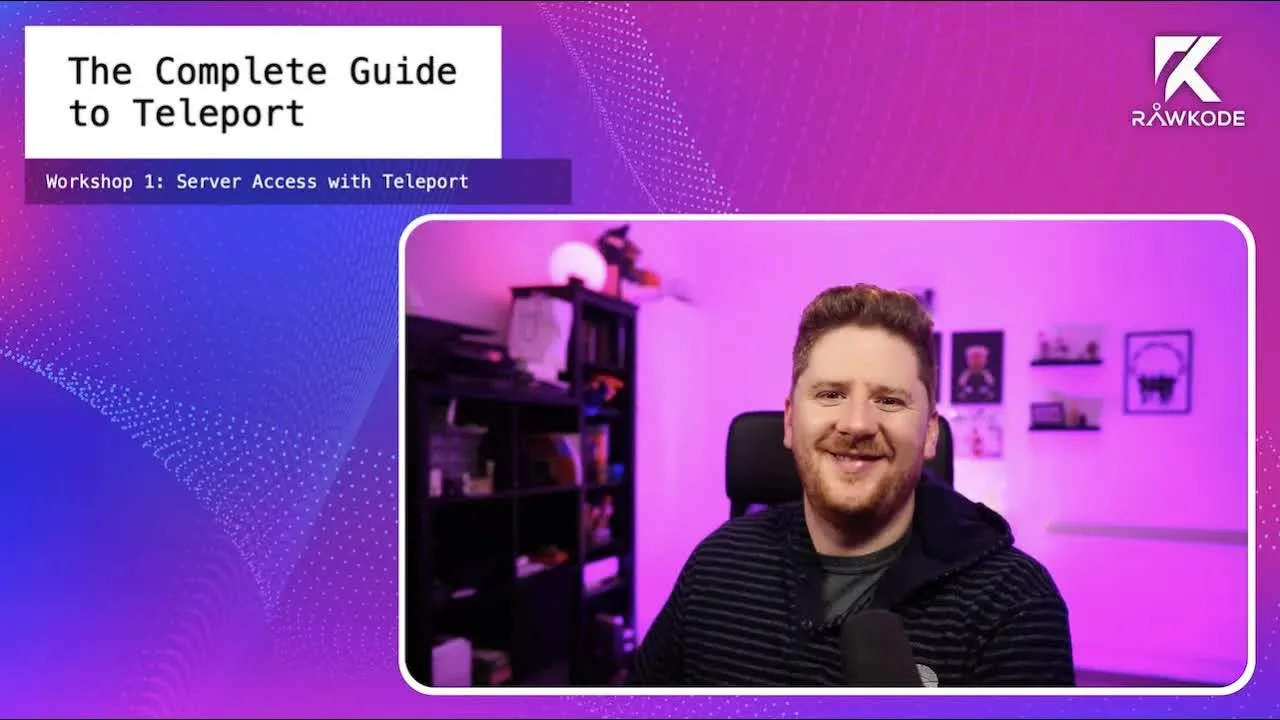
Part 4. Workshop - Server Access with Teleport
- Date
- Runtime
- 1:24:29
- Share
About this video
What You'll Learn
- Register agent nodes with static tokens and troubleshoot join failures.
- Add static and dynamic node labels for filtering cluster access.
- Create users, replay recorded sessions, and query nodes from tsh.
Hands-on Teleport workshop covering agent node registration, static and dynamic labels, user and role management, eBPF enhanced session recording, and accessing servers through the Web UI and tsh CLI with shared and recorded sessions.
Jump to a chapter
View 31 chapters
- 0:00 <Untitled Chapter 1>
- 0:48 Introduction to the Workshop
- 1:29 Workshop Overview and Course Structure
- 5:08 Exercise One
- 5:10 Exercise 1: Setting up the Teleport Server
- 9:08 Teleport Configure Command
- 10:08 Kubernetes Deployments
- 14:57 Create a User
- 16:09 Exercise 2: Adding Agent Nodes to the Cluster
- 23:22 Troubleshooting Node Join Issues (Certificates, Token Roles)
- 24:45 Setup Reference Config File
- 39:04 Exercise 3: Adding Static Node Labels
- 39:06 Static Labels to the Teleport Nodes
- 39:35 Adding Labels
- 41:00 Exercise 4: Adding Dynamic Node Labels
- 41:07 Exercise Four
- 41:59 Dynamic Labels
- 50:14 Exercise 5
- 50:15 Attempting Exercise 5: Enabling eBPF Enhanced Recording
- 55:14 Exercise Six Is Managing Users
- 55:16 Exercise 6 & 7: Managing Teleport Users and Roles
- 1:00:08 Exercise 8: Accessing Servers via Web UI
- 1:01:24 Join an Active Session
- 1:03:45 Exercise 10: Viewing Session Replays
- 1:08:09 Exercise 11: Setting up the TSH CLI
- 1:08:47 Exercise 11
- 1:12:53 Create a Session
- 1:14:55 Exercise 13: Querying Nodes with Labels (tsh ls)
- 1:16:31 Exercise 14: Executing Commands on Labeled Nodes (tsh ssh)
- 1:20:16 Exercise 15: Getting Machine-Readable Output from TSH
- 1:23:37 Conclusion and Next Steps
Transcript
Generated from English captions. Select a timestamp to jump to that moment.
Read and search the transcript
0:48 Introduction to the Workshop
0:48 Hello, and welcome back to the Rawkode Academy. Today is our first workshop on our live course, the complete guide to Teleport. Oh, it's gonna be fun. I hope. Good to see you in the chat. Hey, Nuno. Hey, Kevin. It's been a while. I have been away for six weeks, maybe longer on paternity leave. I surprised I even remember how to turn this thing on, but here I am. I hope my audio is okay. Feel free to let me know in a chat and we'll kind of run through what we're going to do today. So you may have noticed in the Complete
1:29 Workshop Overview and Course Structure
1:31 Guide to Teleport course, we've had a couple of tutorials published in the last week. We have taken a look at installing and running Teleport. We looked at installing through package managers on Red Hat and Debian or Debian derivatives as well. We took a look at installing it through DNF or Yum on Red Hat systems. And we take a look at installing it through using curl, right, for any other Linux distribution where using a package manager is not really an option. So it's pretty simple. The videos are there. Please feel free to go and check them out.
2:06 The second tutorial, we take a look at, well, what if we want to run Teleport using containers and with Docker? And what if we want to do this locally? There are a few gotchas that the tutorial covers, making sure that you persist your state, you handle configuration appropriately, and we even take a look at using Docker Compose for a lab like environment with multiple nodes within your Teleport cluster. So we're following on from that today. Our first workshop is going to be anywhere between, I think, sixty to ninety minutes. It's hard to tell these things.
2:39 I don't run through the workshops in advance as with all things on my channel. I come up with a concept and then we do it live. So I've come up with, let me share. Hey, Carlos, thank you for joining us today. So let's pop over here. You can go to the Rawkode Academy GitHub page that is github.com/rockwoodacademy. From there, you will see a courses repository and we have a directory for the Teleport Complete Guide. Instead of here, we have part five, which is this workshop where we are gonna take a look at server access and all the cool things that
3:15 Teleport brings to the table. I've set myself 15 tasks. These are tasks that I was wrapping my brain around, right? If we want people to play with Teleport, get excited by Teleport, love Teleport enough to deploy it to all of their infrastructures, which I think everyone should do, then we have to walk them through a series of steps to show them the value add to Teleport brings. And each of these questions hopefully allow you to learn the primitives and the basics of working with Teleport and lead you down that path of the holy shit, this is really
3:46 cool. I haven't run through it, like I said myself, we're gonna do it all together. Everything on my channel is about live. I like it this way. We're going to leverage the documentation as much as possible. The Teleport docs are great and we're going to use that whenever we get stuck and hopefully have a little bit of fun. Feel free to chat away in the chat, ask questions, please. Any questions you have along the way, drop them in. I'll do my best to answer them. And we're really just going to get started with this thing.
4:17 What have I done upfront? Well, I created in this directory, we have a small Pulumi project that just runs a couple of Linodes, Y Linode. It's pretty cheap. I just need small VMs. So we're going with that today. I've already spun them up, we don't need to wait for that to run. You will see that I have a Teleport server, three working nodes. There's nothing installed on these. We're going to do all of this together. So hopefully if you want to try this out, you can use the Pulumi, but of course, if you just want to spin up
4:57 some AWS instances, you want to use containers using the lab environment from the previous tutorial, feel free to do that. It's entirely up to you. If you have Bit Metal, hell, go have some fun. Okay. So exercise one is that we want to create the Teleport server. We need a single node in our cluster that is going to act as the central point for authentication and proxying, and we need to be able to get that up and running. Exercise one just says that we want to use one of our servers to install and create a Teleport server
5:10 Exercise 1: Setting up the Teleport Server
5:28 with a static authentication token for agents to join the cluster at our next exercise. Cool. Well, let's get the documentation up, which I should have done in advance. You can go to goteleport.com, click on doc docs, and we can just use the, get started guide, click on Linux. And this has pretty much everything that we need. I'm going to use the curl approach, which is here. We've got our first question already from Carlos. So Carlos says, is this a single point of failure and how do you handle that? Excuse me. You know, I'm pretty confident that it's all
6:17 behind enterprise. If you need a highly available Teleport control plane, I believe enterprise is the option. I am not aware of any ability to do that through the open source product. However, I could be wrong. And so I will post a follow-up and we'll do a tutorial on that, but I'm pretty sure it is behind enterprise. What I would recommend is if you are worried about high availability, there is Teleport Cloud. You can check out that and maybe you can just I'm not entirely familiar with what the costs are, but maybe you could just use their cloud SaaS
6:49 offering and then you would get enterprise level, highly available control plan without any risk. User two chatty. Kevin is then there saying you can run it in HE with the open source version, but you have to do it by hand. There you go. I mean, I guess if you can so there's multiple ways to configure the control plane. I guess if you're doing it through X509 certificate authentication, you know, if you can configure the same search and you have state that can be synced across the machines, then I guess that would work that way. We'll dive into that maybe later in the
7:31 course, I'll see if I can squeeze that in. Okay. Let's get on the source machine. So here is my IP address for my Teleport server. I've got a BSSH. I've forgotten how to computer. My password is not sole secret. But this does get me onto the machine. I do not have T control, TSH or Teleport. So there's nothing available on this machine. Let us download the Extract the tarball. And it just wants us to do sudo install inside of this directory. I'm root, so I don't need to worry about that. And it will tell us that
8:48 we have installed Teleport and we now have TCTL, TSH and a Teleport command. So that is our several, at least we've got the binaries available on our server machine. So one of the things we covered in our previous tutorial was that Teleport ships with a Teleport configure command that is going to give us a base config to allow us to get started pretty quickly. We can jump into ETC. We can make a Teleport and we can run teleport configure, teleport. Yaml. And if we want to start making changes to this, we have the configuration here.
9:08 Teleport Configure Command
9:31 One of the things you'll notice I did in the tutorials was throw away the node name, we allow the Teleport runtime to infer this from the host name of the machine, but one of the tasks on our workshop exercise one is that we need static authentication token for the agents. So what does that mean? Well, let's see. When we Sorry, trying to keep up with the chat here. These are still talking about highly available control plans. Carlos is asking about Kubernetes deployments. There is a Kubernetes workshop either next week or the following week where we take
10:08 Kubernetes Deployments
10:15 a look at the different deployment scenarios on Kubernetes. So join us for that for sure. Nuno saying, you thought I was going to use TCSH? And then more chat about AG. All right, cool. So when we talk about authentication, the way that the Teleport model works is that we have the server and then we deploy Teleport server to the other machines, but we only run them in agent mode, which just means that they have like the authentication service disabled, the proxy service disabled. They're really just connecting best to the server to be able to join the cluster.
10:53 The way that these work is that you can either create tokens to do, you can generate femoral tokens that you pass to the agents that register and then those tokens can expire, but the nodes not remembers the cluster, or you can define a static token that works for as long as the server is configured with that token, at least. There's lots of ways to secure it down and we'll be looking at production best practices and security of your Teleport control plane and tutorials, follow into the course, but we're not going to talk about that today, but
11:23 there's cool things like CA pending to make sure that we get the right search back and such. But today we're just going with a static join token, which means we just need to configure our off service with an arbitrary string. And if any of the agents have that string, they will be allowed to join as an agent of the cluster. Carlos in the chat is asking which language is Teleport written in? Almost exclusively in Go with the front end and TypeScript and React, I believe. Okay. So we already have off service and enabled here. So we need to add tokens
12:10 followed by this string. So we want to say that we want to enable token authentication, and we won't use their string. We'll see Rawkode Academy. So we can save that. And now if we run a systemd teleport start, I'm pretty sure there's a service available. Start teleport. No. I thought there was. Maybe not with the curl installation. Yeah. Computer said no. So what we're going to do is a Teleport start. I'm pretty sure I've got my config in the right location. I think so. If not, I can make it explicit. Let's just make it explicit. Let's
13:23 remove any room for error. I don't trust myself. So we're gonna start out like that. We can just pass the dash C, which tells us to load an explicit config and relatively confident this is the correct path and it was configured this way anyway, but it's fine. Cool. Now we can check that this works by browsing to the public IPv4 address of our Teleport server, and we should be presented with the login screen. Nope. HTTPS is what I wanted. Now I haven't configured any x five zero nine certificates. So as Teleport does it itself, It does have built in
14:11 ACMELetsEncrypt support. So if I were to go and create a DNS record for this IP address, we could go into the config and enable that. When we look at best practices, we will be covering certificates in much more detail there. So that'll be in a week or two. We don't have a user yet, so we're going to quickly create one for that. And we can do that. I may as well have to split this. We get SSH should be the same, nope. IP address. My super secret password, Really should have enabled key authentication. Alright. And now we can create a user.
14:57 Create a User
14:58 So to create a user, we're going to do t control, users add Rawkode. Don't worry about rules or anything like that now, we're going to cover that shortly. This gets me a link here, which I just have to replace with my IP address. And I can actually change the configuration with a bit more information. In fact, the node name probably set to this would have tabbed that up. We're going to generate a password. Teleport workshop. And I'll just need to copy that again. I don't know why it doesn't put it in both. We have one password bug.
15:52 And my favorite feature in one password is scanning the QR code. There we go. Sweet. Okay, let's jump back to this. So we have created a Teleport server with a static authentication token for agents. The part two is we want to wash our system and repeat. We want to actually add these other nodes to our system. Let's grab this IP address. I'm going to really regret copying and pasting this password now. Let's just keep the splits coming. So I need my next IP address. And I need my password. And one more. Last time for the password, I hope.
16:09 Exercise 2: Adding Agent Nodes to the Cluster
16:58 And then we're going to Not cheat, but we're going to use iTerms session copy thingy. Where is it? Broadcast current tab. Yes. Perfect. Okay. And now we can do the installation all at the same time. We'll jump back over to our documentation. I'm pretty sure we still have Linux here. Copy this. Now these are all different operating systems. I could use package managers, but let's just go with the binary because I can copy and paste everything. So the first machine I think is that we'll test in a second. Not all of them have it, you name Dashie.
17:58 We have Debian, Arch. This one should be Red Hat. Let's see, DNF. Yeah, cool. Okay, so extract, Teleport, CD Teleport. Oh, the first one's not finished yet. It's gonna work. They're a little bit of a sync, but we're getting there. Cool. TCPL. Yeah, our first debug machine is lagging a little bit, but we get over it. We now have Teleport installed all of these now. So we can do Teleport. We can do Mictur Teleport, Teleport configure to Teleport. YAML. And this is where I'm really going to need them all to be in sync. Oh, look at that.
19:12 How does that seg fault? What? They're all X8664. I think that Damien machine is going to disappear. I'm curious about this four nineteen kernel. So we're just gonna kill Debian one. Can I close this without closing them all? Yeah, cool. All right, we're going with a two node cluster plus the control plane. Okay, so we are going to remove node names, off service, no. Proxy service, no. And actually, if we come to set up, and then guides. Where's the I'm going to have to just remember. No, it must be an against our ticket. So what we're doing next is now that
21:16 we have a conflict where the service is disabled that we need is we need to then tell Teleport where the off server is. It's just something like, what's the IP address? This and a token. But that tutorial was recorded a couple of weeks ago and I don't remember exactly the sentence. So let's find it. We come here. Pretty sure it's in against the Arctic Gate. I didn't know if that's the one. All right. So we've got a static token. Where's the YAML version? Off server, okay. So we got that and token. Okay, I think I got this right.
22:31 So we've done the server, Okay, there we go. Teleport off servers. Okay. Close. It's not off server, it's multiples. And it's a list. And the token off token. Okay. That was pretty close. We can save this and run Teleport start pointing it to our configuration. And okay. So what happened here is that the X519 certificate that we configured on the other site is only for our local host. So we need to make one more change. If we come into our Teleport on, oh, it's got a proxy service, the listen address, as we can add a web
23:22 Troubleshooting Node Join Issues (Certificates, Token Roles)
23:50 listen ADR and add our IP address. And I'm going to confirm that that is correct because I'm sure I'll get that wrong too. Web lesson ADR, we've got an example. No, I can't remember if it includes the port. Web listen. Reference, config fail. This is my favorite page in the docs. There we go. So if you're ever trying to work at what you can and cannot configure, what I normally do is go to set up reference config file, and this is everything the config file accepts with some documentation on it. You, roughly, I was looking for the web
24:45 Setup Reference Config File
24:54 lesson ADDR, couldn't remember what the thing was here. And also as a nice reminder, actually there's a public address for putting the IP address or a host name. So we're actually going to use that and not change the web listing address. So public ADDR, We want our IP address, don't need to port, I do. So if we save that configuration, we'll restart this process. May have to nuke the certs, we're going to find out. Where's my terminal gone? This one's all right. So this is just crashed on me. I did not build time into this workshop
25:52 for things to crash on me. Have our Teleport. Yeah, so there's our PAMs. I'm gonna nuke. Then I'll need to regain my user. We're about to start breaking Teleport and see what happens. I'm gonna remove the web proxy key inserts to see if it will regenerate them for me. And I'm going to run a Teleport star. I'm sure anyone from Teleport watching this is like, what the hell are you doing? No TLS, keys provided, using self safe. Perfect. They're generating new keys. Carlos, why am I using Vim? Humans can't use Vim. Sorry, man. Pico, that's a bit old school.
26:47 Okay. We've got Teleport running once more. So let's try starting our agents again. What? Okay. Why is that not working? Just updated that. Let's take a look at the cert. So we're gonna do v https. Oh no, v is telling me here, bad cert. Oh, what have I done? Four thirty, eighty. It should show me this cert, please. Kevin, if you want to write the playbook, in fact, I think there is an Ansible integration in the documentation that I came across at some point, but probably already a thing. So here's my server certificate. Which just says localhost.
28:25 I haven't had this problem before. I'm gonna delete those PAMs again. What have I forgotten? If it's that node name, I'm going be really annoyed with myself. Let's use our reference. Let's think. Serps. Okay. Let's see what we have. We have a listener address and we have a public address. Oh, wait, that's on the off surface, that's not on the The proxy. I might have just been a complete idiot. No. I did it on the proxy service. WebListen, we don't need because we're doing everything. Public address. Hey, that looks fine. That looks fine. Public address.
30:45 Well, it can take a public IP address or a DNS name. I'm gonna take the hat and re gen my user and hope that maybe this is just something weird and state directory. And I am gonna run a Teleport start with my config. And when I confirm my config flag before I mess that up to dash c. And the default path is etcteleport. Yaml. I got that longer anyway. Teleport, teleport. Generating the search. My IP address there is. Okay. So my IP address is definitely here. Let's try this. It's a good thing I like these kinds
32:03 of things. Alright. Carol, kv, hps, p address. Done here, 3080. So it just says local host. But we did see the cert here. Ah, nice tip there, no no. Perhaps the servers are cached on the agents. No. Maybe I should read the error message. Okay. I don't wanna see a pen and we'll do that in another episode. Not sure to establish connection to the cluster. If 509 certificate is valid for blah, blah, blah, blah, blah, blah. So this could, I think I am just being really silly here actually. Then we changed the public address on the
33:33 proxy service, but the agents connect over the off service, Not on port 38125. Let's just keep deleting stuff. Just in case. Now this has gone through the 3080 service. You know what? I'm going to just tell it that I don't care. I'm pretty sure there is a teleport start parameter to ignore key checks and secure. Will that get me past it? No. Okay. That actually did get us past it. This is a different error mode saying that this node cannot join the cluster because the token doesn't allow the node role. Yep. That's because of this string here, which tells
35:30 us which capabilities we have. And I think if I do node Connection. Yeah. I'm not gonna tell if we're started. Cool. So let's talk about what went wrong there and why. So when we define a static token as this in the documentation, so that would be a bit better to reference it instead of here. It has different rules. Node, that's too generic a term. It doesn't matter. So when you're defining a static token and your Teleport configuration on the server side, which is this one here, You put the capabilities on the left hand side and then the
36:54 static token on the right hand side. So you can have multiple static tokens that give different capabilities. One could be to just join another cluster, one could be trusted cluster, there's proxy, there's access for applications, etcetera, right? So all these nodes will have different capabilities within the Teleport system. What I forgot to do was add node. So this couldn't join to the cluster and join as a node because we never get the trusted token that capability. So when we restarted it and did it, we now have a Teleport cluster. Unfortunately, I do now need to recreate my user.
37:28 That's the role, equals admin login, equals root. Users. Because we set the public address, we no longer have to change anything here. And accept provided I just kind of edit the one I set up and remove the two FA. We can just reuse that. So, all right, I'm doing that bit off screen. That's just where one password popped up. So I'm just going to say reuse the password. Copy the password. While I'm here, I'll tell it to scan. Let's copy the code when I did that too. Copy password. And, there we go. Okay. That was fun.
38:39 So now you'll see that we have our total cluster with our three nodes available. Our host names are about all over the shop because I thought those were configured by Pulumi for me. Clearly I've messed that up, but that's okay. We have the addresses and we have the labels. So if we come back to our workshop, exercise two after thirty seven minutes is complete. So now we are going to add some static labels to the Teleport nodes. Labels allow us to query our infrastructure using the labels. So if we're just looking for certain environments and in fact,
39:06 Static Labels to the Teleport Nodes
39:16 the exercise to hear is like, hey, we're actually going to use the same Teleport cluster for our staging or QA pre prod testing environments. So we need labels to be able to target and isolate the machines for the things that we wish to do. So again, we're just going to use the documentation whenever possible, add labels, it's really easy, especially static labels. We're just gonna add them to the Teleport. Yaml configuration file. The syntax for this, it's here. You can add labels and we can use any key values that we wish. Nice and simple. So let's jump over here. The exercise wants
39:35 Adding Labels
40:03 us to add an environment stage and labels to the nodes. Carlos is asking what's the trick to type on two servers at the same time. So this is using iTerm2. That just means that I can come to Shell Broadcast Input and I'm using the Broadcast Input to All Panes in the current tab. Let's pop open our Teleport configuration. We'll use the SSH service. We've already got our example label in here. We're going to take that off, environment staging. And if we run our Teleport start command and jump back over to our web interface, You can see we now have environment station
40:55 on each of our agent nodes. Okay. Exercise four is going to guide us through, not guide us. It wants us to do something and hopefully we're gonna do the guiding. Going well so far. By exercise four is we want to have dynamic labels. And this is one of my favorite features in Teleport is that you can actually have Teleport on a periodic interval or periodically or on an interval, run a command and then use that output to work out what the labels should be on some of your machines. So what we're going to try and do
41:07 Exercise Four
41:28 with this is, yeah, see you Waleed, catch you next time. And what we're going to do with this is see if we can add an app NGINX when NGINX is running. So we're going to actually install NGINX onto one of our agents. Another one is to see, well, we actually get a counter with the number of users that are on the machine presently as a label? So we may want to be able to try and target machines that have more than one active user. All right. So dynamic labels are also just covered here. Think they are labels.
41:59 Dynamic Labels
42:09 It's just the one page. Here we go. Where we can say, okay, run these commands. Let's copy and paste that as an example. Jump over to here. I'm going to turn off my broadcast. In fact, no, we'll add the user counter first. In fact, we'll add plus that. We're going to add all the labels. That's what we're doing. There's something to here. We're going to go to SSH. You can see we've already got a host name one here anyway. So we'll say name, nginx. The command is, well, we don't know what that is yet. We've got a period.
42:56 So for NGINX, we actually specify in the workshop that we want this updated every fifteen minutes. We don't really expect NGINX to disappear, so we don't have to run it as frequently. What we're going to do here is check for ES, AUX, grep, NGINX. That's always gonna return. See, I came up with these challenges and didn't actually think about how I was gonna complete them. We can do p grep nginx. That should work, right? Let's test it. P grep nginx, not running. And so for one, p grep, p grep. Oh, maybe it didn't find it because I'm
43:47 in the process. P grep Teleport. There we go. Perfect. So let's do it what we want. And now we need one more. This is our user account. Let's run this every, what does the workshop say? Thirty seconds. We want to execute. Okay. User account. So we could do who, wc dash l. So who wc l. Excuse me. Let's save that from Teleport start. Broke it. Oh, and the syntax is Good point, but I'll even be able to do a tape. Let's try. That's one. So that's definitely gonna fix the PGRAPH. I'm not sure if the Who is gonna
45:18 work. Yeah. Okay. Okay. How can we do that without piping? Does wc take a command parameter? No. Okay. So we could always try and cheat. Thought, see, I don't really know how Teleport does this. So what we could do is WC does work with standard input. And I'm curious, like if we do, So it takes a fail doesn't it? Okay. User can. And that's the way I know how to do it. Oh, there we go. And we've got users equals two. Short version. That doesn't add anything. Let's just go with it. Who does queue. Oh, and I got this syntax wrong again.
47:08 Little better. Okay. So we're still getting something about an up label field to update, but let's just ignore that for now and see what we've got. Hey, look at that. We do have a user account, which is cool. However, we can exit status one on NGINX. Yeah, that's failing because NGINX isn't running. Okay, so we're going to install NGINX on one of these machines. So now I do need to disable broadcast. And this is, I think this is the red hot one. Cool. So I'm going to rebroadcast and start. Oh, it didn't run it here. We don't
48:17 really need to do it that often anyway, so and there we go. It's a bit hacky, but we do have the user account on both of these machines as labels. We see it NGINX is running here and we have a PET, we have an error here. So I could always just tell pcrep not to care about the exit code. Or maybe you can't. Not important. Oh, my broadcast is working again. Okay. What about pgrep dash cam internet? Here we go. It's either one or two there. That's a bit nicer. So let's do that. And then we'll move on to the next
49:30 exercise because this is not terribly important. I'm just having fun. There we go. So we got NGINX with an output of zero. We still get an exit code. I'm sure I can silence that somehow. And we got our user account over here and we've got two NGINX processes here. So the whole point of the exercise is to show how you can run arbitrary commands on an interval, pull them onto your labels. And then as we move through the other exercises, we'll see how we can use that as part of our QWERTY and command execution criteria.
50:15 Attempting Exercise 5: Enabling eBPF Enhanced Recording
50:15 All right, exercise five is we're going to sprinkle some eBPF dust. So I'm kind of glad we kicked out that debugging machine running the four nineteen kernel. I'm not sure how that would have fared here, but we can enable enhanced recording on our notes and check out some of the cool things that that does. So again, we want to jump over. I'm just going to do this on agents. We're not too fussed about the server. We're gonna make a change to our Teleport configuration. We're gonna rely on the docs to do that, of course. So we search for enhanced
50:47 session recording, this changes the way that Teleport does session recording. And we'll take a look at what that actually is, but let's get the enhancements on first. And that means we can actually see all of the commands executed on logged and auditable sessions that Teleport provides. In order to turn this on, if we go to here and we add enhanced recording enabled true to our SSH service. SSH, Let me see. Enhanced recording. Yes. Oh, not enabled. Enabled, yes. And then if we restart Teleport, oh. No BPF. Darn it. 514, 5 13. That should be all right.
52:03 58. Now this I have tested before. So that's very disappointing. We do have secret V2. That should have worked. Kevin saying enabling BPF on Red Hat could be a bit annoying. Yeah, I'm not entirely sure. I mean, one of these machines is Arch. So I actually think that's maybe something that Linode are doing with our kernels on the VM images rather than operating system specific, But definitely as in field to load BPF object. Let's see what this I mean, I'm not really I still have to spend a few minutes looking to see what the problem is.
53:35 This is just Okay, I'm trying to do just like this is a little old kernel thing. And I don't know if I wanna try and fix this. So that's unfortunate. They have not had this working on Delta Evolution. Let's just try adding the secret path just in case. But the default value is correct. Darn it. Okay. We're gonna skip this one. I'll do another tutorial on this with machines that I know have BPF enabled in the kernel. However, what this does is actually uses BPF probes to record the sessions, which means you actually see the system calls, the commands that are
55:05 being executed, parameters have been passed to them, the observability and visibility into what's happening on your server is much greater than what you get by default. So, okay. So exercise six is managing users. We want to create a new user called Leet with the admin role, which has access to all nodes. We've kind of seen this already because I had to create my root user. So we can do a TCL tool, TCCL users add. This takes a whole bunch of parameters. Now, I'm only going to cover roles and logins a little bit in this workshop. We have
55:16 Exercise 6 & 7: Managing Teleport Users and Roles
55:45 an entire workshop dedicated to a deep dive on roles. Essentially, there are some preset roles that come with Web Teleport. Admin gives you access to everything. There's also editor, auditor and access. Access would just give you the ability to kind of SSH across the nodes. Auditor gives you the ability to audit stuff for the UI and then just edit an admin, which exposes more ability to create users, manage users, etcetera. So for now, we're just going to do roles admin, logins is which logins we want to allow access to on the machines. So I'm not, again, I'm using Linode because
56:31 it's fast and cheap, but I'm not sure how their emojis are configured. I'm very quickly going to take a look at the shadow file. I think we only get on the Red Hat image. I don't see another one on Arch. We don't really get any other users either. Okay. So we're only actually getting I was expecting to see like a boon to, or maybe we see CentOS or to see Red Hat or some non privileged user. Again, this is just image configuration. So we'll just get root access right now. There and we can provide the name, which
57:10 we said we want to delete and like so. We have now created a new user. Now we can delete the user. So we want to just show that command. So we'll just do users and you can just get all the subcommand help by running dash help and we can delete like so. Next, create a new access user called PON. This time we're going to modify the TTL of forty eight hours. And I'll talk about that in a minute as I kind of explain what the invitations actually do. And then I said standard users with all
57:45 nodes, obviously me just looking to use Ubuntu or that non root username, which we don't have on these images. So we're going to do pawn TTL and I'll talk about that in a moment. And we want roles, access, logins, and I'm just going to do root for today's workshop. Okay, so what does the TTL mean? Well, when you create an invite and you distribute this link to someone, it's only gonna be valid for a short period of time. By default, I think it was one or two hours. In fact, if we scroll up to delete user,
58:22 whatever. But that may not be long enough, you don't know when the person's going to get to it. The highest you can set it to is forty eight hours, which is that as an example, but it just means that user has forty hours to accept this invitation, create their account and have access to the system. Because this one is access roles, the UI will be a little bit different for them. So I'm actually going to sign up as this user. And we'll accept this again. Let me reuse my password because I'm a terrible human being.
59:04 Very weird thing to call myself actually. And we're going to add our second to FAQ this time. Let's do edit first and rename the first one. Okay, so this is Rawkode So I did that all screen, but when I click this again, you'll see that I just renamed this Rawkode 2FE so that when I scan, we're going to get Pawn 2FE. Well, it won't be called that, there we go. We get the other one here. So we can drop that in. We now have a pawn user, which has limited access. Oh, I don't expect the auto tool. What
59:55 did I do? Alright, back to the moment. So now we created that user. Where are we? Oh, we're in our end. Crap, okay. So we want to use the SSH via the user. Basically, just want to run who am I who and last on one or each of the nodes. So we'll refresh this, bring up those Teleport starts again. Oh, that's the server. There we go. Okay, so we got our knowns back. So let's join the control plan. We run am I? And we see them, and I asked that we run each of these commands on a
1:00:08 Exercise 8: Accessing Servers via Web UI
1:00:54 different machine. So we got Who am I there. We've got who here, we can see it's connected. And then on the last one, we'll run last, which will show us the auto log for the machine. And we can see who is here, etcetera. So the web UI provides a really great way to be able to understand the machines that we have on our infrastructure, connect to them, run commands, very, very cool. I'm a huge fan of this user interface. All right, so now we want to join an active session. So we can't create a standard user because of
1:01:24 Join an Active Session
1:01:30 the emojis, which is unfortunate. So we're just going to use root and I want to execute cat shadow. Okay. So I'm going to join our Arch machine, run cat, etcetera, shadow. And this is our shadow password file on Linux. Then it says open password file on VIM. Okay. As it says, and we have this, and then it wants us to use the PON user to have sessions side by side. So let's do that. There is this tab. I'll pop up in this one. Really, I shouldn't be back in. Let's just log in. Accept. So that should just work. Although I need
1:02:35 to change the off to FA to be my Pawn user. Pawn. We're going to go to activity and active sessions. This is one of my, this is one of Teleport's superpowers. I absolutely love this feature and that we can see active sessions and not only that, but we can join and you'll see that I'm dropped in to the session. And in fact, if I move the cursor on one side, it moves and the other. So I'm not super cool. So if I type, immediately replicated to our other user, really great for our pure programming scenarios or debugging and
1:03:21 production outages where you just need an extra set of eyes to make sure that you're not doing anything too catastrophic. Very, very cool feature. And then quite fine without saving, we shouldn't have been able to save, but I'm sure it's actually would have been able to save, but I didn't. So we're all good. Okay. So we're going to close this. I don't think we need our join session anymore. Exercise nine is to show off session replay. So let's actually watch the recording of the previous exercise. So if we jump over to here and go to activity and session recordings, you'll see
1:03:45 Exercise 10: Viewing Session Replays
1:03:55 that each of the sessions that I have opened on one of our Teleport agents is available here for us to play. So that should be the first one. There's a who am I, but I got that wrong. Which one's this? Is this the who? Yep. And the last. Where's why is it still open? Exit. Okay, there we go. So now we can actually see we have the recording for that previous session, which I hadn't closed, but we can see the users that were involved in the session, how long it was opened, when it was created
1:04:45 and the session ID so we can actually replay it. Let me take a look at the command line very shortly where we'll see that in action. But we can come into here and we can replay this. Let's see what our next task is. So it wants us to copy the hash password of the Aventura user, which I cannot do because of the images. However, I just want to demonstrate how special the replay is. Like it kind of, they make it look like a video and that you can kind of drag and drop, but it's not by any means a
1:05:18 video. And in fact, you can copy and paste. Oh, this is a Firefox thing. Am I going to have to join in Chrome? Oh, damn you. I don't know why Firefox is not letting me copy and paste. So I'm gonna bring over a Chrome window. Oh, wait. There we go. Log in. So if we pause this, you can see we can copy and paste. I thought it might Firefox, I've never seen that before, but these are not videos. So, you know, if there was a piece of information that you had to get, you can copy,
1:06:20 you you can paste that anywhere. You can pick and choose part of the replay that's important to you and get what you need out of it. Thank you Chrome. Firefox. I really just need to give up on you, I think. Well, replays very, very cool. I like that a lot. Okay. We are on good twenty five minutes, exercise 10. Find the join event and teleport auto log. From here, we can see auto log and we can just filter this down. So if you're looking for a specific event or you want to know, or you're looking to
1:07:10 see activity of a specific user even, I can search for Rawkode, but we are looking for the join event, so I can search for join. And we can see that the user Pawn joined this session and we can click on details to get more of it. And if we were able to enable the eBPF enhanced recording for the sessions, we'd have been able to do some cool stuff. In fact, one of the next exercises would have been doing that. You can actually put out a list of all of the commands that were executed, the parameters and stuff like that. So
1:07:41 I'm just going to throw in an extra tutorial on this course, and we're going to take a look at the BPS stuff because that is super cool. But we've got the audit log. There are different ways that you can interact with that. I'm pretty sure we have a small tutorial towards the end of the course where we look at getting that information into a time series database that's storing it in Influx, Prometheus, and it's like that. So you can have very good visibility into what's happening in your infrastructure. Okay, next. So for the final part
1:08:09 Exercise 11: Setting up the TSH CLI
1:08:14 of this workshop, we want to, you know, we've focused heavily so far on the user interface and the user interface is obviously great. But a lot of you, a lot of people that are going to be coming to watch this course are going to be CLI junkies, right? You work in your terminal all day and interacting with your infrastructure should be no exception, especially, or even when we bring Teleport into the equation. So we want to take a look at, well, can we use the Teleport CLI tooling to do most of the same stuff that we have already covered thus far?
1:08:47 Exercise 11
1:08:47 So exercise 11 is just, hey, let's get TSH working and be able to interact with this cluster. The one thing I just need is our public IP address and the port. Actually, I don't need the protocol. We just need this. And if we jump over to my, this is my host machine. I'll just jump into a temporary directory, but we have access to the TSH command and you can see that we have the ability to, you know, SSH and execute commands. We can list applications. We're going to be looking at application proxy and other workshop leaders. We'll come back for that,
1:09:26 as well as database access, which I think we're going be doing our first one next week. We can join sessions. We can replay the sessions locally too. We can copy files, list machines, work with multiple clusters, etcetera, etcetera. So there's lots of stuff here. The request stuff, I'm really excited to be doing a tutorial on the soon, but we'll look at how you can elevate your privilege. So having your Teleport configured in a way that people only have the bare minimum that they need to do their job. And then anything that they need above and beyond that,
1:09:55 maybe they need access to a database server. Maybe they need root on a database server or root on a server that they typically only have the Bindu access to. Well, we can allow them to submit requests for elevated privilege and be able to audit that in Proxy as well. And of course the Kubernetes and, you know, there'll be a tutorial on hardware tokens as well. There's just so much to love about Teleport. Okay. So let's do Teleport login and we have to provide a proxy path, which is gonna be our IP address and port. I'm gonna need to unsecure again,
1:10:31 the next time I'm configuring a DNS name. So this is one to our password for our Teleport user that we can grab. Teleport workshop. Copy password. My token. I get the Rawkode one. Enter password for Rawkode. Yeah. Token. No idea what happened there. As you can actually see, I have a fair number of Teleport clusters because I use Teleport every single week for cluster. So I'm always, I've always got access to stuff. We can actually clean that up. Config. Where does it live again? Why is my brain not working? There we go. There they are out there.
1:12:06 Okay. Let's clean FHAT star cluster. I probably remove all of those. TSH. Yeah, that works. So if I do TSH clusters, much better. So we've tidied that up. Each of your Teleport cluster is left to this one file. You can current one that you're working with is literally just stored the name instead of current profile. That's it. And that just matches the file name of the YAML for the cluster that we're working with. Okay. So we got TSH configured, which was our mission there. Let's jump back. So create a session on one of our nodes through the UI and then we're going
1:12:53 Create a Session
1:12:56 to join it using TSH. So let's pop open. Let's just pick one of these ones. So now we have a session. Unless this has changed, there's one caveat to this exercise. And I don't think it has, I don't think it has changed is that you can't list the sessions from the CLI, unfortunately. So in order for us to join using the join command here, we have to grab the ID from either the URL of the session, or if you don't have that from active sessions here, where you can get the session ID. That's the caveat.
1:13:43 I'm sure that will improve soon. From here, we can run a TSH join and we just want to provide the session ID. Yeah, we need a 108 session ID. So I have to provide a user separately. So that was going to be rich. And from here, I can run the PSE UX like the workshop wants me to, and I would jump over to the web here. We've got the same here. So, you don't lose any functionality by wanting or opting for using the CLI. And in fact, I actually find the CLI experience a little bit nicer,
1:14:33 except for that really annoying caveat about finding the session ID. So let's drop out of that. Session was closed. Okay. We're almost there and we may just sneak in on time because I'm not sure we can do all the following exercises because of that annoying BPF thing. However, we want to create a file on all staging nodes. So now we're going to be taking a look at how we use those label selectors to query our infrastructure. So if we run TSH LS, what we get are a list of all of the agents, machines, VMs, bare metal, whatever
1:14:55 Exercise 13: Querying Nodes with Labels (tsh ls)
1:15:13 that are joined as part of the cluster. And one of the cool things you can do is pass in label selectors. Oh, he says, hopefully. Oh, it's environment. Hey, that actually worked. Environment staging. I'm making it more difficult for myself. So we can use those label selectors to take a look. I'd not actually tried this, but I'm now feeling a little bit brave. I'm not sure how fancy those can get. Let's see if we can just wrap in quotes first, which we can. Can we do I'm making this up now. Star. No, I was curious if we could do
1:16:08 like, oh, it doesn't look like this. And I'm sure there are potentially patterns here. Oh no, it just wants key value. That would've been awesome. So we can use the label selectors to do a variable station and we can definitely open a feature request for maybe like Google's common expression language as a way to filter those down even better. So very cool. All right, workshop. So now we actually, yeah. So all we've done is query node list based on that, but we actually want to execute commands. And if we take a look at the SSH subcommand,
1:16:31 Exercise 14: Executing Commands on Labeled Nodes (tsh ssh)
1:16:43 you'll see that we can use TSHSSH. We could tell the nodes that we want to communicate to. Let's see. And we can run a command. Okay. Well, I thought this is gonna work, but I don't think it is. User. Secure. Oh, that's the wrong user. Login. Okay. Sorry about that. So what did we do there? Well, we ran TSS SSH. Then secured because of my TLS configuration. We've done -l root, not -l equals root, should be -login equals root or -l space root. Anyway, And for the host, we use the label selector, which will allow us to
1:18:13 run arbitrary commands across one or more machines. You can see here that we run LS on the home directory and we can see the binaries, the tarballs that we downloaded earlier. If we run a Uname A, we'll also see the environments or the configurations for each of these machines, allowing us to see that we have an harsh machine. We have a Linux machine, which is the Red Hat one. And I don't know why I only got two of this. There should be three, right? L s. Yeah. No idea. And we can run whatever command we want
1:18:58 there. So the workshop wants us to actually echo hi hello to a fail on each of these nodes. So we can say echo hi temp Teleport. Hello. My terminal is acting up. I need to call it that's because of the redirect. Echo high, I'm just going to attempt H. Now that fits. So then we actually get this command on each node and then we can actually see, well, let me take a look at tempH. We will see high and high. Oh yeah, and the reason we're only getting two on the selector is we never updated
1:19:50 intentionally at the start, the label on the control plane. So if I pop back here, we still have ENV example here. So there we go. Makes sense when you understand. Now what I wanted to be able to do is Oh no, we can't do this one. It's just Okay, cool. The EBPF exercise would have been cool, but I actually didn't put that in anyway, we got lucky. So we want the IP address and the UUID of every node in the Teleport cluster. So when we run TSHLS, we get some information back. What I really like with us is this following the convention
1:20:16 Exercise 15: Getting Machine-Readable Output from TSH
1:20:32 of, you know, other tooling that we have around right now, specifically kubectl, where we can actually specify an output parameter. Format, sorry. Yeah, I'm using the kubectl syntax, where we can say, Hey, here's the information that we need. So we have this as JSON. And if we're just looking to get the IP and the UID, then we can take a look at, in fact, if we just pipe it through JQ, then we could see that what we're after is so we've got a list, we've got a node, where's the IP? Public ADDR, should spec. Public ADDR.
1:21:32 So we can see, all right, we want spec, public ADDR. What is spec? Now I can't remember JQ, come on. Yeah, that should be right, right? Cannot index array with strings back. I forget it has to do all array thingy. Oh, dreads. You know, I don't always know the answers to all items that are ready. Oh, am I just missing the dot? There we go. So simple when you look at our route. So because of the configuration we have of this Teleport cluster right now is that these two are actually being proxied through the control plane
1:22:55 node. And we're using that in a kind of bastion style setup, but the only node we have an IP address is for this one. And then if we wanted to get the UID, that would just be metadata. Name. And we can get all the UIDs. But of course, I don't really have any rhyme or reason for this right now. I just really like the fact that we have the ability with the TSH command to format and get the human readable output and something that is machine readable and be able to enter at that using tooling that
1:23:32 we're already comfortable with such as JQ. All right. Well, that is our first workshop. I will tidy that up for anyone who's watching this a little bit in the future. That's maybe slightly different, but I will make sure that the description contains all our comments for everything that you need to know. There's lots more content coming on the Complete Guide to Teleport. I hope this piques your interest. I hope you like what you see. It's a very cool tool and we'll be back next week with more workshops and more fun. So have a wonderful day. I'll see you
1:23:37 Conclusion and Next Steps
1:24:09 all again soon.
Technologies featured
Comments and resources
Comments
More about Teleport



Academy publications by email
Get an email when Rawkode Academy publishes new tutorials, articles, and videos.
Loading email signup. If it does not load, manage email preferences in account settings.