Introduction & Overview of Parca for Continuous Profiling
- Date
- Runtime
- 20:26
- Share
About this video
What You'll Learn
- Deploy Parca server and eBPF agent inside a Kubernetes cluster.
- Use icicle graphs to trace CPU time from parent functions to children.
- Compare old and new deployments side by side to spot slower functions.
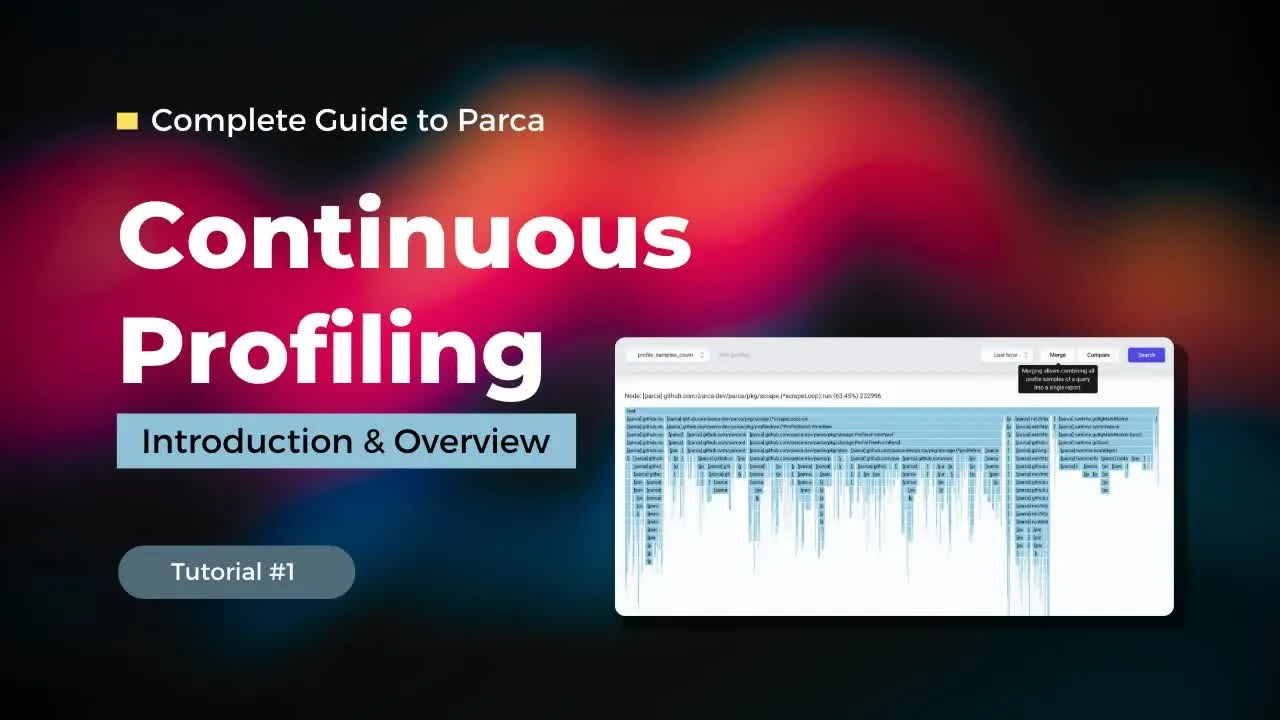
Diagnose a runaway CPU spike on Kubernetes with Parca, the open-source continuous profiler from Polar Signals. Deploy the server and eBPF agent, explore icicle graphs and pprof profiles, and pinpoint the offending code.
Jump to a chapter
View 31 chapters
- 0:00 Introduction
- 0:12 Setting the Scene: Identifying a CPU Problem
- 1:06 What is Parca? Continuous Profiling Defined
- 1:48 Parca's Technology: Leveraging eBPF
- 2:22 Using Parca to Diagnose: Getting Started
- 2:28 Installing Parca
- 2:41 Parca Components: Server and Agent
- 3:09 Parca Kubernetes Installation Overview
- 3:30 Running Parca
- 4:16 Exploring the Parca UI & Targets
- 4:17 User Interface
- 4:34 Finding High CPU Consumption Processes
- 5:17 Identifying the Problematic Pod
- 5:53 The Challenge of Understanding Dependencies
- 6:41 Analyzing CPU Usage with the Icicle Graph
- 8:30 Table View for Profile Analysis
- 9:00 Code Analysis
- 9:01 Examining the Problematic Code
- 10:28 The Power of Uninstrumented Profiling with eBPF
- 11:18 Deploying a Code Fix
- 11:33 Comparing Application Versions in Parca
- 11:37 Comparison
- 13:10 Beyond CPU: Other Available Profile Types
- 13:38 Enabling More Profiles with PPROF Instrumentation (Go Example)
- 13:40 Using Parca
- 14:12 Exploring PPROF Profiles (Goroutines, Memory) in the UI
- 15:05 Observing Profile Changes Under Load
- 15:10 Sample Exploration
- 17:28 Sample Analysis
- 18:48 Outro
- 18:50 Conclusion & What's Coming Next (Grafana Integration)
Transcript
Generated from English captions. Select a timestamp to jump to that moment.
Read and search the transcript
0:00 Introduction
0:00 Hello and welcome back to the Rawkode Academy. I'm your host, David Flanagan. And today, we kick off a new course, the complete guide to Parca. Before I tell you what Parca is, let's set the scene. So So if you've been working in the infrastructure, operations, bare metal, cloud computing, DevOps, any of these professions, then the likelihood is you've spent a lot of your time looking at graphs like this. Now this is an extreme situation which has been contrived to walk you through an introduction to Parca. This is a graph that shows the CPU consumption across our infrastructure.
0:12 Setting the Scene: Identifying a CPU Problem
0:36 And as you can see something happened within the last hour. Our CPU has spiked from under one utilization, one core being consumed at all time to now approaching four. Now because this is a contrived situation, I know that this is a new deployment with a new version of our software and I want to show you how you can take a signal like this and use Parca to understand what changed within your application and help you lower that mean time to resolution. So let's learn about Parca. Parca is a continuous profiler. If you're not aware or you haven't done
1:06 What is Parca? Continuous Profiling Defined
1:11 profiling before, this is a tool that monitors for your application's profiles. Typically for Go applications we expose a PPROF endpoint that prints out a whole bunch of diagnostic information that you can consume to understand the Go runtime itself. Parca takes that to the next degree. Parca runs full time non stop consistently inside of your Kubernetes cluster or on bare metal if you wish and monitors your application. However, it doesn't require you to have a pprof endpoint or to use Go. Parca is quite sophisticated. It uses this new shiny technology. I say new but recent shiny technology called
1:48 Parca's Technology: Leveraging eBPF
1:53 eBPF. This allows it to hook into the kernel using probes to understand what's actually happening within your application without you having to instrument anything yourself. This means it can track the memory, the CPU, the IO and even the network and utilization down to the function call of your application and show you what's actually happening under the hood. So when we see graphs with extreme deviation on it, we can rely on Parca to tell us what is going on. So let's dive in and take a look at using Parca to resolve our current CPU utilization problem. So the first thing we want to
2:28 Installing Parca
2:29 do is get Parca installed to our cluster. To do so, you can click the quick start guide here, which takes you to the Parca documentation. You can, if you wish, curl and run a binary on your machine. The first thing I'll cover is that Parca comes in two parts. One, the Parca server. This is a database that will store all of the profiling information, provide a simple UI that will allow you to explore this and understand what's happening with your applications. The second part is the agent. Again, can download this as a binary and run it in all of the machines within
2:41 Parca Components: Server and Agent
3:02 your infrastructure or you can deploy it to your Kubernetes cluster with some Kubernetes YAML. If you scroll to the top and select Kubernetes, you'll see that we can now create the Parca namespace, deploy the server which comes with the API and the user interface and then the agent which gets deployed as a daemon set to every node within your cluster. It's really simple to get Parca deployed and running within your infrastructure especially if you're using Kubernetes. So I've already installed Parca, so let's head over to my terminal where we can run kubectl, filter to the Parca namespace
3:30 Running Parca
3:37 and get pods. Here we have the Parca server running, that's the first pod on the list followed by a agent which is deployed as a daemon set. Because it's deployed as a daemon set and because I had three nodes in my cluster, we get three copies of the agent. These agents are the ones that are responsible for deploying the eBPF probes to the kernel to allow us to understand all of the processes running on each of these machines. From here, we can run kubectl arca get service where you see we have a cluster IP service running on port seventy seventy.
4:12 When you port forward to this, you get the Parca UI. So let's jump back to our browser and see the Parca UI. From here, you can select targets and you'll see that the agent is deployed to all three nodes within my cluster. We can see when it last scraped and how long the scrape itself took. If we head back to profiles, we can now get CPU samples and begin to filter on any dimension that we wish, at least any dimension that is available and scraped by the Parca agent. However, you can also just click search and get
4:34 Finding High CPU Consumption Processes
4:48 visibility into the CPU consumption of all the processes on your host. And as we can see here, we have a bit of a runaway problem with one of the pods within our cluster. Now consuming over six CPUs. So let's hover on one of the points within the runaway process. From here, we can see the CPU value and this point exactly is 5.37. We can see the duration and we see the labels or dimensions applied to this process. This actually allows us to understand the executable that was run and the pod that it was running. Here we can see that the
5:17 Identifying the Problematic Pod
5:24 executable was app. Now if these are third party pods, you may not understand or be able to use the executable to understand and even more about this process. However, the pod name should give you everything else that you require. Here, we can see that the pod that is running away with the CPU utilization of this machine is a million dollar app pod. This is my one application that I have deployed to the cluster and I should understand exactly what is happening in my code. Right? Well, wrong. Unfortunately, in 2023 and so and at least for the last
5:53 The Challenge of Understanding Dependencies
5:59 ten years, Applications are comprised primarily of open source libraries and then a small bit probably written by you and your team or your organization. We don't really have great visibility into the dependencies our application use. Think of the last time you ran a GoGet, an NPM install, a PEP install, a gem bundle and so forth. Did you look at the source code of all of the dependencies that you're pulling in to make your life easier? The chances are no. So what do you do if one of those dependencies is starting to consume more memory, more network,
6:34 more disk IO or more CPU? Well, we need more visibility and this is where Parca shines. Let's go to our CPU samples where we can see filter on pod and we're going to see million dollar pod. And if we get the pod ID from here, we can see that it's BCLCC. We can click search to only reveal this one unique series. Now what's really nice about Parca, which is kind of hidden by the zoomed in rate at the moment, is that we get an icicle graph below. This shows you the functions where the CPU is spending the most time. The longer the
6:41 Analyzing CPU Usage with the Icicle Graph
7:10 bar, the more time the CPU has spent there. And it drills down like an icicle so that you can follow the CPU consumption from function to function across your stack. And actually, we'll zoom back in and if we scroll down, we'll see that if we hover on the root, a % of our time is spent there. Of course, because everything else within our application is a child or descending of the root function. If we work our way down, we can see the number start to get lower and lower. And if we look down here, we can
7:42 see it's substantially lower. What we're looking for is that inflection point where we go from the most CPU down to distributed CPU cycles. And as we can see here, the million dollar dependency is calling two functions. One, Feb and one, addition. These are both consuming 86% of our CPU. And if and below this is substantially less, meaning the root cause or where most of the consumption is happening is probably within these two functions. What I love about this icicle graph is that visually we can identify the bad actors or the bad functions or the not
8:21 necessarily malicious, but the code that we need to optimize very very quickly. And the icicle graph isn't the only way to present this information. If you really want, you can filter by table. So when we filter by table, we still get the cumulative sum for how much time is spent in each of the functions. And we can see a large drop off between the addition function and then any other function below it going from 83,000 down to 41,000. Again, signifying that the addition function with the largest deviation between the next caller probably has the problem that we want to
8:30 Table View for Profile Analysis
8:58 fix. So I think it's about time we take a look at some code. Let's pop over to Versus Code and open our main dot go. This is our million dollar application. It is a simple HTTP handler that calls some dependencies function called addition. That's all this application does. Again, everything else is open source and by open source, it's my own dependency that I've stuck in place. However, remember, when's the last time you looked at the source code of any of your open source dependencies you consume within your application? I bet the answer is never. So let's pop open
9:01 Examining the Problematic Code
9:33 dApp because we know that this addition function is the root cause or potential root cause of whatever is happening to degrade the performance of our application. And when we open this, we see some very simple code. It's using the HTTP request object to grab I and j and convert them to an integer. And if we scroll down, we then see some rather interesting code. For some weird reason, this open source dependency that we're consuming has decided to open a loop for a very large number to calculate the Fibonacci sequence. As you can see, there's also the Fib
10:08 function. These are the two things we've seen in our CPU profiles. We've seen the call to addition was consuming a lot of CPU. We also seen the feb call consuming just as much CPU, which now makes sense that we're looking at the code. We can see the loop. We see the function call. We got all of this from an uninstrumented application. Let's just clarify that again. This is four lines of Go code with some imports and package metadata. We haven't instrumented this with metrics, logs, tracing, nothing. Yet Parca using eBPF is able to understand the stack pointers within our Go application and
10:28 The Power of Uninstrumented Profiling with eBPF
10:49 give us so much visibility for free. Now this application only has one single dependency which is a million dollar debt with this addition function. However, your application likely has dozens, hundreds or even thousands of dependencies calling dozens, hundreds or thousands of dependent functions. Using Parca, you can understand the CPU profile of all of that without changing a single line of code and that is ridiculously powerful. So let's deploy effects removing our terrible dependency. We delete the Fibonacci call, we delete the Fibonacci function, we can rebuild this image and deploy it to a cluster. I'm going to spare you
11:18 Deploying a Code Fix
11:29 that little bit of boring typing in the terminal and fast forward directly to Parca again where we look at v two of our application. So here we are. We can still see the old CPU consuming workload which hasn't been running for, the last five minutes. However, we can't actually see the new version of our deployment because the utilization is so normal. It blends in with everything else within the cluster. But, of course, we can use the compare button. So let's grab our million dollar application with the broken version and click search. Here, we can grab the
11:37 Comparison
12:05 million dollar application with the correct version and hit search. Now we can see the two lines side by side. We can see over here where it fluctuated from, like, anywhere from six to 6.5. And over here, it's going from zero to 0.1. With the comparison, we can actually scroll down to take a look at the icicle graph where we can see that everything below the serve function was worse with the older version and everything is now better with the new version. Perfect. If this deploy went the other way and we wanted to see what changed
12:39 from the old version to the new version, we can of course pop over and switch these around. From here, we can see search and search. And now we can see that the application is worse on every single layer. And again, we can identify fib and addition as a potential cause of this degradation. So that's Parca. Parca instruments your code and allows you to understand what's happening down to the function level with no changes on your part. But if we pop open our drop down here, we see the only option is CPU samples. And I said something at the start of
13:10 Beyond CPU: Other Available Profile Types
13:15 this video, which is that Parker can help you not just with CPU, but with memory, disk IO and even network. So where are these settings? Well, at the moment, with the auto instrumentation with eBPF, only CPU samples are supported, but more will be coming soon. If you want to have access to the extra instrumentation, you need to provide a pay professor endpoint. So let's see how to do that for a Go application now. Let's head back to Versus Code where we have the easiest, simplest Go code in the world. We could scroll down to our imports where we import
13:40 Using Parca
13:49 net HTTP pprof. That's quite hard to say. And guess what? We're done. Let's rebuild this and push v three to our cluster. So now that our application has been instrumented using the default HTTP handler with Go and importing the PPROF package, we can then go to Parca to consume those extra profiles. So if we click on the drop down here for select profile where it used to be just CPU samples, we now have access to the number of Go routines created, memory allocated objects and bytes and memory and use object and bytes. Now because we're doing
14:12 Exploring PPROF Profiles (Goroutines, Memory) in the UI
14:26 this via the Parca agent and via the pprof endpoint within our Go application, we're going to end up with the original CPU samples but then a duplicate of process CPU samples and process CPU nanoseconds. Now there are ways to configure the Parca agent to avoid certain workloads within your cluster, meaning when you instrument your own applications with PPROF endpoints, you can attach labels to the deployments and tell the Parca agent not to scrape or not to use eBPF instrumentation on those workloads. In a video later on in this course, we'll be taking a look at the more advanced configuration techniques for such
15:03 deployments. But for right now, let's just do a simple exploration of the go routines, the memory allocated, and the memory in use. First, click go routine created total and click search. Now we've already seen the code for my application. It isn't actually spinning off any go routines for us to see any fluctuation in this graph at all. So you can see that it's pretty static at six nonstop. However, your application probably does use go routines if you're writing in Go. So you'll be able to visualize that in much more detail. Moving down, we get to see the memory
15:10 Sample Exploration
15:38 allocated objects total. Now when I click search here, what we should actually see is an incremental linear line, hopefully linear and if we click search, there we go. Now this is the total allocated objects across the entire lifespan of this pod, so we would expect that to only go up or at least stop if there were no traffic, it wasn't being consumed, it wasn't doing anything useful. Perhaps idle time. We can then see the same for the bates total. So while we have lots of allocated objects, the base total may be slightly different depending on what those objects looks like within your
16:15 code and it's vital to understand both the shape and the size of the thing happening within your application. Now that's the total values over all time but what if you want to see what your application looks like right now as a snapshot? Well, we can use n use bytes and n use objects. We click search and we'll see that this will go up and down depending on what's happening with our application. So while this looks relatively flat right now, let's trigger some workloads, some requests against our application. So if we head over to the terminal,
16:49 I have a k six script. If we pop this open, you'll see that it just makes some requests calling our addition function with a couple of values, nothing particularly fancy. But we can run this with 10 virtual users for a duration of nine hundred seconds or fifteen minutes, like so. So this is going to send a whole bunch of requests every single second to our pod, which if we give it just a few moments, we should be able to head back on over to Parca and see our memory utilization both total and end use change
17:24 from what we've had over the last five to ten minutes. Okay. So that's been running for a couple of minutes now, so let's head back over to Parca. Now if we go to the go routine created total, what we should see is well, even though our application doesn't use a lot of go routines, the HTTP server does depending on how many requests come in and the number of processors available on the machine. So if we click search, as we can see when we started the k six kind of load stressing process, the number of goroutines did rise from six
17:28 Sample Analysis
17:56 to 16 where it has continued. So let's go across and kill that, like so. And we should see that our go routines actually drop back down as we go back into an idle state. Now our h b endpoints are also very very simple, so we're not gonna see huge fluctuations in memory. However, if we go to the objects total, we'll see that this continues to rise, maybe just increasing a little bit with that stress and load test tool running against it. And the same for the baits, I would imagine, maybe slightly more consistent. If we go to the end user's memory
18:29 and the objects and the baits here, these will probably still continue to fluctuate again because the http endpoints aren't allocating anything to the heap. So we're just going to trust that our profile information is doing exactly what we want. Let's head back over to go routines and see if we've reached our idle state again. Perfect. There we have it. I hope that gives you a taste for what you can start to do, understand and achieve by deploying Parca to your infrastructure. It's a phenomenal tool that gives us a new level of observability that we haven't previously had
18:50 Conclusion & What's Coming Next (Grafana Integration)
19:03 with so little instrumentation to be done to the point of none. Alright? If you just want to get Parca running on your infrastructure, deploy the agent, rely on the eBPF instrumentation, you can do that now. Don't need to modify your applications and you'll begin to understand at the function level how your application behaved from release to release and that is really important. Continuous profiling is there to help you understand how your software changes over time. So in an upcoming video, we're gonna take a look at a real production application triggering the deployments from version to version using
19:41 profiling to understand how the code that we commit affects the performance of our application. And then if you do want to go beyond CPU samples, you can add PPROF endpoints to your application to understand the memory, the network and the disk IO consumption or patterns of your applications too. Join us for the next video as we take a look at taking all of this new understanding and observability and putting it in to the home of the rest of our observability data. Namely, Grafana. Parca has fantastic support for working with the Grafana ecosystem and we'll see that
20:15 in the next video. Until then, have fun playing with Parca and we'll see you all next time. Have a great day.
Technologies featured

Comments and resources
Comments
Documentation
More about Parca
Academy publications by email
Get an email when Rawkode Academy publishes new tutorials, articles, and videos.
Loading email signup. If it does not load, manage email preferences in account settings.