Helm, Kustomize, and Pod Security Policies
- Date
- Runtime
- 18:27
- Share
About this video
What You'll Learn
- Verify a default storage class before installing Portainer, because it needs persistent storage.
- Use helm upgrade --install for an idempotent Portainer deployment that respects values.yaml changes.
- Enable pod security constraints in Portainer, which automatically installs Gatekeeper for enforcement.
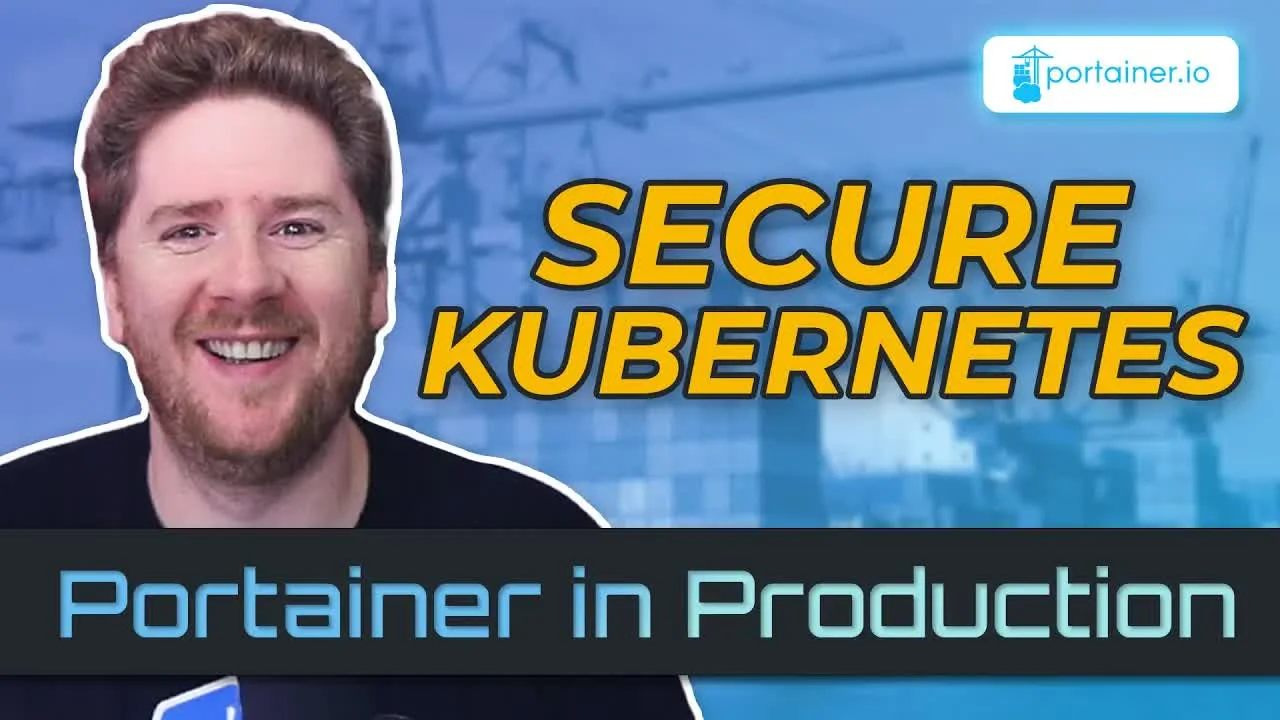
Install Portainer on Kubernetes two ways (helm upgrade --install and kubectl -k with Kustomize), then use Portainer's UI to enable pod security constraints backed by an auto-installed Gatekeeper.
Jump to a chapter
View 20 chapters
- 0:00 Introduction
- 0:22 Installation Prerequisites (Default Storage Class)
- 1:25 Helm Installation: Adding Repository & Update
- 1:57 Helm Installation: Understanding the Command
- 3:13 Helm Installation: Deployment & Verification
- 3:52 Choosing a Portainer Service Type (NodePort, Ingress, LoadBalancer)
- 5:35 Accessing the Portainer UI
- 6:32 Customizing Helm Installation with values.yaml
- 8:58 Kustomize Installation: Overview
- 9:34 Kustomize: Understanding kustomization.yaml
- 10:18 Kustomize: Example - Adding Labels
- 10:45 Kustomize: Example - Patching Resources (Memory Limit)
- 11:17 Kustomize: Applying & Verifying Changes
- 12:33 Portainer UI: Managing Kubernetes Resources
- 13:26 Portainer UI: Deploying Helm Charts
- 14:00 Portainer UI: Cluster Security Settings (Pod Security Policies)
- 14:38 Portainer UI: Enabling Security Constraints (Gatekeeper Integration)
- 15:27 Portainer UI: Available Security Policies Overview
- 16:26 Applying Security Policies & CLI Verification
- 17:36 Conclusion
Transcript
Generated from English captions. Select a timestamp to jump to that moment.
Read and search the transcript
0:00 Introduction
0:00 Hello. Welcome back to Portainer in production. Today, we're gonna take a look at running and using Portainer on Kubernetes to manage Kubernetes. Before we get into the fun stuff, we have to get Portainer installed to our Kubernetes cluster. There are two ways to do so. One, with Helm. Two, with customize. Let's take a look at both approaches now. So the first thing I'll say is the documentation on Portainer's website is fantastic. So if you ever get stuck or need some help, feel free to drop into the comment section, but also go check the docs. The the docs will tell you that you
0:22 Installation Prerequisites (Default Storage Class)
0:36 have to ensure you have a default storage class available in your cluster. You have to check there's a default storage class available within your cluster. Why? Well, because Portainer has state. Both the Helm chart and the customized approach to the installation will provision a persistent volume claim which must be satisfied before Portainer will ever get healthy. In order to check if you have a default storage class, run kubectl get s c or autocomplete it to storage classes. What you're looking for here is, well, anything on this list is a good start. For Docker desktop, you'll see something like host path,
1:12 and we need to ensure that we have default and parenthesis. This just means that we don't need to provide a storage class name when we provision or request a persistent volume claim with the cluster. Next up, we do a helm install. You click on deploy with helm, you'll see that you have to do a helm repository add pertainer and point it to the helm chart repository and a helm repo update. If you're unsure, you can run helm repo list to see a retainer is there. Main already exists. If you're not sure when you last added
1:25 Helm Installation: Adding Repository & Update
1:48 it, run a helm repo update to ensure that you have all the latest versions cached locally. The documentation suggests you do a helm install. I'm going to suggest that you don't do that and instead modify the command to be a helm upgrade to dash dash install just like I have here. This just means that this item potent. You can run this command over and over and over again and any changes via your values. Yaml will be reflected in the cluster. Help install can only ever be run once. Next, everything else is the same as the docs.
1:57 Helm Installation: Understanding the Command
2:25 We're passing create namespace and the namespace of Portainer. This just means that this Helm release will live in the Portainer namespace. And if it doesn't exist, hey, it'll create it. Next, we give our Helm release a name. We're calling ours Portainer. I know. Surprised. Right? Next, we provide the helm chart repository name and to helm chart itself name. That is Portainer slash Portainer. Lastly, we provide them one flag and that is dash dash set which will set TLS force to true. This just means that we're telling Portainer to only run and expose and listen on the
3:04 TLS port. Let's quit this and run deploy. As you can see, my helm upgrade dash dash install detects that the release doesn't exist and deploys it for the first time. We then get some notes that tell us how to get the IP address and port for our Portainer instance, but we're not going to use that. Instead, let's take a look at what happened in our cluster. We can run kubectl, send the namespace to our Portainer and run get deploy and get pods at the same time. You'll see we have one deployment called Portainer, which has one of one ready and of
3:13 Helm Installation: Deployment & Verification
3:43 course that has a pod, which is one of one ready. Things look pretty good. Now on the documentation for the Portainer deploy, you'll see that I'm on the default tab of node port. We also have ingress and load balancer available. These just require extra set parameters that modify the helm deploy. Now when should you use node port versus ingress versus load balancer? Well, if you're just kicking the tires on Portainer with Kubernetes locally using Docker desktop or Colima or anything else, you're always going to use NodePort. Well, more than likely. Why? Well, the chances are you won't have an
3:52 Choosing a Portainer Service Type (NodePort, Ingress, LoadBalancer)
4:25 ingress controller set up within your cluster. Ingress controllers are not installed by default unless you're using a managed Kubernetes instance. You have to choose between running Contour, Emissary, Traffic, NGINX, or one of the many other ingress controllers available on the market. So if you're unsure, go with NodePort. If you're pushing your container into a production environment, then you probably don't want to use NodePort. NodePort is just a nice hacky way to get it working quickly. From there, you will want to work with your platform team, your SRE team, your DevOps team, or maybe it's just you, but ensure
4:59 that you have an ingress controller and configure it appropriately. And then the last one is load balancer. This is a quick way if you're running Kubernetes in a managed environment like GKE, AKS, or EKS. However, please note every load balancer you provision or every service of type load balancer typically gets a new load balancer as part of the cloud provider. That's usually cost you a minimum of $20 per month per load balancer, so the cost can add up really quickly. It's actually more typical to have a single load balancer service as part of your ingress
5:29 controller deployment and then handle everything else via ingress objects. So pick wisely. Let's jump back to our command line. Now, we can run kubectl get service and of course and our Portainer namespace. We'll see here that we have our node port service. It has a cluster IP and we have a few mappings. The one that we are more interested in is this 30779. This maps to the pertainer TLS port of 9443. We can now open up localhost on that port and ensure that you use the right protocol HTTPS. Now we never told Portainer to use cert
5:35 Accessing the Portainer UI
6:13 manager or less incorrect or anything else for TLS. That means we're getting a self signed certificate. For that, you'll need to click advanced and proceed. From here, we can configure our first Portainer user, the admin user. We've already covered that in a previous video, so I'm not going to go into that again now. So what if you do want to tweak the default helm installation? Well, you can go to github.com/protainer/kates. That's k8s. From here, you'll find there's a charts retainer directory. As with every Helm chart, there's a values dot YAML. You can click the raw button
6:32 Customizing Helm Installation with values.yaml
6:50 and copy and paste it locally or hit download. I already have the default values file here. This is where you begin to make your modifications for your own helm installation. You can use the enterprise edition or the business edition. This is free for up to five nodes. So take advantage of it. Go to the Portainer website, click business edition, and get your free license. Now all of the image, image pool secrets, node selector, service accounts, service is pretty standard stuff, and it's unlikely that you'll want to modify that except in extreme and niche circumstances. If you wish to provide your own TLS
7:27 certificate, you can do so using an existing secret. This is great if you have cert manager in your cluster and you've already got that speaking acme to less encrypt, and you have a real production x five zero nine certificate you can use. If you want to enable any of Portainer's feature flags, you can add them to this string here. And if you want to go the ingress route, you can configure the ingress here. For reference, when we're on the documentation and you see deploy via ingress, these set flags directly correlate to all of the values in the YAML.
8:01 You don't need both. You only have to do it once. Assuming you're using Contour as your ingress controller, you can set the ingress class name to contour. And if you're going down the ingress route, remember to set your host here, portainer.myorg.com. If you want to set resource limits or constraints or minimum allocations, you could do so here in the resources block. And lastly, the persistence. 10 gig is probably enough for most installations, but if you need more, feel free to tweak that here. If you have more than one storage class available, remember to set that here
8:40 too. And if you have an existing claim because of some backup or restore process, which we'll cover at another video very soon, then you can add your existing claim name here too. So the Helm chart provides all the configuration options that you need to fit most use cases. Enjoy. So while Helm is great, you may prefer to use kubectl with customize. It just means there's no state in your cluster and with customized being embedded in kubectl, you don't even need an extra command. On the Portainer documentation, we can see that they provide a kubectl command
8:58 Kustomize Installation: Overview
9:17 that allows us to deploy Portainer. This is nice because it's versioned and we have good control over upgrades too. So let's take a look at how we modify or tweak the versioned Portainer manifest using customize. The first thing you're gonna wanna do is create a customization dot YAML. This looks and feels like any other Kubernetes resource and that we have to provide an API version and a kind. Next, we can add any resources that we want to deploy as part of this customization. It supports local and remote resources. So here, we're actually able to put in the URL
9:34 Kustomize: Understanding kustomization.yaml
9:57 for the Portainer managed and versioned release artifact. That's pretty sweet. Now customize offers a lot of ways for you to make tweaks, and I would encourage you to go and check out their documentation. The link is in the description. But we're gonna take a look at two relatively simple augmentations that we can make to the YAML. One, it's quite common to add extra labels to third party resources so that people know who is responsible for them. What are the SLAs? Who to call when something goes wrong? So here, we're going to add a new set of key value pairs. One,
10:18 Kustomize: Example - Adding Labels
10:34 app my org. Two, env rocks. Does it make any sense? No. Will it work for this example? Definitely. Lastly, we want to add or use a set of patches to modify resources. So let's take a look at that patch file. Customization patches have to match a resource and then changes will be diffed. Here, we're matching apps v one deployment and the Portainer namespace where the deployment is called Portainer. On this resource, we're going to find a container called Portainer, and we're going to add or edit the memory resource limit and set it to 512 meg.
11:17 Kustomize: Applying & Verifying Changes
11:17 So now we can kubectl apply using dash k to tell it to use the embedded customize and the kubectl command. Again, you don't need an extra tool to start using customize today. And we pass in the directory to any Kubernetes resources and customization object that we wish to apply. Here, we can see all of the resources that we expect were created. So let's see and confirm the changes we requested have been made. We can describe our namespace, Portainer. And you'll actually see our labels app, my org, and rocks exist. Not only that, we can describe the deployment.
12:09 And on this deployment, we will see labels at my org and rocks. Not just on the labels, also on the selector and the pod template. Perfect. Lastly, our pod called Portainer with a container called Portainer now has a memory limit of 512 meg. Sweet. So now that we are in our Portainer instance, we can click home and we can see all of our environments here. Now because our Kubernetes and Portainer server are all the same place. They're all the same thing. We've got our local environment, which is the Kubernetes cluster that Portainer is running on.
12:33 Portainer UI: Managing Kubernetes Resources
12:54 When you click on that, you know, we have all the basic things you would expect from a UI on top of Kubernetes. That would be the ability to check out our namespaces, the ability to see all of the applications running on our cluster, and we can drill down to inspect individual applications. Like so. We have the ability to view and edit our config maps and secrets and any volumes available within the cluster. We also have the ability to add Helm repositories and deploy Helm charts with a very nice user interface. Assuming we want to deploy cert manager,
13:26 Portainer UI: Deploying Helm Charts
13:36 we can select the namespace that we want to run it, give it a name, and if you want to pass any custom values, they're all presented like so. If you're happy with that, you hit install. Helm has never been this easy. But I don't just want to show you the UI on top of Kubernetes. Instead, I want to show you how Portainer brings the same ideology of simplifying complex things to the cluster itself. So let's pop open the cluster settings and go to setup. From here, we can allow people to provision cloud load balancers if we want. We can turn on
14:00 Portainer UI: Cluster Security Settings (Pod Security Policies)
14:18 change windows. We can configure the time or time frame that we allow rollouts to happen. We can restrict access to the default namespace and ensure that only administrators deploy ingresses, you know, resources that allow external access to workloads within the cluster. But that's still not what I want to focus on. Instead, I want to take a look at security constraints. Here, we can enable pod security constraints. And before I turn any of these policies on, let's just hit save. So what is this doing in the background? Well, let's jump over to our CLI and take a look. You'll see the last command
14:38 Portainer UI: Enabling Security Constraints (Gatekeeper Integration)
14:57 I ran was to list our namespaces. So let's run that again. And what you'll see is that seventeen seconds ago, we have a gatekeeper system namespace added. We can use this namespace and see what's running on our cluster. And you'll see we we have the gatekeeper controller manager and the audit pods working. Now it doesn't matter if you're not familiar with what gatekeeper is, but it is in our cluster and managed for us by Portainer. So let's go back up and take a look at some of these constraints. We can restrict privileged containers from our cluster. We can restrict sharing the
15:27 Portainer UI: Available Security Policies Overview
15:35 process ID namespace and the host IPC namespace. We can make sure that no workloads mount host file system paths, the host path directive. But if you want to allow access to some, you can read only or writable. You can require that all workloads have a read only root file system. You can restrict escalation to root privileges, restrict Linux capabilities, allowing Capsys admin an absolutely terrible idea. But if you're familiar with capabilities, you can have a low list and drop. You can have allowed capabilities and required drop capabilities. Lastly, we have the ability to enable AC Linux,
16:20 App Armor, SecComp, and SIS control profiles. But for now, let's just turn on the few that we've selected, and it's done. We come back to our gatekeeper. We'll see that not much has changed. But if we run kubectl get validating web configurations, we can see gatekeeper is here. And what's actually happening is the gatekeeper is listening for every resource that is applied to the cluster. And if it violates any of the policies, it'll be denied. You can run kubectl API resources and grip for gatekeeper. And from this list, we can see that we have access to all of the gatekeeper
16:26 Applying Security Policies & CLI Verification
17:05 custom resources, whether that be configs, allowed users, capabilities, file system groups, host file systems, and so forth and so forth. We also have access because we enabled these in the Portainer UI, the ability to describe constraint templates for the KATE's PSP host file system, which if you scroll up, will actually reveal all the Ragel that was used as an emission policy to deny host path volumes on any of your workloads. And I don't think there's ever been an easier way to secure a Kubernetes cluster than this one page on the Portainer UI. So that's it for today's video. We take a
17:36 Conclusion
17:45 look at the two ways to install Portainer to a Kubernetes cluster, allowing modifications and tweaks based on your own requirements. From there, we dove in the Portainer UI. Of course, it offers all the same features you'd expect from a Kubernetes UI, the ability to browse and navigate the resources within a cluster. But Portainer brings an air of simplicity with a UI that just wants to help you get things done. Securing a Kubernetes cluster through installing gatekeeper, rating Regal, importing policies. It's quite a challenge, but not with Portainer. So go check it out and make your
18:22 lives a little bit easier. We'll back soon for the rest of Portainer in production. Have a great day.
Technologies featured

Comments and resources
Comments
More about Portainer

Academy publications by email
Get an email when Rawkode Academy publishes new tutorials, articles, and videos.
Loading email signup. If it does not load, manage email preferences in account settings.