Part 2. Tutorial - Installing Teleport
- Date
- Runtime
- 14:02
- Share
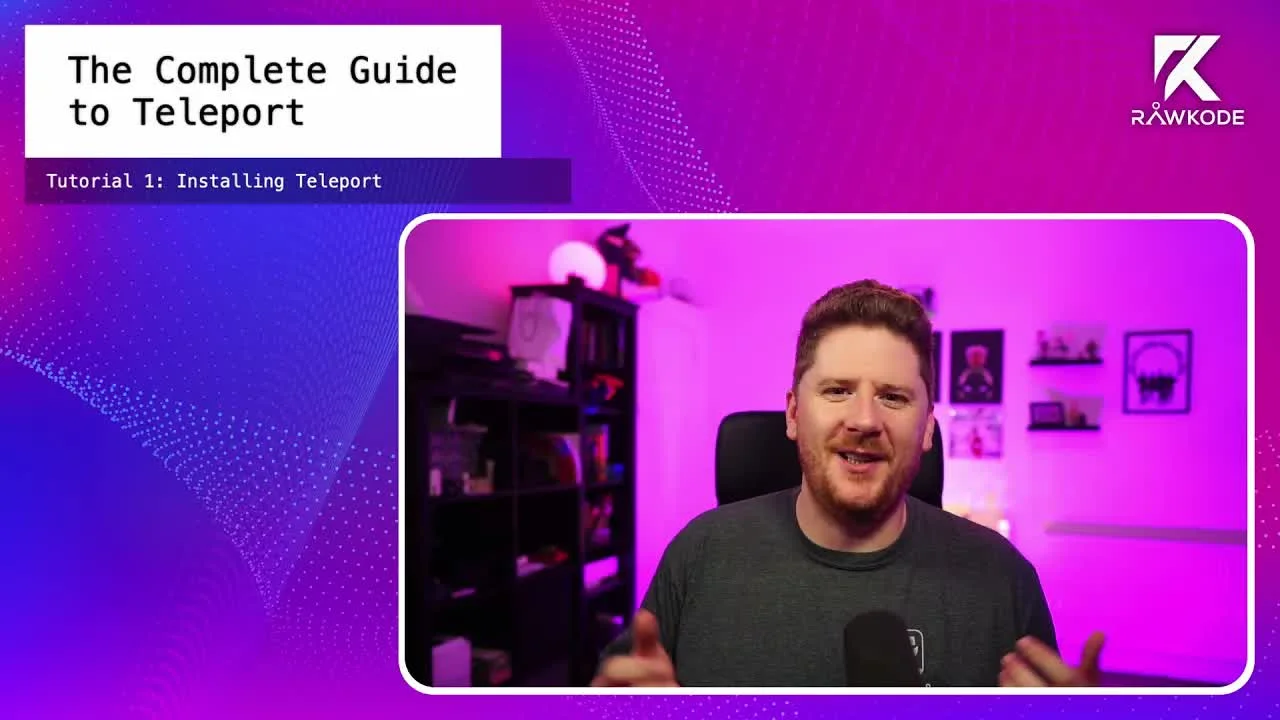
About this video
What You'll Learn
- Install Teleport on Debian, Red Hat, or other Linux distributions from official repositories.
- Create the first Teleport user with tctl, then finish password and 2FA setup.
- Use Teleport web SSH, audit logs, and session recordings to inspect activity.
Three ways to install Teleport on Linux: the Debian APT repo, the Red Hat YUM repo, and a curl script for other distros. Then start the server, create the first user with tctl, set up 2FA, and try web SSH, the audit log, and session replay.
Jump to a chapter
View 24 chapters
- 0:00 Introduction
- 0:30 Teleport Documentation
- 0:31 Referencing Teleport Documentation
- 0:46 Installation on Debian-based Systems (APT)
- 0:50 Installing Teleport on Debian
- 2:17 Installation on Red Hat-based Systems (YUM)
- 3:31 Installation using Curl (Other Linux Distributions)
- 4:46 Verifying Binary Checksum (Curl Method)
- 5:27 Extracting and Installing Binary (Curl Method)
- 5:57 Running Teleport
- 5:58 Starting the Teleport Server
- 6:46 Untrusted Certificate
- 6:47 Accessing the Web UI and Initial Login Screen
- 7:05 Adding Users
- 7:15 Creating the First User (tctl command)
- 8:15 Completing User Setup (Web UI Password & 2FA)
- 8:22 Setting a Password
- 9:26 Teleport Demo
- 9:47 Demonstrating Web-based SSH Connection
- 10:12 Interacting with the Web SSH Terminal
- 10:33 Overview of Other Features (Databases, Kubernetes, Apps)
- 11:24 Exploring Activity and Auditing Features
- 12:46 Session Recording and Playback
- 13:24 Conclusion and Next Steps (Workshop)
Transcript
Generated from English captions. Select a timestamp to jump to that moment.
Read and search the transcript
0:00 Introduction
0:06 Hello, and welcome to the first tutorial on the complete guide to Teleport. In this tutorial, we'll be taking a look at three ways to install Teleport on Debian, on Red Hat, as to any other Linux operating system using curl. In the following tutorial, we'll look at Docker. So if you're looking at containers, jump to tutorial two. Let's get started. Throughout these tutorials and workshops, we'll be relying on the Teleport documentation as much as possible. The Teleport documentation is fantastic. And if you ever run into trouble, I recommend checking there first and then maybe follow-up with a YouTube
0:31 Referencing Teleport Documentation
0:44 comment. Thanks. So let's start with Debian based distributions. We have here a tab for Debian with four commands. Now you'll see here that this relies on both curl and apt dash add dash repository. If these are not available on your Debian based distribution, you will have to run an apt update and an apt install curl and software dash properties dash common. This should make the tools required available. We're going to start by copying the curl command and dropping it onto our Debian machine. And because I'm running as a root user, I do not need the sudo at the
0:50 Installing Teleport on Debian
1:26 start of the second command. This is going to import the GPG key that will allow us to consume the Teleport repository in a secure fashion. Next, we're going to use the apt add repository helper to add the Teleport repository to our system. And when we add the new repository with this helper, it will automatically run the apt update for us automatically. So we can actually skip the next line in the Teleport documentation and go straight to the app install. Voila. We now have Teleport installed on a Debian based distribution. Okay. Let's take a look at the Red Hat
2:17 Installation on Red Hat-based Systems (YUM)
2:20 version there. If we jump back over to the documentation and click on the Red Hat tab, we can see that we need access to the YUM config manager to be able to add our Teleport repository. To get that, you'll need to YUM install yum dash utils. From there, we can copy this first command, and this will add our Teleport repository to our yum configuration. Next, we do a YUM install Teleport. We've had to click yes twice. Once to confirm we want to install Teleport, the second one to confirm that we wanted to import the key from that repository.
3:07 Now the installation is running, and in just a moment's time, we will have Teleport installed on a Red Hat system. And that's it. Voila. So, well, I really appreciate what repositories provided for Debian distributions or Debian based distributions and Red Hat based distributions. Sometimes you just wanna install it yourself, or maybe you're just running another more esoteric distribution. In fact, I'm a pretty big fan of Arch. So let's take a look at how we can install Teleport without the package repositories. On the installation instructions, I've clicked on ARM 64 ARM v eight instructions. Now these aren't
3:31 Installation using Curl (Other Linux Distributions)
3:52 specific to ARM. However, they are highlighting that we can use curl commands to install Teleport. I'm gonna copy this first one, which downloads the SHA two fifty six. This is the checksum for the binary that we are about to download. When I paste it though, I'm gonna make a small change because this isn't an ARM 64 machine. It is a standard AMD sixty four machine. However, because it's Arch Linux, we can't leverage those package repositories. So we're going to download that checksum. Next, we can copy the curl command for downloading a binary artifact. And, again, we're going to replace ARM 64
4:32 with AND 64. Now that we have the TARBOL downloaded, we can copy the SHA sum command to verify and validate that the checksum and the TARBOL match. This command is slightly different on R's Linux. The command is SHA sum SHA two five six sum, and it doesn't need us to tell it the size. Oh, and we have to update the ARM 64 to EMT 64. I was bound to forget it once. What we can see here is that the ShaSM we downloaded here matches the shadow we get on the tarball. That's exactly what we want.
5:27 Extracting and Installing Binary (Curl Method)
5:27 Lastly, we can extract our downloaded tarball, c d into the Teleport directory, and run the installation script. Voila. Teleport installed on any Linux distribution using curl, something to check the Chasms, and one helper install script. Now that we've seen three different ways to install Teleport, let's actually kick the tires on it and make sure it works. Without any configuration, we can run Teleport start on any of these installations and get a Teleport server running. Because there is no TLS configuration provided by me, the end user, it's going to generate some certs that may be considered insecure or unsafe by your browser.
5:58 Starting the Teleport Server
6:24 In the workshop coming up in just a few days' time, you will see how to provision and use the built in support for Let's Encrypt to get real x five zero nine certificates that are trusted by all browsers. If you also get this screen, Chrome allows you to type this is unsafe anywhere on the page, and it will accept the untrusted certificate. And perfect. We now have a Teleport login screen that will allow us to access this Teleport service. But wait, we haven't created any users. We can add our first user from the Linux system
7:15 Creating the First User (tctl command)
7:19 by using the t c t l command. The t c l command has a subcommand called users and a following subcommand called add. We can provide the name of the user that we wish to add. We're gonna have to assign some roles and privileges to this user. Now you don't have to worry about this right now. We will cover this in a future tutorial and workshop. After adding user, you will be presented with an ephemeral short lived token that will allow you to register and create your first user. I have to change the container to localhost
8:15 Completing User Setup (Web UI Password & 2FA)
8:19 for this to work. Now we just have to set a password and configure 2FA. Teleport is secure by default and in fact cannot be misconfigured to not support 2FA. So you're gonna wanna use Google Authenticator, 1Password, that word in, or even Authy. Whatever you wanna use, you can configure. Teleport does support hardware tokens as a 2FA, and this will be covered in future sessions. 1Password provides support for scanning this QR code directly through the extension. And now we have created and logged in to our Teleport server. So now that we have access, let's see what we can do with Teleport.
9:26 Teleport Demo
9:36 First, I'll zoom in a little bit to make it a little bit more legible. We start off on a server screen. This lists all of the nodes which have a Teleport agent running within your cluster. There is a connect button that when clicked allows you to SSH securely with auditing to any machine within the cluster. You have access to whatever users you're configured access to. If you remember when I ran a tctl user to ads command, I gave myself dash dash logins equals root. We haven't discussed user management yet, but we will do this soon in a future session.
10:12 Interacting with the Web SSH Terminal
10:12 If I click connect as root, we get a web based SSH terminal. From here, I can run commands. I can ask who I am and I can look to see which other processes are running within the system. I'm going to click exit, and we'll let that go away. Now, we haven't configured this Teleport with much more at the moment, but what I will say is that there is a lot coming when we look at application management, Kubernetes and databases. Teleport provides primitive for securely managing with protocol awareness, access to Postgres, MongoDB, and more coming soon.
10:33 Overview of Other Features (Databases, Kubernetes, Apps)
10:58 It has first class support for hooking into your Kubernetes system and giving people access to the clusters as required. You can also proxy any application running within a Kubernetes cluster or on any bare metal node provided you can tell Teleport where that application is. You can distribute access to that as an ephemeral fashion or persistent, giving people what they need access to in a really easy, simple fashion. What we can see just now in this unconfigured Teleport though, is activity and auditing. If I click on activity here and active sessions, you'll see that we don't
11:24 Exploring Activity and Auditing Features
11:36 actually have an active session right now. But let's just change that and open our new root session. We'll jump back over to here, click on active sessions, and you can see the session is now listed here. We can see the ID, we can see the user and the IP address, and the note that was accessed. And if I wanted, I could click the join the session to get a second tab typing in real time with my collaborator. If I move over here, you can see every single thing, even when I don't hit return, that is happening in this session.
12:12 More importantly than that is we get full auditability of everything happening in this system. You can see when the user was created. You can see when sessions are started. You can click on it for more information to see which login was used and which user initiated the session. You can see when they disconnected, you can see when a session ends, and you can even see when a user joins an active session. There is a wealth of information here for the next time you have any risky situation. And my favorite feature, session recording. Teleport records all of the activity on the
12:46 Session Recording and Playback
12:53 sessions, allowing you to play it back as everywhere a movie even though it's not. We can click play on a session here and see every command that I executed at the start of this demo. More than that, you can see that there's a slider that allows us to roll this back to whatever stage of the history we want. And one last thing, you can copy and paste anything from the recording. So that is my high level overview of Teleport. You've seen how to install Teleport on Debian, Rata, and with Curl. You've seen how to start the server and
13:24 Conclusion and Next Steps (Workshop)
13:34 create your first user. We've done a high level exploration of the user interface and discussed briefly some of the features we're gonna be looking at in this course. Join us for our workshop. In just a few days' time, we will be taking a look at all of these features in much more detail in a live hands on fashion. We'll see you soon.
Technologies featured
Comments and resources
Comments
Documentation
More about Teleport



Academy publications by email
Get an email when Rawkode Academy publishes new tutorials, articles, and videos.
Loading email signup. If it does not load, manage email preferences in account settings.