Kubescape Operator & SaaS
- Date
- Runtime
- 32:52
- Share
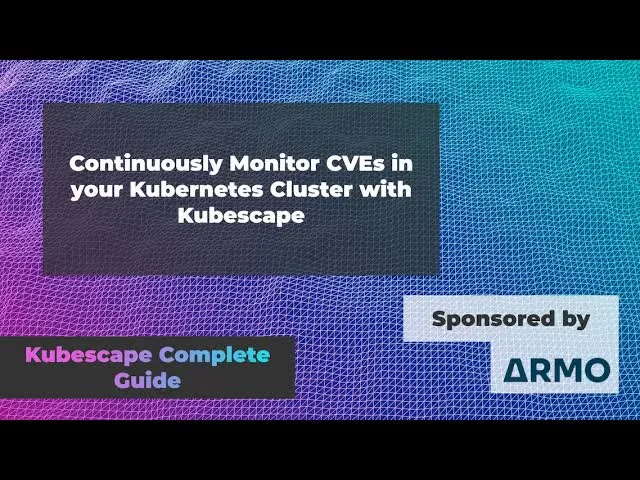
About this video
What You'll Learn
- Deploy the Kubescape operator across managed Kubernetes clusters with Pulumi and Helm.
- Use Kubescape Cloud to rank configuration risks, CVEs, and affected workloads.
- Trace failing controls to remediation YAML, exceptions, and RBAC relationships.
Deploy the Kubescape operator across AKS, EKS, and GKE with Pulumi, then use Kubescape Cloud to triage configuration risks, CVEs, and RBAC across workloads from Flux, Grafana, and Helm charts.
Jump to a chapter
View 16 chapters
- 0:00 Introduction
- 0:29 What is Kubescape?
- 1:07 Video Focus: Operator & Cloud
- 1:49 Demo Setup: Clusters & Deployment
- 3:57 Kubescape Cloud Dashboard Overview
- 4:06 Configuration Risk Analysis
- 6:38 Understanding Configuration Controls & Remediation
- 9:43 Vulnerability Risk Analysis (CVEs)
- 11:11 Prioritizing Vulnerabilities with Fixes & RCEs
- 16:11 Deep Dive: Configuration Scanning View
- 19:17 Getting Configuration Remediation YAML
- 21:01 Configuration Scanning: Analyzing by Resource
- 23:31 Introduction to the RBAC Visualizer
- 24:14 Exploring RBAC Relationships Visually
- 27:25 RBAC Queries and Investigation
- 31:45 Conclusion & What's Next
Transcript
Generated from English captions. Select a timestamp to jump to that moment.
Read and search the transcript
0:00 Introduction
0:05 Hello, and welcome back to the Rawkode Academy. I'm your host, David Flanagan. Today starts the first video in my course, the complete guide to Kubescape. This video is made possible by the amazing team at ARMOR who kindly sponsored my time so that I could make this course for you. So, what is Kubescape? Kubescape scans Kubernetes clusters, YAML files and Helm charts, detecting misconfiguration according to multiple frameworks. Frameworks such as SIS, NSA SISA, and MITRE ATT CK, and a few more. As well as misconfigurations, it scans for software vulnerabilities and RBAC role based access control violations.
0:29 What is Kubescape?
0:56 You can do this at early stages of your build pipeline, as early as on your machine as you're writing your code, perhaps in CICD. And today, I'll be taking a look at running Kubescape and your cluster for continuous scanning of misconfigurations and vulnerabilities. Now the answer isn't to pick one or the other, but possibly all of the above. Because Kubescape calculates a risk score instantly and shows you trends over time. The more you scan, the more benefits you're going to get. I've had a lot of fun experimenting with Kubescape this past week, and today's video will show you how to
1:07 Video Focus: Operator & Cloud
1:34 get started, continuously scan your Kubernetes cluster and cluster with the Kubescape operator, and use Kubescape Cloud to visualize and consume that information. Let's dive in. Okay. So how did we set up this cluster? All this code is available online at github.com slash Rawkode Academy. There you will find a repository called the Kubescape complete guide. This gives you some Pulumi automation to spin up a brand new cluster on AKS, EKS, and JKE. You can see here, I've got simple helper functions to create each of these clusters. Feel free to do this once for any part of the Kubescape course that we're gonna
1:49 Demo Setup: Clusters & Deployment
2:17 be working through today and subsequent days. Feel free to reuse this automation if it makes sense for you. Now because we are going to use Kubescape and cluster and Kubescape Cloud, we do need to provide our account ID. You can get this by logging in to Kubescape Cloud and go to your settings page. I'm storing this in a Pulumi secret value so that it can be consumed and injected into my Kubernetes clusters when I run Pulumi app. There's just a little bit of glue needed to configure the provider to configure the providers in a format that we need to do
2:56 multiplexing. That is using Pulumi to deploy a single resource to multiple clusters. From here, we can look over each of our providers and I'm deploying Flux two, Grafana, and then Kubescape. Why am I deploying Flux and Grafana? Well, we just wanna see a few extra data points as we scan our cluster for Kubescape. Kubescape provide a wonderful helm chart that allows us to deploy their cloud operator. You can find that at kubescape.github.i0/helm-charts. The chart is very easy to configure and that all I really need to provide is my account ID and the name of my cluster.
3:37 For my cluster name, that is AKS, EKS, and JKE. Nice and simple. When I run a Pulumi app, I'll have three clusters all with Kubescape installed and I can go straight to this and I can go straight to Kubescape Cloud. So let's take a look at the Kubescape Cloud dashboard. On this homepage, you'll see the three clusters that I spun up in preparation. AKS, EKS, GKE. Promise is the last time I'm gonna say that. We have two tables, one for configuration risk and one for vulnerability risk. Configuration risk is going to show you all the opportunities that you have to fix
4:06 Configuration Risk Analysis
4:18 your Kubernetes manifests and helm charts to represent what the industry considers best practice. This comes from a bunch of different frameworks. Like NSE, MITRE, DevOps best, SIS, ARMOR best and all controls. If we wanna take a look at the SIS framework and see which controls fail, we get so. If we want to look at MITRE, NSA, and so forth. If we want to look at all controls, and what this is changing as the violations are control failures over time. You can see here that when I first deployed Kubescape to these clusters, these violations across these clusters, can see JKE,
5:04 ETS here. We move across and then the numbers change and then the numbers cross and they change again. And theory, the longer that you have Kubescape deployed and the more that you're deploying to the cluster, you know, we're we live in an age of Kubernetes and micro It's not uncommon for clusters to have hundreds, maybe thousands, maybe even tens of thousands of workloads on them. And those workloads because the micro services evolve and deploy quite fast. It's not uncommon to have tens of thousands of deployments per day. As those manifest change as you're evolving them, maybe they're shared. Maybe
5:45 you have a common base that you use to deploy all your web apps. And I changed there. It could actually have a huge cascading failure alert or at least failed controls. And when they propagate down the stack. So you can use this little table as a way to see if you've got any major incidents where you see a peak and then a trough, which could be a break and a fix of those manifests across your cluster. My table looks a bit weak and a bit bland and that's just because these clusters are not old and the agent itself hasn't
6:15 been running on it very long. However, there are a few changes that we could see over time. On the right hand side, we have the field controls and the color of the bar indicates the cluster, which has the violation of the field controls and then the length of the bar as the number of times this has been had across your workloads. And if we click on one, we get taken to the cubescape documentation. This is fantastic. This tells me the ID number so here we're looking at C50, which is receipt, which is receipt, which is resource CPU and limit
6:38 Understanding Configuration Controls & Remediation
6:53 request. The workloads in my cluster don't have this by default, not all of them at least. So we get which framework that's real applies to us. So DevOps best practice all controls in the animal scan. The severity of this is high. Obviously, if we don't special, if we don't specify resource limits and request for CPU memory, Then our applications won't schedule properly, they could potentially consume more memory than we want them to and saturate that for other workloads on the cluster. We get a description telling us why this control is important. We also get related resources. These are the
7:31 resources that this control can be detected on. So cron job daemon set deployment pod jobs replica set and stable sets of course. And then we have a remediation path. If you want to get rid of this field control, set a CPU limit or use exception mechanism to avoid unnecessary notifications. And then we have the configuration that we can change on those resources to make this field control a successful control past control. I'm not sure, not a failed control, at least. Let's pick up one more. This is from a different cluster. We have C0034 automatic mapping of a service account.
8:11 This is our best MSA all controls in the animal scan with a medium severity. Now, all my clusters run on the default for the cloud provider. So AKS and EKS and JKE all run. I said that was the last thing I was gonna say. All run one twenty three by default. So these are one twenty three clusters, which means they're not one twenty five clusters Kubernetes one twenty five is when the automatic mounting of a service account was disabled. So in any cluster older than that, when you don't realize it, all your pods have credentials to speak to the Kubernetes API server,
8:44 but some level of permissions. And this is not something that you really want all of your workloads to be able to do. Why should NGINX be speaking to my Kubernetes API server. So we have to release the resources, this is everything that can run a pod essentially tells you about the control test and then the remediation as to this to disable the automatic mounting, and it gives you an example of what that looks like. So we set automatic service account token to falls on our service account. You can even do this on a workload at self.
9:16 So you have a couple of options. So this first configuration table is really great. We see those sales controls over time. We can monitor for events with cascading failures. And we have the ability to just get a quick view of the top five field control, the top five field controls so that we can start to reduce that number with the controls that are potentially easiest to fix. The second table is a vulnerability risk. This is now moving beyond misconfiguration and actually scanning the images that our application drawn on within our cluster. This is scanning for known CVEs.
9:43 Vulnerability Risk Analysis (CVEs)
9:57 CVEs are plentiful and bountiful And they just keep on coming. As you can see here across our workloads, we've got 36 critical 165 high 190 medium 36 low, a whole bunch of negligible and some unknowns. So, this could be very difficult to prioritize an action. See this time and time again as a work with organizations. Some of them have taken steps to do some scanning, but the remediation factor is difficult because there are just so many of them by default and some of these base images. If you're using base have been to base Red Hat or Santos, etcetera.
10:37 CVEs are there, they can fast and unfortunately the base layers aren't being built quick enough to maintain or keep up with the changes. Now, we can use the critical and high as a benchmark to say we probably want to fix these, but doesn't mean you can neglect the mediums will those negligible and unknown. They still require some manual scanning someone to review and understand. Can be fixed those. Could be the 90 mediums are actually relatively easy left and you can wipe them off the face of the air for one change. Unlikely but potential and plausible.
11:11 Prioritizing Vulnerabilities with Fixes & RCEs
11:11 Now even at the critical and high, we're still close to 200 field controls. So, like we can with a configuration one, we can see the change over time and we have the top CVEs on the right. What I love about this table is it has 55 WL. This is showing us that 55 workloads are affected by the CVE. Now, we can drill in on this by clicking on it, and we'll be able to see the workloads that this affects. Obviously we've got 55 so it's quite a lot. And, But we can see that flux is affected.
11:48 Grafana flux flux flux ECR stuff. CubeScape itself. Microsoft. So this is a very broad spectrum CVE that affects a lot of base images. It could be they'll rely on the same base layer and they all need updated. It's hard to tell. However, what we can do is filter on the top here. One, we can turn on this flag which tells us which of these have remote code execution. These are the ones that we probably want to try and fix first even if they're medium, even if a low, even though a low RCE probably wouldn't be low because these are
12:25 the ones that allow somebody potentially to run commands within our cluster. Now you might be thinking, well, my pods are publicly available that these images are on. However, remember lateral movement within a cluster as an attack vector that you need to be very careful with. So even if you feel that your workload isn't available on the public Internet, if you have any, any workload available on the public Internet lateral movement is there. Be cautious. However, we can see that we can fix or there are six criticals to have an RCE 11 high. Those are the ones I probably want to
13:00 prioritize first. However, there's one more toggle on the screen. And it's as there are effects available. That's as your low hanging fruit. The golden path here is that the ones with RCEs have effects available and we can knock them out together. And what we see is that of the criticals we have 19 that have effects we have 44 that have effects on high and 78 mediums with effects. So we're able to drastically reduce these numbers as long as we know which workloads and how to apply the fact. And that's why scrolling down now becomes even
13:32 more important. What we can do here is take a look at this path here. So, on this GKE image, 10 criticals, eight fixes, 20 highs, 11 fixes, 15 mediums, eight fixes, and then the lows. So let's click on this. And from here, we'll see the image scanner report for this net D image from GKE. We can scroll down to the bottom and it now shows us the individual CVEs that have the fixes available. We can see that the first CVE twenty one three nine nine nine was in libc dash bin. We can see here that it's a high
14:08 severity fix available and the upgrade path is to change from 23113 dev 11 u three to u four. And in fact, all the fixes here are a small update to the debian package. So, while I can't change the net DGK image myself. Let's assume this is my own workload and the cluster. And right now, in fact it's very common for organizations to all share a common base layer, if they're using a base layer and not something this release or scratch, etc. But if you are using Alpine or Ubuntu or Santos as that base, it may be quite
14:44 common for these same issues and failed controls and the vulnerability scan to be quite common and persistent across all of your images and it could be that rebuilding that base layer is a very, not easy, but maybe trivial way to roll out that fix fast across your entire fleet. So what Kubescape is doing from this dashboard view with the both the tables for configuration vulnerabilities, given me a way to identify the issues that deserve my attention. By using the top links on the right, we can drill that down to the ones that have the most bang for buck or
15:19 the ones that affect the most workloads. From there, we can identify the images that we need to be looking at and hopefully using this the nice toggles with RCEs and have fix these, we can identify the ones that deserve our attention first. From there, we can plan out our remediation path as a platform team or SRE team and roll out those fixes across our fleet. And that all took less than ten minutes. So I'm really impressed with Kubescape Cloud so far. The fact that I was able to find a dashboard, analyze my infrastructure, find RCEs,
15:54 have fixes, work out some sort of remediation path in my head very very quickly it's a testament to how good the UI is delivering what is a vast amount of information and a very considerable way. The Kubescape team. Thumbs up. Great work. So we drilled down a little bit there, going from the top CVEs into image scanning. But let's take a look at the config scanning. From here, we get an overview of all of our clusters and the frameworks that we choose to pay attention to. I have specifically configured each of my clusters to give me the most information or at
16:11 Deep Dive: Configuration Scanning View
16:31 the most upfront information about NSE, MITRE, and SIS. I can click on any cluster and change that. We have the ability to select free. So I can see turn off my turn and let's turn on our best. Now when I come back here, I have NSE that's a normal best. And I can do this in a mall, whether I want them all to be the same or I want them all to be different. It's up to you. I found that quite, that it works quite well to have some all the same to give me a same pane of glass to all
17:04 my clusters. And in fact, what we can see here with the default managed Kubernetes experience across the three major clouds, I won't say their name again, is that AKS has three NSE field controls, nine sys field controls and three Arnold best practice fields controls. The Amazon one has two NSA, 10 sys and two ARMOR. And the Googly one has six NSA, 17 sys and five ARMOR. So that default out of the box experience is different across all of the clusters. Now I don't know if that should make any if that should have any importance in your
17:42 decision making. I know I'm more likely still to go for the Google one when required. But as security conscious decisions are one that you have to make, that may provide a good framework for helping make that decision. When we click on a cluster, we get to see the score over time again. But not only that we can have a nice big list of the tables of all of those fields controls. We can sort them by whatever is important to us. So maybe we want to tackle all the critical past first, or perhaps we just want to
18:15 see which ones have the most failures. So it could be here. We have the automatic mapping of a service account into 18 or we have 18 failures of this check across this Microsoft cluster. So, we can click on this, and we'll see all the resources that this fails on. We can see that cert manager has a job and a service account with these properties. We can see in our default namespace, we've got all the flux controllers. And we can actually add exceptions if we want to. So say we've made the decision that hey, flux is gonna be flux.
18:54 And we don't mind that has that token. We just turn on the default namespace or the flux system namespace depends on how you have it deployed. Or maybe it's a cert manager, we're gonna let cert manager cert manager. So we're going to apply an exemption for all of that. We have the ability to pick and choose, but it could be that we actually want to remediate. So we can click on the fix and it'll take us to the YAML and it shows us the line that we need to add to our cluster. Now I'm not going to download this YAML
19:17 Getting Configuration Remediation YAML
19:33 or copy this object. However, this is a very simple field control. Not all of them are going to be fixed by one line of YAML. For those more complicated cases where it might need four or five ten twenty who knows, lines of YAML. This view is going to be really good and that we can copy and download it if we want. Can apply a depth to existing resource and get the change that we need. Although to be honest, that's as doing a defecation to existing resource. So you could probably just copy and paste the lines that are green and off you
20:06 go. Tells you which lines are different and we have the ability to share this with people if we want. We're going to move on. So it's really good having this insights and to the configuration changes across my cluster. We can also initiate a new scan for our cluster if we want by clicking the scan button. We can tell the frameworks that we wish to scan for this time. And as you'll see I actually have a scheduled scan for 8AM every single day running all frameworks. So a lot of flexibility and power into the way that you interact with the scanning
20:40 within your cluster. Cluster. And this is because of the way that we are deploying Kubescape and cluster rather than running it as a local process. Now don't worry if you do want to run Kubescape as a local CLI. I'm going to be covering that next along with CICD integration in my next video. So stay tuned. One last thing I'd like to cover as part of the configuration scanning is that we're looking at it as the lens of which controls have failed. However, it's also very useful to take a look at which resources have violations or failed controls.
21:01 Configuration Scanning: Analyzing by Resource
21:15 Now we can sort by the kind, which may not be terribly useful. And if I see a conflict map of a failed control that would be madly amusing. We may wish to sort by which resources have the most field controls. And as we can see here, it's my cert manager, which has nine field controls. I can click on the field controls, and I can see we've got no memory limits. We've got no CPU limits, no resource limits ingress and egress blocked or not blocked, I guess, automatic service account mapping. We have images from any registry we're
21:50 not restricting that within a low list. There's no probes, and it does not have an immutable container file system. Now knowing how certain other works maybe we know that it's never going to have an immutable file system. So let's exempt it. And maybe it doesn't have a way to do a resonance probe so we'll exempt that too. And we click close. If we want to get more information on the fix we click this banner. And now you can see we've got changes at lane 55, which is to add limits and requests for memory. And the next one.
22:25 Oh, we can add the read only file system. Line 61. We can add a readiness probe. We can turn off the automatic of the service account. So, this ability to see how to make changes to existing resources on a way to fix the fields control I think is an invaluable tool. So let's jump back. We've taken a look at how to identify misconfigurations from the lens of the controls that are failing with us get to prioritize the controls that are important to us, or potentially the controls that we know we can fix quickly. We also have the ability to find the
23:05 workloads within our cluster that are failing the most. So maybe we can identify ways to get them up to scratch or exempt them as the workloads out with our control. And a managed Kubernetes cluster, you cannot modify a lot of the workload running on the cube system namespace. So you're just gonna have to rely on the managed provider to do their job. So exempt them if you can and if you must. Alright. We have one more feature that I wanna cover on Kubescape Cloud and that is the RBAC Visualizer. Understanding the scope and breadth of role based access
23:31 Introduction to the RBAC Visualizer
23:41 control within your Kubernetes cluster is a hell of a challenge. So many service accounts, something called groups, who knows what those are. Roles, cluster roles, cluster role bindings, role bindings. The things that you need to know to understand who can do what within your cluster requires a lot of access to Kubescape control on the command line. And maybe you're using Kubescape control off, can I? But there is an easier way. Enter the RBAC visualizer. From here, we can see it. Let's take a look at one of our clusters. I'll start off by selecting the Amazon one.
24:14 Exploring RBAC Relationships Visually
24:21 Now we get this overview of all the service accounts, groups, roles and the verbs that they can act on the resources they can act upon. Now by default you get this kind of broken down look and you can see here in this box we have the default namespace. In fact, if I zoom in, you'll see NS default. And this, as we've seen from previous parts of Kubescape is where I'm running my flux CD deployment. If we pop over here, we have another box and this time it's our Kubescape box. This is our Kubescape namespace. We'll see the workloads, the service accounts and
25:00 the roles that they have access to and the resources that I can act upon. So we get this lovely visual description or way to interact and describe I guess a map of all the important RBAC stuff within our cluster. Now what's cool is that we have the ability to tweak the way this is laid out. So first we can say it less group by verb. Now at this kind of overview, that's not gonna do a lot. So we'll just turn that off. What we'll do a lot is layout by type. Now we can have a kind of top
25:39 down map of the workloads within our cluster, the service accounts that they consume and we have the roles that those service accounts have. We see that this CRD controller role is used by all of the service accounts for all of the flux CD components And actually flux being that it is a get up to operator and a Kubernetes cluster with super special privileges can star on all resources. It's all stars all the time. In our cluster. Oh, that's as we expect. So not really worth calling out. Let's take a look at something else. What about Kubescape itself?
26:35 Well, we have our Kubescape workloads. We got the staple set deployment, some more deployments. We've got the service accounts that they use. So we've got the Kubescape, Kubescape SA and the KSSC. This uses the KSSC rules, which has the ability to star on cron jobs. And we've got the ability to star on config maps. Over on the other side, we've got this service account, which is the SA rules or Kubescape SA rules which has star on namespaces and star on demon sets. So as you can see, my cluster and this default managed configuration with just a couple
27:14 of workloads doesn't really have a lot of interest in our back history. But it doesn't mean that we can't get some useful insights anyway. We have this who can drop down. So what if we want to know who can create pods? We click the who can confirm, It shows us the pods could be created by all of these rules. We can see some system controller rules which is as we would expect especially for the replica set controller. And we have the daemon set controller too. So the only thing that can create pods are the controllers which should actually be able
27:25 RBAC Queries and Investigation
27:57 to create pods. This is good. This is exactly what we wanted to see. So let's clear the who can and clear pods. We also have this query drop down. This query drop down shows you common queries that are useful for understanding common queries that people may want to ask of the R back within our cluster. One that I often like to ask is who can exec into a pod. And if we scroll down here, we'll see a query show who can exec into pods. And when we run this, we see that cluster admin can, which of course you can,
28:40 Cluster admin is the cluster admin role within the cluster. But also the CRD controller. So our flux deployment actually gives a bunch of its controllers, the source controller, the notification controller, the image controller, the image automation controller and the helm controller and the customized controller, the ability to execute commands within parts. Again, given the way the flux works, we'll probably write this off as being okay. But if you've any other workloads in there to have the ability to exec executes commands within a pod. That's something that you would want to identify. Another common query could be, do I have
29:19 any rules my cluster that are not being used, Maybe I can actually clean some of this stuff up. Well, we can say show unassigned rules. These are all system rules, so not things we really need to worry about, but again, any more production like cluster and we'll do some work on one of my real clusters and a common video soon. We can actually identify when maybe we've had workloads that created roles and we've removed them, but the roles have been left around. Those lying around in your cluster are potential attack vectors for other peep for people that
29:54 have access to your Kubernetes API. So it's generally best to clean them up. The last feature I'll show up in our back visualizer is the investigate button. This is when you want to work out how one individual resource or a few resources work or collaborate with other things in the system. So I'm going to start by clicking clear and then I'm going to click investigate. From here, I get a list of of subjects, roles, resources, workloads, role by the verbs and API groups. Now it could be that I want to understand the Flux CD API group.
30:29 I can do customize, source, helm, notifications, and image. Not only that, I'm curious about a workload. Maybe I want to understand how the helm controller functions. From here, we can see the CRD controller role and the resources it can act upon because of the filter on the API group. We can see the deployment helm controller because I added it as part of the workload selector. We can now explore just these resources with the deployment helm deployment controller. I can right click and say, well, show me your service accounts. And we can see the service account here.
31:17 I could also right click and say show related resources. And now it pulls in both the roles that it has access to and all the resources that it can work, that it can act upon. So now I have a pretty good understanding of the permission model for the helm controller and just a few clicks. So that's been today's video. Taking a look at Kubescape Cloud by running Kubescape in my clusters across all three major cloud providers with a couple of default workloads. I've been playing with Kubescape and Kubescape Cloud for the last week and I've gotta say
31:45 Conclusion & What's Next
32:01 I'm really impressed. You get a lot of bang for buck with just a simple Helm deployed to the cluster passing on one simple value. From there, I'm able to understand misconfiguration, vulnerabilities and RBAC. These are three things that are notoriously and infamously hard to understand within the Kubernetes context. It's a lot of information that needs visual paradigms to be able to get fast understanding. So I hope you find this video useful. Go check out Kubescape Cloud and Kubescape. We'll be back in a few days with another video looking at Kubescape CLI and how we integrate that into CICD pipelines.
32:39 Until next time, I'll see you soon.
Technologies featured

Comments and resources
Comments
Documentation
More about Kubescape
Academy publications by email
Get an email when Rawkode Academy publishes new tutorials, articles, and videos.
Loading email signup. If it does not load, manage email preferences in account settings.