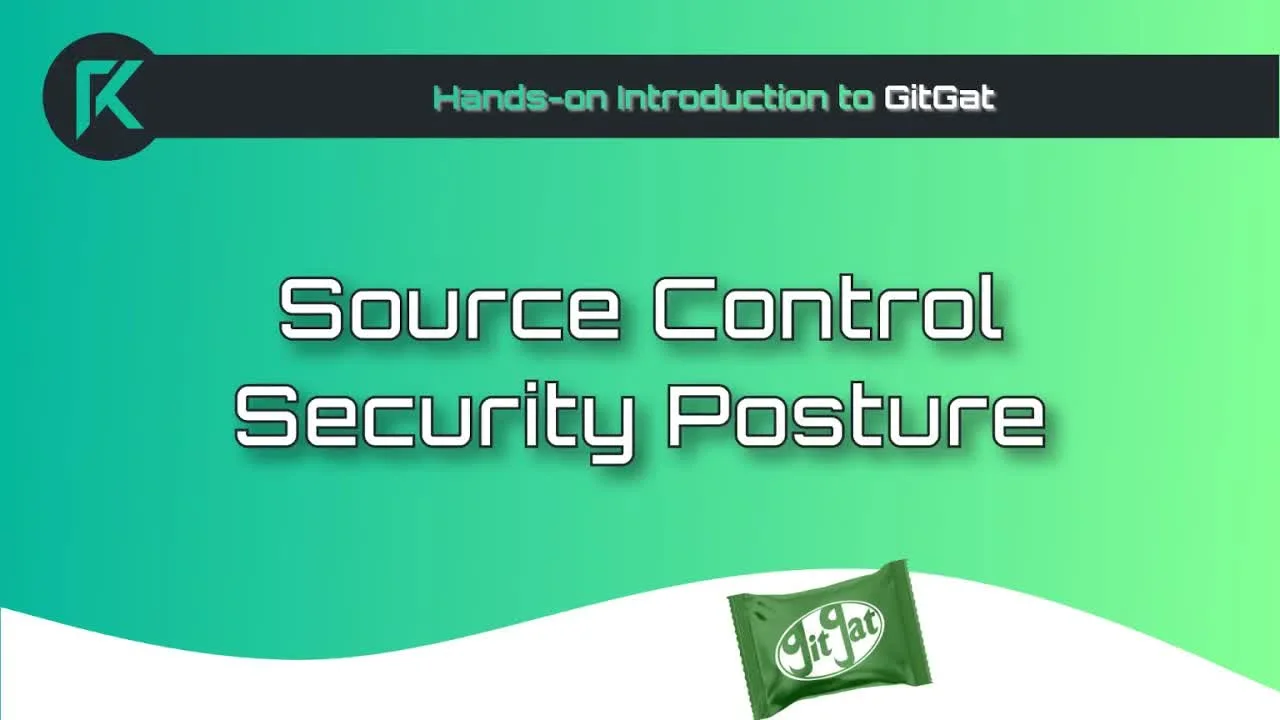
Hands-on Introduction to GitGat
- Date
- Runtime
- 1:11:21
- Share
About this video
What You'll Learn
- Use GitGat to audit GitHub security posture across repositories.
- Run GitGat locally or on a schedule with GitHub Actions.
- Customize GitGat checks with a state file and Rego policies.
Barak Brudo from Scribe Security walks through GitGat, an open source tool written in Rego on OPA that audits GitHub security posture: 2FA, branch protection, signed commits, deploy and SSH keys. Runs locally or on a schedule via GitHub Actions.
Jump to a chapter
View 44 chapters
- 0:00 Introduction
- 2:47 Introduction & Guest Welcome
- 3:13 Guest Introduction
- 3:44 Guest Introduction: Barak from Scribe Security
- 5:01 Software Supply Chain Security & Scribe Overview
- 6:40 Introducing GitGat: SCM Security Posture
- 7:16 GitGat Features & Benefits
- 11:20 The Logo
- 12:00 Should repositories run GitGat
- 14:38 Getting a GitHub personal access token
- 16:10 Creating a GitHub personal access token
- 19:25 Running GitGat
- 25:50 Security audits
- 26:30 GitGat Security Audit
- 28:25 TwoFactor Authentication
- 32:20 Branch Protection Rules
- 39:50 Running the Report on GitHub
- 45:50 Troubleshooting
- 48:50 State
- 52:40 Sample Input
- 1:00:25 Customizing Checks & Policies (Rego)
- 1:00:51 GitGat Linux Foundation Course
- 1:04:37 GitGat Roadmap & Future Plans (GitLab & More Checks)
- 1:06:33 Encouraging Exploration & Contribution
- 1:07:25 Conclusion & Wrap-up
- 1:11:10 GitGat GitHub Repository Overview
- 1:14:39 Getting Started: Generating a GitHub Personal Access Token (PAT)
- 1:15:06 How GitGat Works (OPA/Rego & GitHub API)
- 1:16:40 Creating the GitHub Token (UI Demonstration)
- 1:22:30 Running GitGat Locally (Eval Command & JSON Output)
- 1:25:32 Viewing the GitGat Report (Gist Demonstration)
- 1:26:44 Report Details: Public Access Check
- 1:28:41 Report Details: Two-Factor Authentication (TFA) Check
- 1:30:00 Report Details: Admin Permissions Check
- 1:31:08 Report Details: Teams & Collaborators Checks
- 1:32:03 Report Details: Branch Protection Rules Check
- 1:35:40 Discussion: Continuous Monitoring & Improvement
- 1:39:08 Running GitGat Continuously (GitHub Actions Setup)
- 1:40:48 Report Details: Signed Commits Check
- 1:40:57 Report Details: Deploy Keys & SSH Keys Checks
- 1:43:30 Scheduling GitGat Runs (Cron Expression)
- 1:48:57 Understanding GitGat State
- 1:52:08 Configuring State with the Input File (Sample)
- 1:54:00 Custom File Permissions Check Example (Using State)
Transcript
Generated from English captions. Select a timestamp to jump to that moment.
Read and search the transcript
2:47 Introduction & Guest Welcome
2:47 Hello, and welcome back to the Rawkode Academy. I'm your host, Rawkode. Today is the episode of Rawkode Live, the show where we take a look at cloud native Kubernetes and fund development projects to help make your lives a little bit easier. And today, we're tackling source control security posture, which is gonna be a whole lot of fun. Of course, I am not smart enough to get this conversation, but I am joined by someone who is. Hello. Barak from Scribes Security. How are you? I'm great. I'm actually very happy to join you for this episode. Yeah.
3:13 Guest Introduction
3:22 Awesome. Well, thank you for taking the time to join me and, you know, do some live experimentation with an open source project called the GitGat. But before we talk about that, can you tell our audience a little bit more about you? Well, of course. I mean, you know, I'm I'm just not a I'm not just a pretty face. Like you said, my name is Rawkode. I'm currently working as the developer advocate for Scribe Security, a company that deals with software supply chain security. Other than that, I can say that before Scribe, I was a developer on and off for
3:44 Guest Introduction: Barak from Scribe Security
3:58 about ten years. I have a degree in art education, a bit unusual in the field, I know. And other than explaining complicated concepts clearly, I'm also a dad. I'm a sci fi and fantasy nerd. I'm a martial arts instructor, and I'm a dungeon master. So I'm a, you know, well rounded individual. You can actually see some of my swords in the background. Nice. I I think it's always great that, you know, technology welcomes everybody from regardless of their background. Although you may be the first art major that I've I've had a conversation with. I am not great. Yeah. Education art major.
4:35 So the education part is the education part is very useful. The art, slightly less. Yeah. I'm I'm not creative at all. I often say if I have to build a UI for something, it's gonna be black text on a background. And that to me, that that that's good enough. However, thank you for joining us. So thank you for sharing all that as well. Do you wanna tell us a little bit more about describe and get and, you know, everything in between? Of course. Well, like, I'll I'll try to keep this part at least the the Stripe part short
5:01 Software Supply Chain Security & Scribe Overview
5:06 because GitGuard is is our focus here, and I don't wanna take too much away from that. Stripe security, like I said, is is dealing with software supply chain security. If you don't know what that is, software supply chain is the idea that everything, all the code, all the tools that you use are interconnected, and one weak link is enough to create an extensive blast radius. Some of the one of the most common examples in the field is is the breach that happened at the end of twenty twenty, SolarWinds. Yep. One little well, I wouldn't quite say mistake, but one
5:51 little change in the code exposed over 18,000 computers, lots of damages. It's as a result from that, a lot of regulatory changes happened. Scribe is right there to help companies secure the software supply chain, gain more visibility and trust into whatever code they're doing, including getting the the the provenance of the code, including making sure that stuff wasn't modified or changed where it's not supposed to, you're more than welcome I mean, I'm saying to our viewers, you're more than welcome to check out the Stripe security website. It's there's a freemium level, you can try it out.
6:28 And you can also, you know, contact me either on LinkedIn or my email for with any questions you might have. That's about Scribe. And, again, I can talk about Scribe a lot more, but this is about GitGat. And GitGat is an open source project that was created by Scribe with the focus on SCM security posture. Now SCM, for those of you who don't know the the abbreviation, is source control the source code management. So the most common source code management platform out there is GitHub, and I'm sure almost every single one of our listeners knows GitHub. But there are others out
6:40 Introducing GitGat: SCM Security Posture
7:06 there. You probably know them, like GitLab or Bitbucket. There's a few more of them. At least big ones, there's quite a few more less well known ones. And the idea behind GitGat is that a lot of these platforms were designed, first and foremost, to enable easy sharing of information, enabling lots of people to work together on code. Obviously, when you get a lot of people to work together on code, security is not always at the top of the list. Developers, most of them being lovely, trusting people, don't always consider the fact that some of them
7:16 GitGat Features & Benefits
7:43 are not as nice and are mainly interested in stealing code or modifying it. Again, the idea behind GitGap is to hand you a report about your security posture, either of your private GitHub account or if in case you're an organization with a GitHub account about your organizational security posture. It involves quite a few things, and I will go over them in the report. The nice things about GitGat is, first of all, if you learn about GitGat, you know about the security posture so you can handle it yourself if you want to. Secondly, that report is private. You generate the report
8:17 once or continuously. All the results that you get are only yours. Nobody else sees them, unlike, for example, scorecard, which is public. Once you generate the scorecard for your repository, everybody can see it. So Gitcat is private, and you can add quite a few little things to it built into it, of course. So you can you could just configure them. For example, you can use a state to manage exactly what information you get on a continuous manner. You can add information to your state, for example, like, you can set approved modifiers or or contributors, people that if they happen to touch or
8:59 accounts, actually, that if they happen to touch your code, you'll be alerted for it. There's lots of nifty new things that you can do with GitGat. Oh, and one other thing that I can mention is that I wrote a course about GitGat for the Linux Foundation. So everything that we're covering on this demonstration, you can check out on that course for free because, you know, Linux Foundation courses are free. And, you know, like I said, even if you don't want to end up using GitKat for whatever reason, learning about GitHub security posture is great. Eventually,
9:32 the more, you know, contributors we get to the to the repository, eventually, other than GitHub, we'll be able to add additional SCM systems to it. GitLab is almost completely ready. Currently, it's in the testing phase. I'm hoping that GitLab will be ready within a week or so. And once it is, I'll add it to the documentation on the repository, and GitLab users will be able to use GitHub just like GitHub users right now. Awesome. Thank you for sharing all that. And I I think that I don't know. Not not me it's not amusing. That's the wrong word. But so many
10:10 security companies and products and even the awareness of supply chain security over the last three years, all the origin stories are the SolarWinds hack. Like, it just you know, I do a lot of reviews for CFPs at KubeCon. Mhmm. And, like, ever since the SolarWinds attack, it's been supply chain supply chain. And I think we're now at, like, peak. This is where everybody is really starting to take security and their security posture a lot more seriously, which is a fantastic thing. Well, there's a lot there's a lot of other security breaches. It's just that SolarWind is like the poster child.
10:43 It's the most well known. So if I say, for example, Code Cove or Argo CD or some other names, it's it wouldn't resonate as much because most people wouldn't know about them. But SolarWinds, almost everybody heard about it because it was such a big deal at the time. So, yeah, it's it's the poster child for software supply chain. Yeah. And last pass could be the poster child for something else, but I'm not gonna say that word on air. So we got some love in the chat from James for the logo as well. So why don't we share my screen and get the
11:14 repository up so people can see where it's at? And then we can talk a little bit more about it. So Sure. Since since James said that the logo was fun, I can share that our CTO's daughter, who's a graphic design major, designed the logo. There we go. From the center of the the thing there. Yeah. But it's a KitKat. Right? But it's a green KitKat. Is that what it's Yeah. Actually, it says GitGat. But yeah. It's it's it's a a play on the KitKat. Yeah. Yeah. It's a play on KitKat. Nice. So for anyone who wants to play with
11:20 The Logo
11:52 KitKat in their own time, you can find it at github.com/scrape-public/KitKat. Mhmm. Nice. So before we dive into the hands on component, you know, we kind of shared kind of what it's doing. Like, I always ask the same question from similar, not security based products, but developer experience products. And it's always like, should like, should all repositories have GitGuard running against it? Is that something you'd feel brave enough encouraging, or is there a moment, an inflection point where people should be like, oh, okay. Now I should start taking a look at this. Well, like I said, because you can run
12:00 Should repositories run GitGat
12:31 it privately, nobody gets to see the results other than you. And, again, this is more useful for organization rather than private GitHub users. But if you have an organization, several repositories, you you you're working with teams, you're working with collaborators, sure. Run the report once a week, once a month, once a day. Doesn't matter. The report essentially produces a JSON, an XML, or a gist file. Look at it if you want to. If you don't, at least if something happens, you'll be able to go back and look at it and see where something went wrong. Even
13:06 if you don't use the state, you'll just get the same report every time. At least if something happens, you'll be able to know about it. So I don't see any problem with either running it directly from an image or downloading it or, you know, forking it and running it yourself. There's lots of options. Because it's private, I don't really see a problem with it. Okay. And is that something that organizations run once and they're done, or is this something we expect them to run at a regular cadence? Because of the the state that we included,
13:40 running it continuously is in encouraged. I know because I I spoke to somebody in check marks that at least one department is running it continuously at least once a week. Yeah. That that that was the intended idea. Just like with a lot of other security tools, running it once and being done with it doesn't really help. Whatever point at whatever point in time you're running it, you might miss something. Only if you run the test continuously can you see changes or modifications and you risk less about missing something that happened. Awesome. Alright. I think we're about ready to start
14:21 getting hands on and showing people what they can do with KitKat. But before I do, I'll I'll pop James's comment on the screen. He has informed us that in Japan, you can buy a green with Zabi KitKat. So there you go. Never been to Japan, but it's on my list. Cool. To get started, the step one, according to the the readme documentation here on the repository is that I should go and get myself a GitHub personal access token, and it requires some permissions, the ability to read the organization user and public keys, repository status, deployments, repo hooks, public repo, I
14:38 Getting a GitHub personal access token
15:01 guess. So nothing Mhmm. Nothing frightening. I'm not I'm not scared of that. Yeah. I should also say that GitGat, because I haven't mentioned it before, GitGat is written in in Regal with OPA. Essentially, we're using the GitHub at least in this instance, we're using the GitHub API to gather information. All the information that GitGat is using is meta information that is available through the API, and we're using OPA queries to get the information that we need or or actually that GitGap needs to generate the report. So it it it doesn't actually look into your code. It doesn't look into anything
15:40 that you might be worried about sharing. All the permissions that GitGap requires are, like you saw, essentially read reading permissions except for gist, and we include a gist so that you can get the report not just as a JSON, but you can have it sent immediately to your gist. And if you're not familiar with gist, I'll show you where it is in a second. And it's much easier for most users to look at the report in the gist and as a JSON file. Alright. So we need to talk in and I'm curious if I can do this from
16:10 Creating a GitHub personal access token
16:14 the g h command line. I've never tried it before. I have the the full path of creating it with the UI, but you're welcome to try it anyway you want. Yeah. Let's see. I'll print the off talking GitHub. Oh, no. No. Okay. We don't want that. Alright. I'll just do it for the guy. Alright. So but I should probably keep that up. Right? Oh, come on, browser. There we go. Because I need to see the permissions. We're gonna go to settings, developer settings. And can it be one of the new scoped tokens or does it have to be
17:05 a classic? I guess the scope to stay in based on No. It doesn't really matter. Essentially, you're you're going to look for a personal access token. That's that's what you're looking for. And I see that you will have, just like me, a two factor authentication, which is good. It's one of the things that, GitGuard is checking. Alright. And it will inspire us seven days, so they'll hopefully sooner. And public repositories read only or all repositories, I guess. We're fine. And we need status. Maybe I should have done this a classic way because I don't know if these match
17:48 up. Yeah. I I don't know this much up either. I I it's it's too new. I always did it the classic way. Yeah. I I don't feel brave enough to try to do that live on the stream. So let's just expire this instead of this. But Yeah. I'm gonna expire tomorrow. Yeah. Tomorrow because, you know, we don't want anybody seeing this to get permissions to your GitHub account. I again, you don't need all of it. No. No. No. No. You you marked all of it. You don't need all of it. Oyman. You also need the third one, public.
18:21 Yeah. K. We need user. Just is right above that. Yep. Just is right over there. Yep. There it is. And admin redark and public key. Yeah. I don't let's see. +1, 236. You need to have 8. Make sure you have 8 because I can't I can't really see clearly. Alright. +1, 24567. You're still missing one. Yeah. You're missing one. Status. No. No. We have status. Which one are you missing? Makes it a little There we go. There it is. Yep. Okay. So now that you have all of them yeah. And you need to copy it, of
19:24 course. Make sure you have it somewhere accessible because, hopefully, we'll get to running it continuously later, and we're going to need it. Now that you have it yeah. DH token. There it is. Awesome. Now the easiest way the easiest way to run git get is by using the Docker image. You can just copy the the line from the from the documentation. Docker run g h tokens, Stripe security, giddyup latest, data g h post gist. The post gist means that the report will be immediately exported to your gist. Now depending on how big and complex your GitHub account is or,
19:25 Running GitGat
20:09 you know, whatever it is connected to, it might take thirty seconds or so to to finish the report. If everything works fine, you should get the results of 201201 created, and everything will be fine. And then we'll go to the gists and look at the report you got. So just to clarify what happens and Mhmm. My OCD will never let me get away because no to go to her commands. So is it this is going to use my GitHub token, and it's going to scan my my whole account. It's not, like, a single repository. It's not a single team. It's
20:45 not a single organization. It's whatever I have access. Okay. Yep. Now, again, it's it's not mandatory. Obviously, you can limit the the report to a single repository or a single whatever, but that's slightly more fine grained. And as a beginning, as the simplest thing you can do to get the report is is to run it this way and see whatever it is you're you're you're doing. Obviously, because this is private or at least that's usually private when you're not doing it live on YouTube or LinkedIn, you want to see everything that you're connected to, whatever teams or or collaborators
21:22 or public repositories that you forgot about that that you have somewhere. Okay. Is that it? It's it's finished? Unable to find no. It's not usually. Unable to find image. I have not encountered that. I then pulled it, and we got empty premises at the end. I think it it just finished. Right? Well, if it's finished, then we can go back to your GitHub and look at your gists and see if we got the report. I think the last one is some rust, so I don't think Yeah. We got a report. See it here. Can you run it again? I I don't
22:05 know why it wouldn't work because I ran it just before we started, and it went just fine. You don't need to to download the the image just to run it through your Docker. That's weird. Well, we can always try running it locally just to see just to see if we can get the the JSON file and not the gist. That's the second thing we can try. Okay. So what I write Just a second. Yeah. Sure. Just a second. Eval, get get latest. I hope I didn't miss any permissions. I don't think so. You you get every
22:53 all the permissions that you needed to. Let me just remove here. JSON file. I'm just making sure I didn't miss anything, so I'm I'm looking at the the commands that I ran before we started. And just to make sure that everything is exactly the same, I'm going to send that command over to you. There it is. Let's run minus e g h token, swipe security get latest to data g h eval. Let's try to eval that. Yeah. That should give you the report It's taking longer. On the screen. Yeah. That should give you the the JSON report immediately on the screen so
23:37 that at least you can see that it's working. Yeah. It's definitely doing something this time, which is good. Yeah. And if if we need to, we can always I can always share my screen and show the the gist report just because I want people to be able to see it. And I don't have any embarrassing secrets on my GitHub account that people shouldn't see. No. Of course, I do, but, you know, I don't mind sharing. Because I wasn't always into in insecurity, and some of my very, very old repositories have embarrassing stuff in them. So I guess You you I must have,
24:26 like, get have a. Yeah. You you probably do. I've been an open source contributor for about sixteen years, so probably Yeah. Then you probably. I I know that one of the reasons I can share my screen and show my account is because other than my private account, I'm also I also got this Scribe demo account in which I'm an admin. And I'm also a member of the Scribe you know, the usual account of of Scribe, which is usually, most of it is private. But because mister permissions to all of them, GitKat scans all of them. So it wouldn't just tell me
25:08 if there are, for example, too many admins in my own repository. It would also check the the scribe demo, and it would also check scribe the the regular scribe as it were, scribe public. Because I don't want people to be staring at a blank screen, how about I just open the share my screen and show the the reports? Yeah. Go for it. Just because, you know, I don't know how long this will take, and it just feels yeah. Okay. Share. Can you see my screen? Let me just click a few magic buttons, swap the scene over, and now, yes, we
25:50 Security audits
25:53 see get get account security audits. Awesome. So what you can see at the top here is report.JSON. I know it's a very imaginative name. So if you really want to look at the JSON, can copy it, look at it, you know, whatever you need to if a JSON really speaks to you and then you're more comfortable looking at that. But for most people, I imagine that a gist will be more comfortable. Now the report MD, which is markdown language, is appears in your gist. To those of you who are not familiar, in order to get your gist, just go to your little
26:27 icon image, and you can see your GISTs. Just to show you how they look, these are all my GISTs. You can see that I ran this earlier today about six hours ago. Clicking here would just get me back to the report. Now this is the GitGat account security audit. There's overview, most of the stuff that it checks. We wanted it to be, you know, clear. So we have the motivation, the findings, and recommendations. Motivation would usually explain what it is we're checking and why. Findings are the actual, you know, information. And recommendations is useful because if
26:30 GitGat Security Audit
27:03 there's activities that you need to do or are recommended to do, you can just do them using the links. So let's take a look at what GitGad is looking at. First of all, public access. Very easy to know that or at least most people know when you create a repository on on GitHub, it can either be public or private. If it's private, you're the only one who has access to it. It's not visible online. Nobody sees it. Nobody knows about it. But if it's public, everybody can see it. Even if you didn't tell anybody and it's public, it's still visible online, and
27:37 if people can search for it, people can find it, and people can essentially look at the code, fork it, do whatever they want with it. Now this one tells me that I have 30 repositories that are public. It says 30 out of 30 just because it doesn't see my private ones, and there are a few private ones. So I have 30 repositories that are public. Now the interesting thing that you can see here is that it checks mister b lightning, which is me on GitHub. It also checks scribe demo, and it also checks scribe public
28:07 and scribe security. So it checks everything that I'm somehow connected with, not just, you know, me. And it tells me that if I want to change public repositories to private, all I need to do is go for one of these links. And let's click on this one just as an example. Takes me to this repository, which is I feel you build. And if I wanna change the the visibility, I just go to the danger zone. It's Let's get through this. Two factor authentication, extremely important. If you use two factor authentication, people would have a slightly harder time
28:25 TwoFactor Authentication
28:48 breaking into your account, stealing things, changing things. We want to make it as difficult as possible for people to do bad things in your account. Now it's not just about you personally. If you have an organizational account, the peep the person controlling that account can essentially force everybody on that organization to use two factor authentication. The key finding here is that no organization has members with two factor authentication disabled, which is a convoluted way to say that all the people, it is access to checking. What was that? That was a motor breaker. I saved my
29:23 window. Sorry. Okay. Sounded ominous. It's a convoluted way of saying that everybody has two factor authentication enabled, and all organizations have overall enforcement, which is good. The recommendation is is pretty much the same. It tells you where to go in order to set up your organizational two factor authentication or your private one if you are not an organization. Since the link is right there and you can read about two factor authentication just on GitHub documentation, I'm not gonna, you know, explain too much about it. Admin permissions, very simple. Admins have extensive permissions on GitHub, so you
30:04 want to keep the admin number as small as possible, the the minimum that is actually required. There's a lot of organizations in which people, if they have a problem on GitHub, we just give the the IT department, we just give them admin permissions to get over whatever problem it is, which is wrong because admins have, like I said, extensive permissions. They can do bad bad things if unchecked. It actually shows that on Scribe demo, there are three admins. On Scribe security, there are seven. And on Scribe security test, there are three. Notice that mister b Lightning, which is
30:37 me personally, is not actually represented here because it's a private account or actually it's not an organization. And it this this the admin permissions is only relevant for organizations because, obviously, if if I'm the only person that is representing mister b lightning, there's no point in checking the number of admins. It's not really relevant. And like I said, the the recommendation is to have the bare minimum, the the only the actual people who need that level of permission added. The next thing that GitGuard is checking is teams. The idea is to, again, make sure that team members have
31:16 only the permissions and the the the access level that they need, nothing beyond that. Because team members can sometimes change teams or get shuffled around, It's not people don't always make sure to to curb excess access. I know it's like a complicated sentence. The idea here is that if a team member changes team and needs to work on different repositories or suddenly has a different job, make sure that their access level is changed accordingly. Again, this is more relevant, obviously, for organizational accounts than private ones. Collaborators is pretty much the same. You need to check your collaborators, make sure that if
31:56 a person is no longer a collaborator, you should revoke their access. Branch protection is probably the most comprehensive thing that we can cover. I'm not going to go too far into it, but I will show you what that means. Notice here that there are 92 branches that are lacking any protection rules. If you're not familiar with GitHub's branch protection rules, we'll take a look right here at what they look like. Branch protection rules are one of GitHub's best way of protecting branches. Obviously, the most important branch you wanna protect is main. So, you know, if you can
32:20 Branch Protection Rules
32:36 just add the main name here. The things you can do with branch protection rules are require pull request before merging, require status checks to pass, require conversation resolution, require signed commits. Very, very important to help prevent fraud because, you know, unless you know, in case you didn't know, anybody can appear to be anybody else on GitHub. All you need is their username and email, and you can appear to be somebody else. Just like you can appear to be anybody else on Slack. Again, very common. If you didn't know, check it out. It's frighteningly easy to impersonate other people on GitHub unless you
33:12 use signed commits. Require linear history, require deployments to succeed. There's a whole bunch of rules here, including preventing admins from being able to circumvent these rules. Also, you know, very useful. And just like you can protect main, there are also other branches you want want you might want to protect, but this is up to you. Notice that the reports only checks if there branch protection rules, any rules. It doesn't check for the presence of all of them or even some of them. So even if you have a branch protected by one single rule, whichever, it would already could be considered protected. It's
33:48 completely up to you. But having main particularly main branches without any protection is probably not the best idea. And notice there are 92 branches that I personally have never bothered protecting on my personal account because I'm an Audible. Signed commits, I already mentioned, and it's so so important that we figured we wanted to check that separately. Deploy keys and SSH keys are both very important because they enable external applications to access your GitHub account. So you wanna make sure that you revoke them over time, that you rotate them over time. And, again, I I don't wanna go too
34:34 deeply into this because you can always check it out later. Just know that this is part of the report. So even if you forgot about some deploy key or SSH key that you previously set up for whatever reason, this will remind you of it. So we're already about half an hour in, and I showed you a lot of the reports. And I think, you know, even if you had no idea what you could use this for, you can see that it's incredibly fine grained. And the fact that there are links here to enable you to go exactly to where
35:04 you need to go to do what you would theoretically want to do with and and learn about it is quite useful. And, again, the fact that it appears in the gist is also quite useful. And if you wanna use the the JSON for a machine readable file to send it wherever, you can also do that. So this is the basic level of the GitHub currently, GitHub security posture report. Like I said, more relevant to organizational accounts than private accounts, but even if you're a private account, you can still learn something. For example, even if you, for for example,
35:38 were a collaborator or have some access to some organization, you'll be able to see the information on that as well as as as far as it pertains to you or, you know, the the things that you have access to. I will now stop sharing so we can go back to seeing where you are. So Let's see if that report finished. It did finish. I even ran it again and put it through JQ so we could get better color as well. So we have Okay. Lots. Yeah. Yep. It's chunky. And and and yeah. You can see yeah. You can see that seeing
36:19 it as a as a JSON is definitely not as user friendly. You can learn a lot from the JSON. Obviously, there's a lot of information there. It's just not as readable, at least not immediately. If you're experienced, you can definitely read it pretty easily. But I believe that the gist solution is is quite handy. That's why I requested it so that anybody can look at the at the markdown report and and be able to immediately understand what was happening even if they didn't have any too heavily developing background that are not that familiar with reading JSON files.
37:02 So like I said, this is the basic level, the the easiest, most immediate thing that you can do with GitGat. It doesn't require almost anything other than having the token which you created for it. You know, handily, it didn't even take you five minutes. And running the report, again, it could take longer depending on how complicated your GitHub account is, but it's not no. It it doesn't take minutes or hours to run the report. And now that you have this JSON file, you can keep it and use it as a reference to, you know, what happens in your account over
37:32 time. Sure. Now that we said over time, let's jump. Yeah. Well, I don't know if you're about to go into something I was about to ask you ask you about. Yeah. Sorry. Don't know. It's Sure. Ask ask ask away. I think my latency is is bad today. I'm not sure what's going on. Like, even my camera, I can see myself lagging behind. Anyway, we're not gonna worry about that. You know, the JSON is great. Right? So I I don't have kind of machine programmatic access to be able to do things with this that that I
38:04 want, which I think is really interesting. The guest is just sorry. It's even it's much more consumable for humans. And then you mentioned over time, which is great because the thing I was thinking about as well. If I run this, say every day, every week, every month, whatever that cadence is going to be, is that I'm gonna wanna track improvement. It's like, we have the ability is is any of this exported as metrics? Like, could I build a Grafana previous dashboard from some of this information? Is that something that's possible today? You could definitely do that as long as
38:36 you, you know, as long as you have access to the information, which is why the next part of running it continuously requires you to fork GitGap, putting it on your personal GitHub account, and then using a workflow to run it continuously, which is what we're going to do now to show how easy it is. And, obviously, once you have a workflow and GitGat in as part of your GitHub, you can do whatever you want with the information. You can export the files. You can save them in in either on GitHub or on your own machine.
39:12 Do whatever you want with them. But what again, once you have it on your own GitHub and you start working with the workflow and with the state, which is where we're going to get to the state later after I explain how to run it continuously, you'll see that, like you said, there's a lot more options and a lot you can play with. Let's start with showing you how to run it continuously because I feel like it's an important advancement over running it once, seeing the report saying, hey. That's cool, and then forgetting about it. So let's let's see how to run it
39:46 continuously. So fork GitGat over to your GitHub. Alright. And should I run it on the organization? Again, as long sure. Sure. It doesn't it doesn't really matter as long as it's on your GitHub. Because remember, you already created an access token, and we're going to use that access token in your, essentially, copy of GitGat. So now that you have GitGat as part of Rawkode Academy, yep, you go to settings. I'm assuming we're adding Settings and then essentially, yeah, essentially, you're you're adding a new a new repository secret. So is this some like, when you run
39:50 Running the Report on GitHub
40:51 a GitHub action, you actually get ephemeral GitHub token available and you can tweak the permissions inside of the the run. But I I don't know if that's scoped purely to, like, the repository itself or if you can elevate it to the organization. But that that could be something fun to experiment with as well, actually. Like I said, you can actually run the report on a particular repository or even if you want to, one particular folder or or particular files. But I feel like that it's more useful to run it over an entire organization unless once I, you know, introduce you to the
41:32 idea of state, unless the state is significantly different enough between different repositories that you wanna have a different report for each repository, and you can do that. You can you can have separate workflows running, get the a different GitKat report on different repositories with different states, Slightly more work intensive to do or to set up, but once you set it up, it would continuously run however you set it up, and you can always modify the state to get whatever results you're you're after. But we haven't gotten into state yet, So let's concentrate on getting this to work. You already set
42:10 up the the g h token. Yep. So now or I believe you did. I I might have missed it because I was talking. Now that you did, you go to actions. In the the token, you you copied the the same token you had earlier. Right? That's correct. Yeah. Great. That's exactly the token you needed. So now you go into actions. Not not here. No. On the top. On the top line, there's actions there. Yep. That's the one. Yep. You understand. Right. Now on the left side, continuously run GitGap. Now the first time you run it, it'll
42:56 just, you know, just to see that you've run it, that everything is fine. You can see on the right there, run the workflow. Yep. Run it. So now it's running. And, you know, like we saw earlier, it might take a while, but because you now have it as a as a workflow there, now it's running, it will take as as much time as as needed. But now that you have it as part of a workflow, you can well, obviously, now it's running once. But if you want to, you can set it up as a Chrome job. So
43:32 in order to set up currently and the easiest way to do this as as something that runs continuously, you go to code. I see that it didn't finish for whatever reason, but we can worry about that later. Go to code, which is the leftmost marker there. Yeah. And the top folder is now GitHub workflows. And the top one is right. Yep. And you can see that in order to make this run continuously, all you have to do is remove the commenting on the those two lines. Not the top one because it tells you to, you know, remove the
44:15 next two. Right? And if you remove the commenting on the schedule and yeah. Essentially, you run every 23. Now this, again, it's we try to make it as easy, as simple as possible for people to who didn't understand too much about this to do this relatively easily. If you are not familiar with Chrome or how to set up Chrome jobs and stuff like that, I'm now sending a link to David, and and hopefully, he can show it on screen that you can essentially use that link just to specify whatever whatever iteration you want, and it will show you how to
45:07 specify that in a Chrome, you know, manner. You can set up the you can you can tell it to to run at a specific date, specific time, every so and so time. There this is just one that I found. I'm sure there are others either more useful or or more fun or whatever. But even if you have absolutely no idea about how to set up a Cron job, you can find one of these sites or this one and and figure out the the iteration that you wanted to run it. And now that you have that, you essentially
45:42 have a way of running GitGat continuously. Once it's it is done continuously, you will always get the the results presumably in your gist if you set it up that way. And, also, it enables you to start working with a state. Now before we go into a state, any questions so far? No. I think I understand what's happening. I'm curious of why my run failed. It didn't it didn't yeah. Yeah. I can't really see it clearly enough to be able to tell. Yeah. There's no error message. It just says process completed with exit code 125. But there's no error message. I
45:50 Troubleshooting
46:27 can yeah. I'll I'll ask the developer who who wrote it what 125 is. Since, like I said, I didn't write the code myself, since I didn't, I don't really remember what 125 is, but I can definitely ask. And we can add it as a comment once the the stream is is done because I don't know if he's available right now. In case, you know, our viewers are not aware, it is now about 07:00 in the evening where I am, so most people are no longer at the office or available. Okay. So But, yeah, we we try to
47:06 variable possible to for for new people to mhmm. So and Again, I can't see the the the screen clearly. Yeah. Variable inside of the GitHub action is GitHub secret rather than g h token. Well, let's let's see if I can fix this. It should be g h token. Sure. I I I ran it like I said, I ran it everything earlier and it seemed to have worked fine. I don't know why it didn't. Okay. Can't rename them. Okay. Let's add a new one. You can create a new one. Yeah. GitHub secret. And is it still on my buffer?
47:43 No. Let me grab that from up here. I don't know why I'm hiding it. I mean, I'm done this pasting directly in front of everybody. We already showed it. Yeah. We already showed it. Like, I I highly recommend you disable it as soon as the stream is done. Oh, we can't start it. It's GitHub. Let's check out this actually. You just go to actions. Yeah. You just go to actions and run it again. You can always go to actions. Oh, alright. Okay. Yeah. The g h secret, not g h token. Okay. Now we're okay. Now I can fix this.
48:22 Yeah. Okay. But you probably told me to do that, and I probably just I I yeah. It was supposed to be the yeah. Like I said, I'm I'm looking at several things at the same time, so must have missed it. Alright. So let's run that again. Yeah. It's Yeah. And this triggered the manual run. Yeah. Mhmm. And we'll give that just a moment. So hopefully that runs a bit better. But maybe, well, that does hopefully run. You can tell us a little bit about state. Sure. Sure. I would love to. Okay. The idea behind state
48:50 State
49:04 is we wanted to enable people to tell the report what they're interested in, what things they no longer want to hear about because they're fine, and being able to tell the report essentially various things that they want to pay particular attention to. What does that mean? Well, let's say let's take the the my report that I showed you earlier as an example. It said that there are 30 repositories that are currently public. Let's say that this is the fifth time I'm getting the report, and it keeps telling me the exact same thing. Now I know
49:41 about these third wave repositories. I know they're public. I'm fine with the fact that they're public. If I don't wanna get the same notification again, all I can say well, I can go to the state and set up these repositories as public, And, essentially, everything in the state is fine. It's it's how it's supposed to be. So it wouldn't alert me once again to things that I've already told them is fine. Now it's particularly relevant if you're in a big organization and you have not a couple of dozen repositories, but a couple hundreds or more repositories and
50:11 you have hunt potentially hundreds of people, including collaborators, including teams, including admins, and going over all the information all the time is extremely tiring. I see that the report finished successfully this time. So the idea is, again, once you get the report and you check everything, you fix whatever you wanted to fix, and you have a basic state of, you know, your security posture that you want to keep it that way. You put everything in the state, which you can do because, essentially, the state is just a JSON file, and you can copy the things that you want into it from
50:50 the report that you got as a JSON. Once you put the stuff in the state, which, you know, I'll I'll show you some of the basic stuff later, once you copy stuff into the state, all the stuff that is in there, you will no longer get in the report. It's fine. That means that once you set up the state and you run the report continuously, all the the only things you will get are the deltas. What is different from the state? Let's say you added more repositories, added more team members, more admins, people that have somehow failed, disabled
51:24 their multifactor authentication, disabled their signed commits, various things that are new. That makes the report a lot shorter and a lot easier to work with than seeing a gigantic organizational GitHub account report every single time. So the first thing that the state is for is to enable you to work, you know, make your work a lot easier. And the second thing is to use it to set up specific use cases, but, you know, we'll get to that possibly later. So let's now that I, you know, basically explained what the state is and because the report has run successfully and you've set up
52:04 the cron job to make it run every twenty three hours currently, which is fine, let's talk a little bit about the state or, you know, where to find it, where to play with it. So if you will look in your GitHub account or should should I say GitGat, actually, you will notice you can just go back to code. Yeah. You will notice a folder called data. Yep. But in data right now, there are two files. One is an empty input. Essentially, you know, that's an example file that you can use, rename, use what however you want as as
52:40 Sample Input
52:53 some sort of input file. We'll get to the input later, and there is a sample input. Now the sample input is there to show you various things that you could theoretically put in an input file and how they would look. Let's open that and just, you know, take a look at it for a second. Again, a JSON file. You can see by the let me just open it on my screen because, like I said, I can't really look at it on yours. Just a second. Got the workflows. I'm going to get to data to the sample input. Yeah.
53:39 Obviously, the first line that you see is token. It just makes it easier. You no longer if you include that here and g h token has been, you know, defined, you no longer have to put the the g h token every time you you run the report. Organizations, you can set up whichever organizations you want the report to be running on. You don't have to include all of them in case you are a member or running several organizations. Two factor authentication, admins, commits, a lot of the stuff here is essentially exactly the same as what we saw in
54:15 the gist report. So the the naming conventions is pretty pretty standard, pretty easy to follow. One of the things that I can show you, for example, is if you go slightly lower, you can see files with permissions. This will enable you if you want to set up particular files which have particular permissions as in if somebody who is not supposed to handle those particular files or repositories, the report will alert to it. One of the things that I I really need to to stress here is that GitKat, because it it's a read only report and it's a
54:52 report only, it can't do anything. It can't stop, for example, an admin from accessing something. It can't really, you know, make any sort of of stance on on protecting anything. The only thing it can do is note when something that you didn't want happen happen and, you know, tell you about it in the report. Now assuming you're running the report every day, let's say somebody with admin access touched something they're not supposed to, the very next day, you'll get that in the report. So that's a useful thing to have. Even if you couldn't stop it, at least you know
55:26 about it. You have hooks here. You have teams. You have branches. Once again, you can you can set particular branches to be slightly more protected than others. There's a lot of stuff here, but because this is an example, you can essentially look at it and and figure out how your input file should look if you want to to do something specific. You can just play with it, run the report, see what you get, you know, if if you want to. One of the things that I can show you as an example and, again, I can I can show this
56:04 to you, but, you know, running it will not really be that effective because, you know, it it depends on the the initial report that I ran for myself? Let's say that Inscribe demo, which is one of the organizations that I'm in charge of because it's a demo, there was a user who didn't have two factor authentication for whatever reason. But that user, which I happen to know, is is located in a different country, and it doesn't have two factor authentication for a good reason. There's a problem with the network. It didn't work. Whatever. It needed
56:41 to be able to access the organizational GitHub without two factor authentication. Now I didn't want to get the reports telling me every single time that user was problematic. So what I would do let me just write essentially, I I would write it in your in the in the chat, and, hopefully, you can show that. Actually, you know what? No. I can just show it by sharing my screen. Yeah. That would be simpler. Okay. There it is. Okay. So this is the example I was talking about. Obviously, the first line is token, which is, in our case, g h token.
57:30 And in order to make sure that this weak authenticated user, which is the example user I was talking about, wasn't popping up on the report every single time, I would include TFA, disabled members, scribe demo, this user. Now the fact that this user is now included in the TFA or two factor authentication list or or essentially, you know, TFA section of the report means that when the report shows that this particular user doesn't have 2FA, because it's part of the state, he would no longer be included in the report. This the the the state says, it's
58:08 fine. I know about it. I accepted it. I wrote it. It's fine. I I don't I no longer need to be alerted to this fact every single time. It's fine. There are other examples that we can like, I think I can show you. Let me roll down a little bit. No. That that's, like, a very, very simplified example that shows shows what it can do. I think that I have a better example a little later. Yeah. Now remember I said that we can protect particular files. So this is the example for that, for a file level permission.
58:49 In files, permissions in this particular repository, the README MD file can be accessed by these author authors and these committers. Essentially, both these are an array, so I can have this as a as a, you know, as many as I want. But that means that if a different author or a different committer than the ones written in my list have done anything to this file, my report will tell me about it. So this is a way for me to protect particular files in particular repositories from unwanted access. Now, again, when I say protect, just means I'll be alerted to it. I'll
59:37 know about it. I can't really stop people who have legitimate access, but I can make sure that I know about it. I think this is one of the better examples for fine grained file protection that you can set up using GitKat. GitHub itself doesn't really enable you to do this, but GitKat does. Nice. Any questions any questions so far? No. I think a lot of this is making sense. I love the fact that we can kind of put all this together, get the report, monitor things, continue to improve. You know, it's not all about finding a silver bullet
1:00:19 with security. It's all about continuous improvement and making sure that whatever we have today was better than yesterday. The only thing that's really kind of floating around my head is that, you know, you said all of this is written on Regal. Like, what if I wanted to contribute my own policies or have my own private policies? Is this something that is possible? Of course, is. Yeah. Just now, you essentially forged Git Gat. It is now essentially yours to play with as you want. One of the the chapters which I've added to the Linux Foundation course, which I mentioned
1:00:51 GitGat Linux Foundation Course
1:00:57 and actually, because I wanted to make sure that our viewers have the link if they want to, I'll now share the link with you so you can show it on screen just because, you know, I you can consider it a cheat sheet for GitGat having the course, you know, available. It's free. There's absolutely no reason not to look at it. So Linux Foundation one two two x is the name of the course or, you know, their name for it. It's GitHub Supply Chain Security using GitGap. The final chapter is how to add additional queries to the report.
1:01:39 Now I know that most people or at least most of our viewers would not be familiar with OPA or with Regal, which is fine. The the chapter assumes that you don't have that much information about either Rigo or OPA, but you do have some, not a lot, some understanding of how to code. It shows you what you need to do, where you need to do it. And because everything is reliant on GitHub API, at least as much as, you know, we're we're talking about GitHub security posture right now, so we are using the GitHub API,
1:02:16 In order to look at the GitHub API, see what you need to get, it's it's very simple. GitHub has very handy API links. So you figure out what what you wanna ask the API, you figure out the information you want from it, and the how to essentially, the example is how to add it as a query. The query that we're the the last chapter of the course is adding is how to make or or add different organization, get essentially a list of the organizations that you are a member of separately, just as an example, obviously.
1:02:56 But just like you can do that, you can essentially play with it to have your own queries, your own information. Obviously, would be happy to you know, once you figure out a query, you can just add it, send the PR or or, you know, do a PR to the actual scribe GitGat, and we'll be happy to add it so that everybody can use it. Like I mentioned earlier, GitLab is just on the verge of being added. Obviously, it will be slightly different. It will be more of GitLab than GitHub. Eventually, we're hoping to add all the other SCMs as well.
1:03:33 The more people play with this, the more people add queries and useful information, the better it'll be for everybody. And even if you choose not to share whatever queries you develop yourself with everybody, the fact that you can custom fit the state and the input to exactly what it is you need, what your organizational requirements are, I think, essentially means that you can take it yet and make it your own tool. You take the basic, you know, package that we created and you make it your own. You can you know, even if you're fine with people not using two f
1:04:08 a, you're fine with every single one of your users being admin, you're fine with nobody using signed commits, if you're fine with it, just put it in the input. The report will no longer, you know, bother you about it. Just, you know, as long as you are aware of the ramifications of your actions and your choices, it's your repository. Do whatever you want with it. Alright. I guess, again, a final question for me is, like, is get get done? Like, what what's on the road map? No. No. No. No. Like I said, the the the next
1:04:37 GitGat Roadmap & Future Plans (GitLab & More Checks)
1:04:47 closest thing within, like, let's say, a week or so is adding GitLab almost completely ready, and it's in testing right now. Once it's done, I'll update the documentation so that people who use GitLab would know how to use it essentially just as easily as people who use GitHub right now can. Obviously, GitLab is slightly different slightly different UI. So I'll make sure that everything I write is is just as clear. After that, there are other SCMs. And once we're done with we're actually in parallel with adding additional SCMs, we're constant queries because there are other things
1:05:30 that the GitHub API can allow us to check, and there's more things that we want to be able to show people. This is essentially, like, this when we built it, this was our basic list, stuff that we absolutely wanted or had to show people, especially, for example, the branch protection rules, which definitely not enough people are familiar or aware of, which is, I think, a very, very useful tool by GitHub. It's a shame more people are not aware of it. And I'm sure GitLab and and Bitbucket and others have other things like that, and we wanna make sure people
1:06:07 know about it. And seeing it in the report is one of the ways to make sure people are aware. Essentially, the whole thing is just, you know, make people aware of SCM security posture, protect your code better. Awesome. Is there anything else that we haven't covered yet that you want to cover before we finish up today? Well, there like I said, there's a lot of fine fine grained, fine details that you can do that, you know, we haven't really covered, but I don't feel like we need to. Like, setting up GitKid to run on a particular
1:06:33 Encouraging Exploration & Contribution
1:06:46 repository or a particular file, It's all in the documentation. I want to encourage people so I don't wanna show everything. I want to encourage people to go to GitGat, play with it themselves, play with the actual code, add queries, play with the with the state, and define their own definitions and and conditions to it just to see what they get. The more people play with it, the more they make it their own, and, hopefully, we'll get additional maintainers for for this repository for this project. Awesome. Well, thank you so much for taking time out of your day for sitting down and
1:07:25 Conclusion & Wrap-up
1:07:29 guiding us through this and for your work on all the documentation. I think that's gonna be really useful to people as they start to explore and bring get get into their organizations. I think what I love about it is, again, it's got this educational aspect to it. You know, we don't often think about our security posture outside of the code that we write, but, you know, there's lots of things that have to be taken into consideration. And, you know, something like branch protection, you're right. It's like just one of those features is right there staring you in the face
1:07:59 and yet most of the time we rarely turn that on. And I think just having something we can stick in the GitHub action, let it just run and get a report once a week or whenever. But just as, hey, you've still not changed the branch protection rules. You're still not unable to FA for the issues or you're still having random interns right to your production environment fail. Like, these are things you don't want to happen and until you have that constant nagging thing on your shoulder. Not that get guys nagging, but you have that awareness. Right?
1:08:27 You're it's it's too easy forgotten, too easy just to sweep under the rug and we'll get around to it later. And unfortunately, later is never soon enough when we have malicious hackers on the internet. So very cool to know. Things that yeah. A couple of things, like I said earlier, that people can easily forget about, SSH keys and deploy keys. You set them up. You say Yep. Oh, they'll set it for six months or or, you know, a year. That application is no longer running after three months, but the key is still there. If somebody who's
1:08:59 not approved to get access to that key, they can have access GitHub account. You really wanna keep on top of these keys, and this report is one of the ways to do that to make sure you're not missing any keys, you didn't forget about any keys. You know, if if somebody for example, you get an an alert that somebody accessed your GitHub account, the first thing you wanna do is make sure you disable all your keys. Just, you know, on the off chance we might have gotten off with one. Nice. Alright. Let me pop this back over to
1:09:33 big Facebook. But, again, thank you so much for spending time. If people have any questions, if you're watching us after the fact, then links to Twitter profiles and GitHub repositories. I'll even add the Linux Foundation course will all be in the description below momentarily. Any last parts before we wrap up? Yeah. And all all my yeah. I think that you can also add all the links to me. I think you you mentioned that, but I'm I'm not sure you did. So I'm I'm saying if you didn't, you can add those, my email, my LinkedIn, my Twitter.
1:10:06 Feel free to to ask me anything either about GitGat or about what Sprite Security does. I'm the developer advocate. That's my job to explain things. So feel free to ask. Alright. Awesome. Cool. Alright. Well, you have a wonderful evening. Hopefully, speak to you again soon. And if there's any major feature updates, if you wanna reach back out, please feel free to anytime. To everyone who watched, have a wonderful day, and we'll see you all next time. Adios. Thank you.
Technologies featured

Meet the Cast


Comments and resources
Comments
Code
More from Rawkode Live
View all 175 episodes

Academy publications by email
Get an email when Rawkode Academy publishes new tutorials, articles, and videos.
Loading email signup. If it does not load, manage email preferences in account settings.