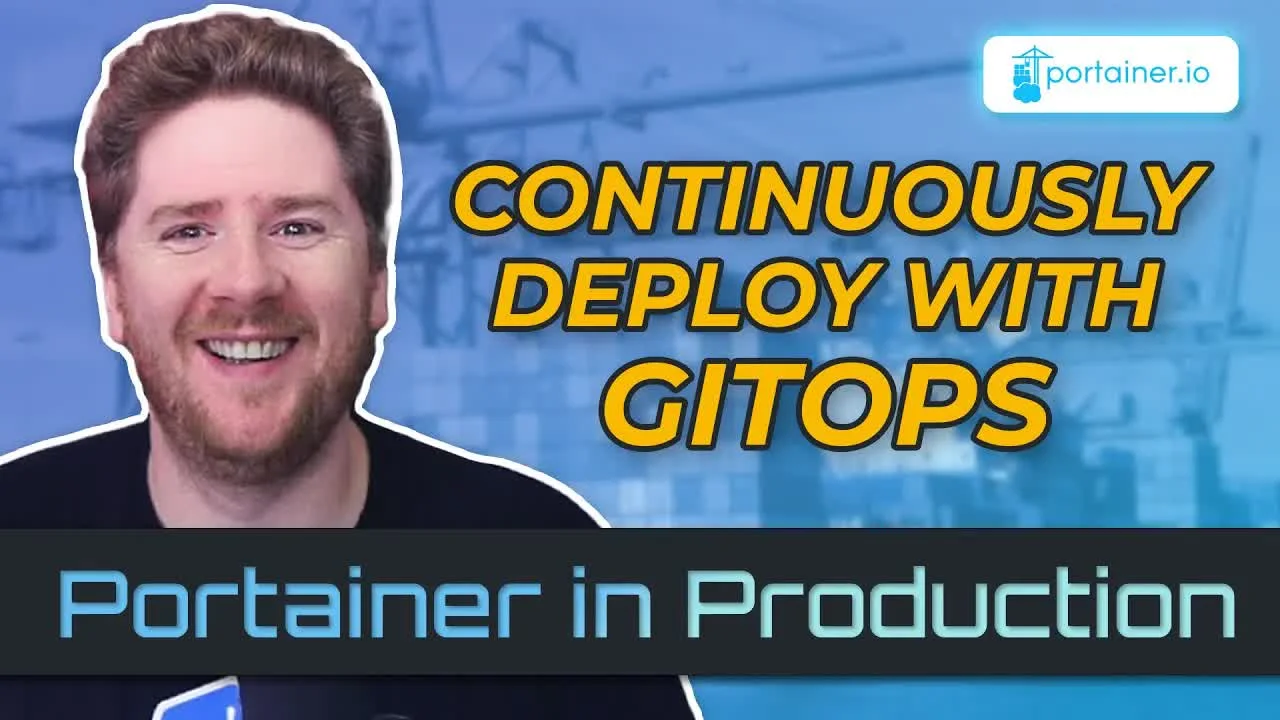
Continuously Deploy with GitOps
- Date
- Runtime
- 15:23
- Share
About this video
What You'll Learn
- Use Portainer stacks to deploy Docker Compose files from a Git repository.
- Choose polling intervals or GitHub webhooks to trigger automatic redeployments.
- Verify updates by watching Portainer add containers after each committed change.
Bring GitOps to non-Kubernetes environments using Portainer Stacks backed by a Git repository and a docker-compose.yml, with continuous delivery triggered by either polling or GitHub webhooks.
Jump to a chapter
View 14 chapters
- 0:00 Introduction
- 0:38 What is GitOps and Portainer's Role
- 2:14 Local Development Setup (Docker Compose)
- 4:46 Deploying to Portainer for Production
- 5:57 Configuring the Portainer Stack (Git Source)
- 7:01 Setting up Continuous Deployment (Polling)
- 7:30 Deploying the Stack and Verification
- 9:28 Triggering a Deployment (Polling Demo)
- 10:43 Observing the Automatic Update
- 11:40 Alternative Update Method: Webhooks
- 12:25 Configuring Portainer Webhooks
- 13:25 Triggering a Deployment (Webhook Demo)
- 13:53 Observing the Webhook Update
- 14:02 Conclusion and Summary
Transcript
Generated from English captions. Select a timestamp to jump to that moment.
Read and search the transcript
0:00 Introduction
0:00 Welcome back to Portainer in production. In this episode, we're gonna take a look at continuous deployment with Portainer and the GitOps Parent. Let's have some fun. Hello, and welcome back to the Rawkode Academy. I'm your host, David Flanagan, although you probably know me from across the Internet as Rawkode. Today, we continue on with our Portainer in production course. Again, I'd kindly like to thank Neil and the team at Portainer for sponsoring my time to put this course together. Thank you. Today, we're gonna take a look at continuous deployment with Portainer using a git repository. Coming from the Kubernetes ecosystem, we call this
0:38 What is GitOps and Portainer's Role
0:50 GitOps, where we store the deployment artifacts or manifest in a Git repository so that we can see how they evolve over time and that every change to our system is versioned and auditable. If you're not deploying to Kubernetes, GitOps has been a little bit more difficult. It may be that you require a configuration management tool, like SaltStack, to monitor a Git repository and run your deployment state. But there actually is an easier way. Portainer has a concept called stacks. Now these stacks can just be YAML that you write into the Portainer web interface, and that will work just well.
1:35 But Portainer has another feature where it can clone a git repository and keep it in sync and deploy your stacks from there, giving us git ops in environments that aren't Kubernetes. And as a recap, Portainer supports not just Kubernetes and not just Docker, but Docker Swarm and Nobat too. So let's take a look at how we can use the get repository source for a PortainerStack to get continuous delivery in an environment that isn't Kubernetes. Let's have some fun. Okay. So where are we starting from today? Well, in our repository available at github.com/rawcodeacademy/retainer-in-production, there is a directory
2:14 Local Development Setup (Docker Compose)
2:27 called GitOps. Inside this folder, we have a Docker Compose file. Docker Compose is still a fantastic tool. When it comes to local development, working with multiple services that need databases, caches, queues, there's no better way to develop than Compose. So we're gonna use that format today. I'm going to iterate locally on an EdgeDB deployment. Well, I don't need to iterate. It's already done. However, we'll make a change to show the entire process. So this composed file has EdgeDB configured as a service with a little bit of configuration that it needs to just work. We're going to assume that we're working on
3:09 this. So we're going to run Docker Compose up. Now it takes just a few seconds, but we will get a web interface that allows us to interact with our EdgeDB deployment. Now it doesn't matter if you're not familiar with EdgeDB. It's just a relatively new database written in Python that is graph first with a rather interesting query language that allows you to select data across all the different types within the system. If we go to our web browser, we can go to 5656, where we can log in with EdgeDB and Portainer. It allows us to select the database.
4:04 We can open a REPL if we want. We can browse the schema. So you can see the language here for defining our tables in EdgeDB as a type system where we have a type of a blog post with a required property of ID, content, and title. We can also browse the data where at the moment we have nothing, but we could say hello for the content with the title being title. Very imaginative. From here, we can review and commit our changes, and that's all you need to know about this local stack. So we're in a position where our Docker
4:46 Deploying to Portainer for Production
4:49 Compose does what we want it to do. We've tested the service does what we want that to do. How do we get this to production? We don't just want to run it in our local machine. Now production doesn't always have to mean a series of distributed topology aware Kubernetes clusters with advanced scheduling and bin packing with remote secrets management and blah blah blah blah blah blah blah blah. A lot of the time, we're all building niche applications for a small subset of users, usually available internally, sometimes publicly, and we just need a container to run
5:24 on a machine. So running Portainer with Docker on a machine gives you an immediate value add. It simplifies your life from Kubernetes. Now, of course, Portainer works really well with Kubernetes, and we're gonna do a couple more videos on that in due course. But today, we wanna take the use case that I hope resonates with the majority of people watching this video. How do I run containers with continuous delivery and get ups on one machine with ease? So let's take a look. The first thing we do is go to Portainer. If you watched the first video, you'll know
5:57 Configuring the Portainer Stack (Git Source)
6:02 that this is available for me on p.Rawkode.academy, where I have a single EC two instance running at a Docker engine with Portainer on top. We can click on that environment and go to stacks. As you'll see at the moment, we have no stacks. So let's click on add stack and add our stack. Now I'm going to call this stack EdgeDB. Now we could use the web editor and paste our compose YAML here. We could upload it from our machine or even use a custom template, but today I wanna focus on the GitOps model and continuous delivery.
6:39 From here, you can add your repository URL. Mine is on GitHub at github.com/rockhodeacademy/containerinproduction. My reference is ref head main and my Docker Compose file is in the GitOps GitOps directory at DockerCompose.YAML. Now we're going to turn on continuous delivery by enabling the automatic update setting. We're gonna start with the simplest solution, which is to turn on polling at one minute. We can force it to pull the latest image and force a redeployment. However, we won't need that last option today. If we need to provide any environment variables, perhaps to configure a new secret in production
7:01 Setting up Continuous Deployment (Polling)
7:25 as opposed to what we use in dev, we can do so from here. Now we click deploy the stack. Sometimes it just feels too easy. So let's click on our stack and scroll down. We're able to modify the fetch interval if we're not deploying as frequently as we want, although I am going to use one minute today so we can actually make a change to this repository. It may make more sense for you to use fifteen minutes or even an hour, or perhaps you only deploy once per day. That choice is up to you. Now if we scroll down to the bottom,
7:30 Deploying the Stack and Verification
8:10 we'll see our containers. We can see now that our EdgeDB stack is spinning up. And if we click on that, we get all the benefits that Portainer brings, which is the ability to understand and visualize what is happening in our environment. Here, we have the ability to kill, restart, pause, and remove the container. We can see that our container has been running for one minute, and this little green heart means that things are healthy. If we scroll down a bit more, we can see the output from the logs, and then we see the configuration in more
8:55 detail. From here, we can see that the ports are configured as we expected to the same as our development environment setup on ports five six five six. So scrolling through all of this, we have a degree of confidence that our application is running. So we can confirm this works by changing the URL to port five six five six slash login. From here, we get the Edge DB login screen, which means our deployment was successful. So let's make a change to our stack and see it continuously rolled out in a GetOps fashion by Portainer. We can pop open our Docker Compose file,
9:28 Triggering a Deployment (Polling Demo)
9:39 and let's say we're going to add one more service. We'll add an image of NGINX latest, and we'll map some ports. Now we're not gonna make this available on port 80 because we have some TLS stuff running for cert bot, but we can make it available on five six five seven, and we'll redirect it to port 80 within the NGINX container. Now this is a contrived change to our Docker Compose file adding an arbitrary NGINX, but your applications will be your services that you change. We can now go over to our terminal where we add
10:26 our Docker Compose dot YAML change. From here, we do a commit and say feature add engine x. We now do a git push, and in one minute's time or less, we should see Portainer pick up the changes to our stack and add the second container. If we go back to our Portainer screen and to our stack and click in on EdgeDB, and around, hopefully, thirty seconds time, we will see a new container added to this list. Voila. We have our second container. And of course, we can confirm one more time by changing 56 to 5657,
10:43 Observing the Automatic Update
11:20 and we have our NGINX. So Portainer makes it very easy to pull the GET repository for your Docker Compose dot YAML and make all the changes in a production like fashion, which is pretty neat. Okay. Let's take a look at one more thing. When we set up a stack, we set the polling to be an interval. Now I set it for one minute, and I sat here awkwardly waiting for the refresh to show you the NGINX container. Now depending on your deployment velocity and depending on what your project even is, you could be deploying four times an hour, four times a day,
11:40 Alternative Update Method: Webhooks
12:05 or four times a year. The polling may not be that effective, and instead you may wish just to have GitHub send a webhook to your Portainer instance every time there's a change. And Portainer makes this pretty pretty, and Portainer makes this simple. So let's make a final adjustment, a final final adjustment to our stack. We go into EdgeDB, and we're going to switch to webhook. We're going to copy this link and click save. So let's add the webhook to GitHub. We go to our repository, which in this case is Rawkode Academy slash Portainer in production.
12:25 Configuring Portainer Webhooks
12:56 We go to settings and webhooks. From here, we can say add, drop in the URL, and say we only want the push event. We click add, GitHub sends a test ping, which if we click on here, we'll see it's a green tick. This means our webhook was successfully configured. We'll pop back over here and list the containers for our stack. So let's add one more service to our stack. We're going to copy nginx, and we'll call it as HTTP T, and we're going to run HTTP T image. And we won't bother exposing this to the
13:25 Triggering a Deployment (Webhook Demo)
13:42 Internet. Now we'll jump over to a terminal where we can do an add, commit, and a push. Now if we pop back over to Portainer, right before our eyes, we see one more container added to our stack. So that is get ups with Docker engine and Portainer with Docker Compose. It's a pretty impressive setup, which will work well for the majority of projects where you just need a few containers running on a Linux machine. You can configure it to update your stacks with pooling or via webhooks, and you've seen just how easy both approaches are.
14:02 Conclusion and Summary
14:30 So go check it out. Download Portainer. Remember, the business edition is free for less than five nodes. And if you've got less than five nodes, this GitOps model with Docker Compose is probably exactly what you need for production. So we'll have some fun. See you next time.
Technologies featured
Comments and resources
Comments
More about Portainer

Academy publications by email
Get an email when Rawkode Academy publishes new tutorials, articles, and videos.
Loading email signup. If it does not load, manage email preferences in account settings.