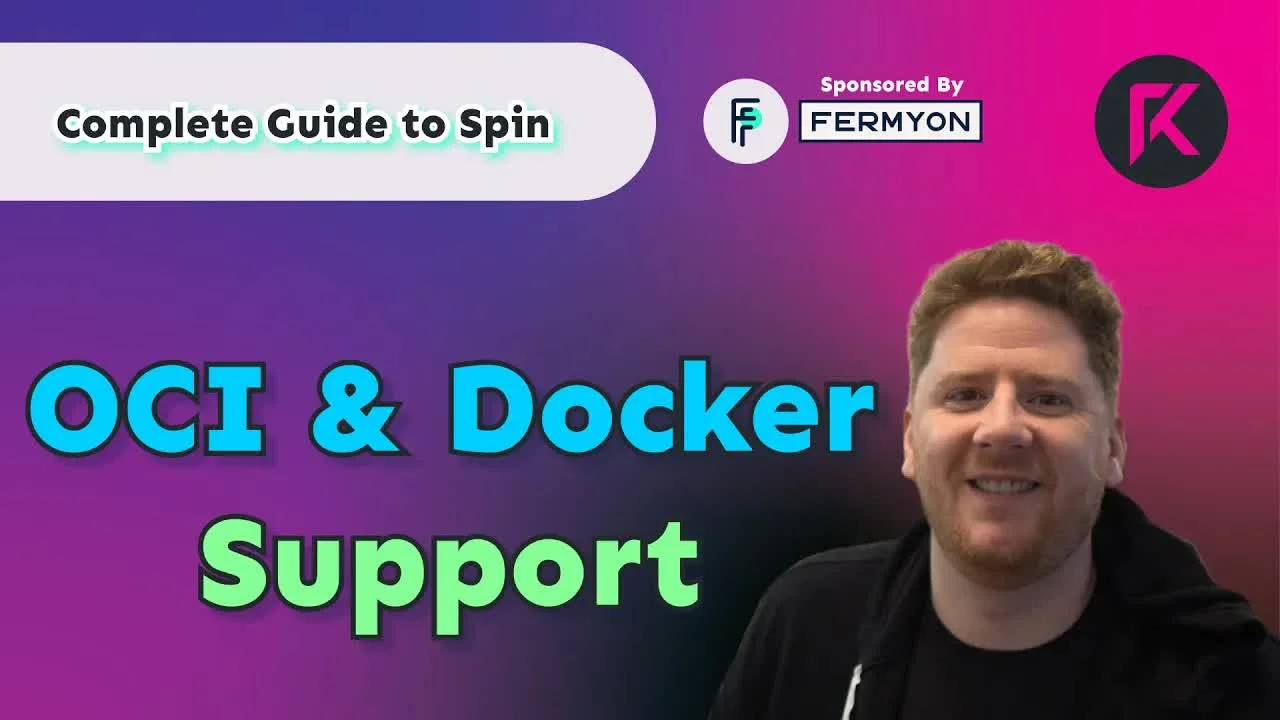
Building & Running Spin Applications with Docker
- Date
- Runtime
- 8:08
- Share
About this video
What You'll Learn
- Package Spin applications as OCI artifacts and push them to GHCR.
- Run registry images locally with spin up -f from any directory.
- Build a Dockerfile for Spin, then use Docker Compose and cosign.
Spin 1.0 ships Spin apps as OCI artifacts. Push to GHCR with spin registry push, run with spin up -f, then build a Dockerfile so docker run and docker compose work, and sign the image with cosign keyless.
Jump to a chapter
View 10 chapters
- 0:00 Introduction
- 0:27 Spin 1.0 and OCI Registry Support
- 0:50 Basic Spin Application Demo
- 1:33 Building and Pushing OCI Artifacts (V1)
- 2:14 Updating and Repushing V2 Artifact
- 2:52 Running Spin Apps from OCI Registry
- 3:46 Spin Applications with Docker Integration
- 5:06 Spin with Docker Compose
- 5:40 Signing Spin Artifacts with Cosign
- 7:38 Conclusion
Transcript
Generated from English captions. Select a timestamp to jump to that moment.
Read and search the transcript
0:00 Introduction
0:00 Hello and welcome back to the Rawkode Academy. I'm your host, David Flanagan. We're continuing our complete guide to Spin by taking a look at some new features in Spin one point o. This is a huge milestone for Spin. Reaching one point o gives us all some assurances that Spin is now ready to use in production. In today's video, we're gonna focus on what I personally feel is the coolest feature. What is that feature? OCI registry support. You can now package your Spin applications as an OCI artifact and push it to an OCI registry like Docker Hub or GHCR.
0:27 Spin 1.0 and OCI Registry Support
0:39 And while this is cool as it is, there's a few other things that we can do with these artifacts too and you'll see them by watching the rest of this video. Let's take a look. So what do we have here? This is a very standard unedited spin new project using the Rust SDK. I haven't modified anything. This is just printing out hello fermion with an HTTP header of the bar. Again, I haven't touched anything. All I ran was spin new. From here, we can run spin build and because I've already compiled it, it's super fast.
0:50 Basic Spin Application Demo
1:18 We can now run spin up and now if we pop over to the browser, we will see our application is running on port 3,000 and says hello Fermion. We can even see the logs in our console. So what is the next stage? Let's build and push an OCI artifact. How do we do that? Well, I'm going to run just push. Inside of this directory, I have added a just file and don't worry, we'll take a look at it in just a moment. When we run just push, you'll see that this is a spin registry push command,
1:33 Building and Pushing OCI Artifacts (V1)
1:52 which takes a tag of GHCRDotIOSlashRawkodeSlashSpinDashOLColonV 1. I have now built an OCI artifact, an OCI image, and pushed it to GitHub's container registry. Don't believe me? Well, let's pop over to GitHub and refresh. And you'll see that I pushed this image seven minutes ago. Awesome. So let's make a change and repush our image. We'll go over to the code. We'll say hello world, like so. So now that we've modified that, let's pop over here and this time we'll just run the registry command ourselves. We'll do registry push GHCR raw code spin hello. Only this time we'll call it v two.
2:14 Updating and Repushing V2 Artifact
2:36 What we should see is that we got a different hash and two content addressable releases available on GSCR's web page. Pop back over to the browser and hit refresh. And now we can see we have v two pushed a moment ago. Okay. But what can we do with our OCI image once it's in an OCI registry? Well, let's run just spin up. Now as you'll see, when I hit return, the command is a slightly modified spin up. And in fact, I don't even need to be in this directory to run this image. We're using spin
2:52 Running Spin Apps from OCI Registry
3:08 up dash f, which is telling it to go to ghcr.i0/rawkode/spinhellovone. This pulls down the artifact and runs it locally. And again, if I go to my browser, we get hello fermion. But let's change this and run spin up dash f j c r Rawkode spin hello v two. And again, it'll run on port 3,000 and when we reload, we get hello world. So we now have the ability to consume our spin applications stored as OCI images instead of an OCI registry. And that is pretty cool. So let's take it one step further and see something cool
3:46 Spin Applications with Docker Integration
3:48 that Docker also announced recently. This is a spin application using BarfollowMU. BarfollowMU is a CMS for WebAssembly. We can take a look at the spin.toml and see that this is just your standard spin.toml. It points to a WebAssembly module, in this case, modules Bartholomew. Also have a Dockerfile from scratch, copy everything and the entry point is the WebAssembly module itself. Let's do docker image build dash t example like so. Now, I've already built it to speed it up, but it does normally take a few seconds. Now that we have a standard docker container image built now,
4:29 we can do docker container run, run time equals container d spin v one mapping the port, like so. And we want to run the example image that we have just built, like so. Then we can come back over to our browser and hit refresh. And now we see the Barfolme new example from the Docker documentation of building and running Spin applications. It has never been easier. Now I just want to show one more thing from the Docker support because it doesn't stop at Docker image build and Docker container run. You can actually add a Docker compose
5:06 Spin with Docker Compose
5:09 dot YAML with any dependent services that you have. Here we have a database of Postgres, and we're also pulling down our example image and given it the runtime information as part of the spec. Meaning, we can now do Docker Compose up like so, And we'll see the database logs as it begins to initialize. But if we pop over here and refresh our website, and then go back to the terminal, you'll see the request come in just like any other Docker Compose app. Sweet. Okay. Let's finish this off with something even cooler. Because our spin applications can now be shared
5:40 Signing Spin Artifacts with Cosign
5:45 as OCI artifacts, we can hook in to other tools that work with OCI artifacts. And here, I'm talking about cosign. What if we can actually sign our spin applications that we ship as OCI Artifacts? So let's try it. Let's do cosign sign GHCRRawkode Spin hello b one. This will pop open a browser allowing me to connect with GitHub and sign our image with those credentials. So we can click yes on that and the signature will be pushed. So let's verify the signature. So let's run cosign verify g h c r dot I o slash Rawkode slash Spin Hello
6:31 v two. And we just need to add a few flags because we use keyless signing, which means we have to say that the certificate identity was me. Like so. And that the certificate OIDC issuer with h t p s github dot com slash login slash o auth. And make sure you spell all the all the things correct. Certificate. No. We didn't sign v two, so we get an error that no matching signatures were there, which is what we expect. But I like to show it not working before we show the shiny. So now v one. And the signature is actually correct, but
7:15 I signed up with David at Rawkode dot academy and not David@Rawkode.dev. Quick fix later. Clear the screen. So looks like magic. And now we have everything from the transparency log that assures us that this spin application has been signed for by me and it's the same one that is available on the OCI registry. Awesome. So that's it. Since Spin one point o, you can now build, ship, and run your Spin applications as OCI artifacts. This allows you to hook in to all of the existing tooling in that space, like Docker desktop, Docker compose, and even cosign.
7:38 Conclusion
7:54 In a video coming up later this week, we'll be taking a look at taking these OCI artifacts and running our spin applications on Kubernetes. We'll see you then. Have a great day.
Technologies featured
Comments and resources
Comments

More about Spin



Academy publications by email
Get an email when Rawkode Academy publishes new tutorials, articles, and videos.
Loading email signup. If it does not load, manage email preferences in account settings.